
Review Reference
The Review workspace collects the quality findings for a form in one master–detail panel. It combines deterministic rule checks with the newest model review run. The panel is the review route in the Survey Builder drawer (located after Image Library), and can also be opened directly via the Review action button in the Compose toolbar whenever open findings exist.
The page is advisory: findings describe a problem and, where a mechanical fix exists, offer the action that applies it. Nothing is changed until the author acts.
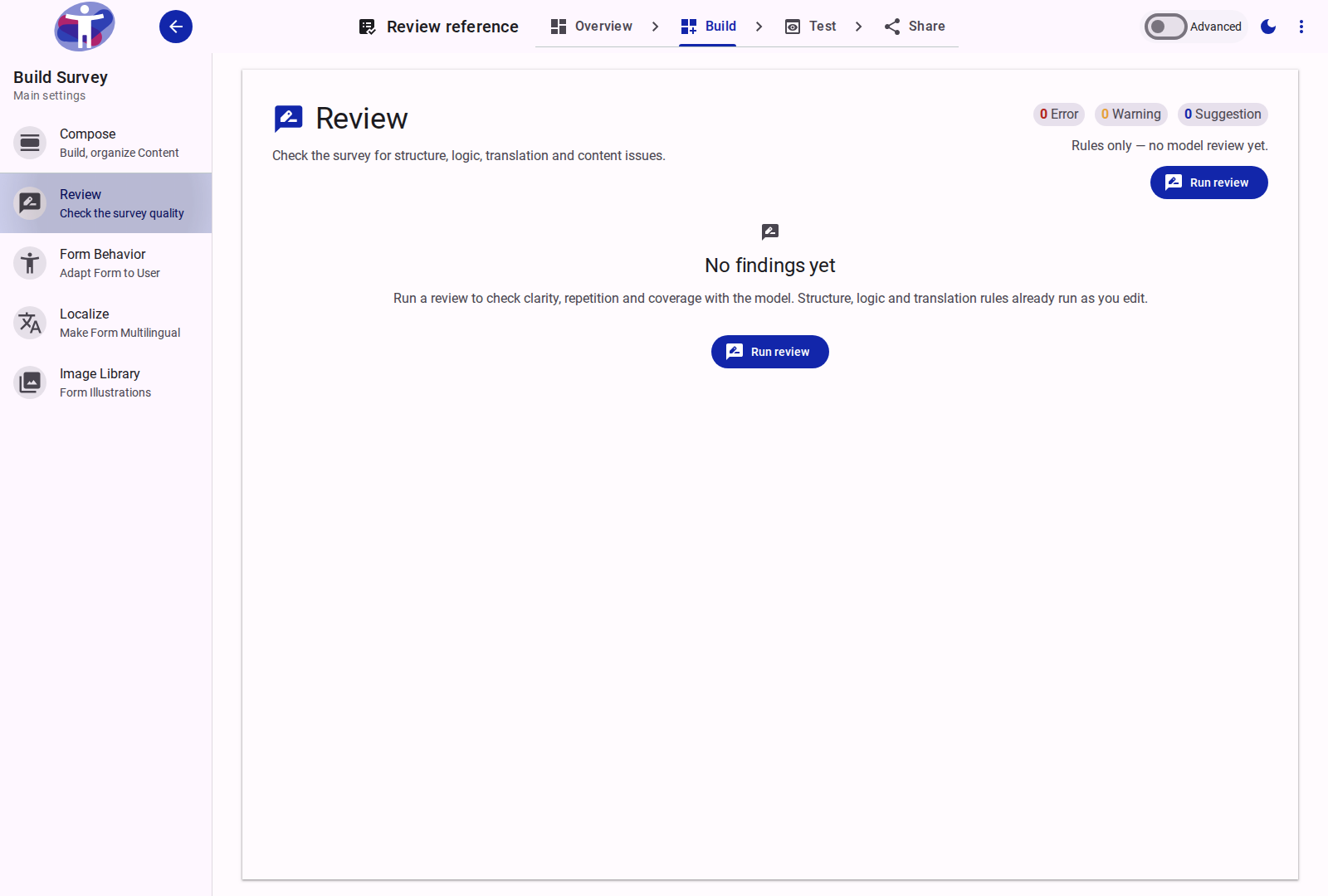
Findings
The list combines two sources across five check families (Structure, Logic, Translation, Accessibility and Content):
| Source | Produced by | Scope |
|---|---|---|
| Rule findings | The structure, logic, translation and accessibility checks, computed when the author starts a review or applies a fix. | Missing references, invalid logic, empty items, incomplete translations, unpublished shared sections, survey-level build conditions, measurable plain-language readability, vague link text, question-control fit and theme color contrast. |
| Model findings | The newest review run, tagged Model. | Plain-language clarity (accessibility.clarity), content quality (content.quality), repetition (content.repetition) and coverage (content.coverage): jargon or convoluted phrasing, leading or double-barreled wording, near-duplicate questions, and topics the survey intent implies but never asks about. |
Model findings are suggestion in v1. Rule findings carry error, warning or suggestion according to their check. The header counts every open finding by severity.
Accessibility checks
The Accessibility family combines four deterministic rules with one model-owned check:
| Check | Source | Severity | What it checks |
|---|---|---|---|
accessibility.plain-language | Rule | suggestion / warning | Source prose with a sentence over 25 words or three or more distinct long words (12+ characters). Borderline cases are a suggestion; heavier text is a warning. |
accessibility.clarity | Model | suggestion | Plain-language problems the length rules cannot measure — jargon, unexplained acronyms, abstract or bureaucratic wording, convoluted phrasing and ambiguous references — with an optional Apply rewrite. |
accessibility.link-text | Rule | suggestion | Markdown or HTML links that use vague text (click here, read more, here, this link) instead of naming the destination. |
accessibility.question-type | Rule | suggestion | Question controls that do not fit the answer their label asks for: an open text field asking for a date, email, phone number, web address or number; a single-choice control asking for all that apply; or a multiple-choice control asking to select one. |
accessibility.theme-contrast | Rule | warning | Text/background color pairs in the active light or dark theme that fall below the WCAG AA 4.5:1 contrast ratio. |
The accessibility checks are review-only (the build does not resolve customer themes). Theme color changes do not mark a stored model run as stale because the model does not inspect theme colors.
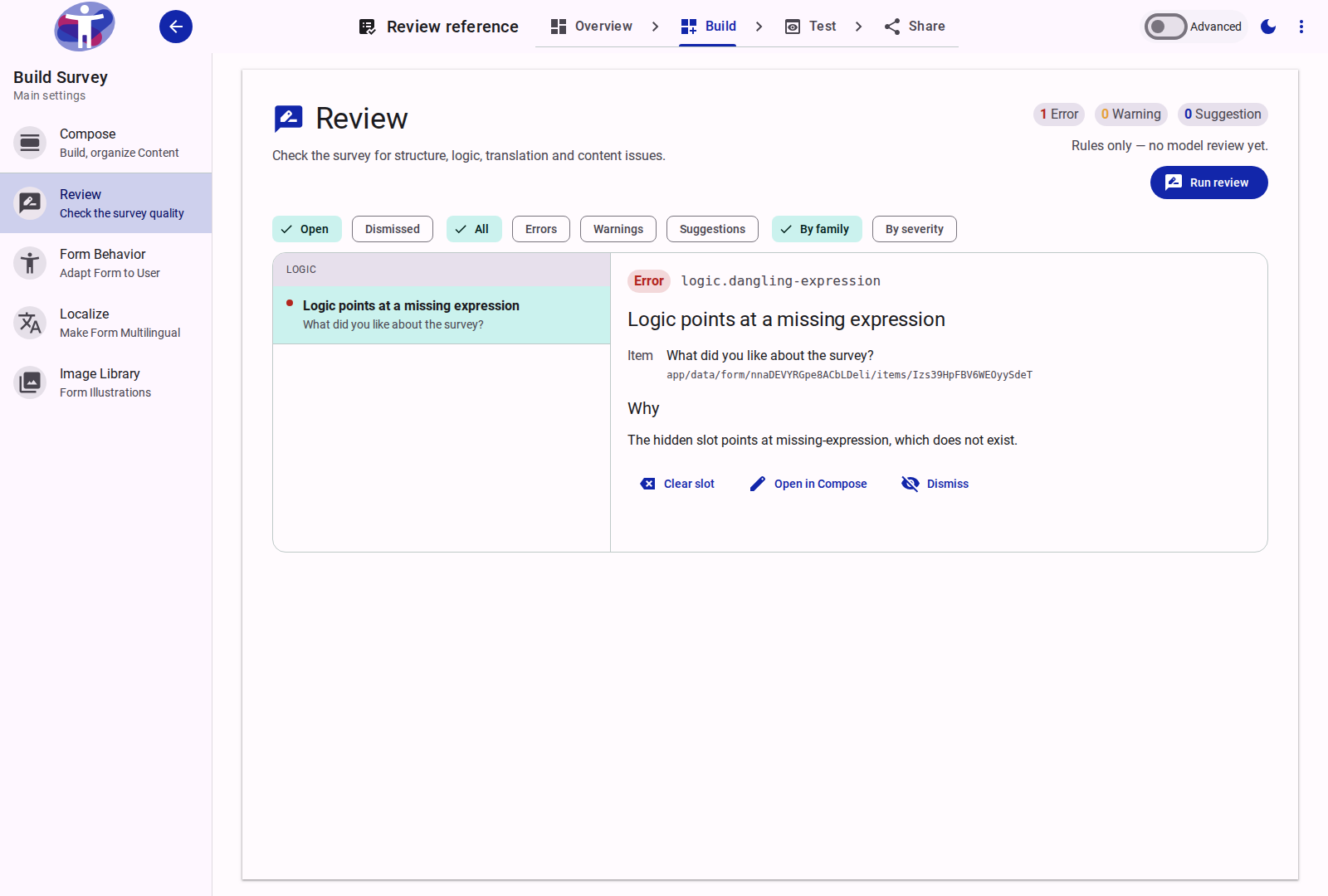
Finding detail
The detail pane contains:
- the severity, check id and, for model findings, the Model tag;
- the item's label (with its bracketed id in Advanced mode);
- the Why evidence;
- a proposed change, when the finding carries one;
- the actions for that finding.
Expression-level findings show the expression text instead of a deep link to the tree.
Filters and views
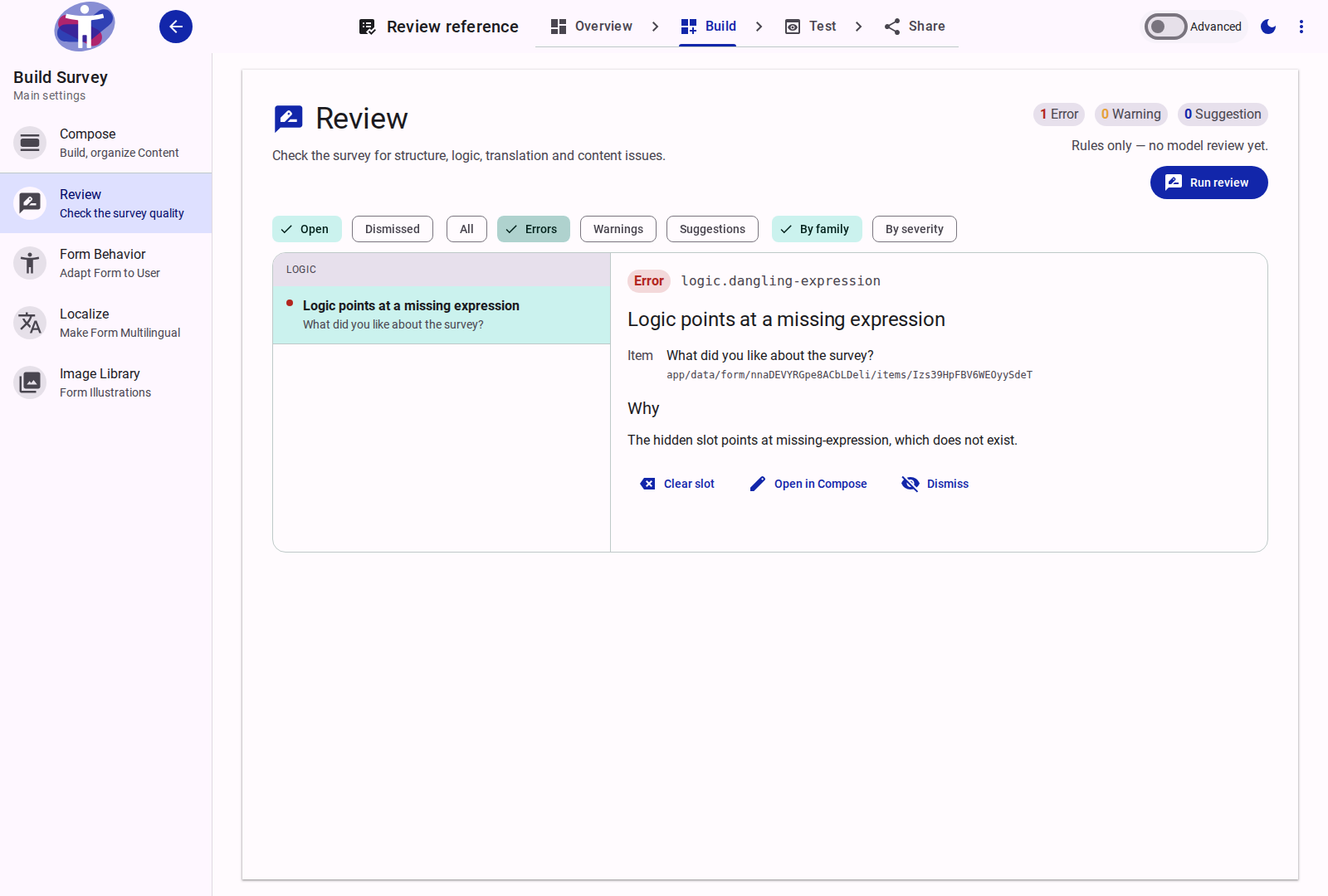
The toolbar controls which findings are listed:
- Open — findings that have not been dismissed or applied. This is the default.
- Dismissed — findings the author hid. The view is read-only until the finding is restored.
- Applied — available when at least one finding has been applied; shows its handling state and the Undo affordance where one exists.
- All / Errors / Warnings / Suggestions — restricts the list by severity. The header counts are not affected by this filter.
- By family / By severity — groups the list by the check family (Structure, Logic, Translation, Accessibility, Content) or by severity.
Opening the panel from a tree marker applies a Findings for ⟨item⟩ focus. Show the whole survey clears it. If the focused item no longer exists, the panel falls back to the unfiltered list.
Review runs
INFO
Rule findings are derived in the browser and need no model call. Both rule and model findings run when you click Run review; the model run is served by the review action and, when metering is enabled, consumes one ai credit.
Run review starts a new review of the current form. A run moves through running, done and failed; the header shows the newest run's age.
- A failed run shows its incident message and a Run again action.
- A run is stale when the form's content hash differs from the hash the run reviewed. The panel shows Survey changed since this review; the findings remain visible.
- Re-runs are explicit. Applying a fix refreshes the rule findings in place without starting a new model run.
When review metering is enabled, a run costs one ai credit. The header shows Uses 1 of your N AI credits and disables the action while the quota is loading, when no quota document exists, or when the balance is zero. Metering is off by default, in which case the panel shows no price.
Actions
| Finding | Action |
|---|---|
Missing translation (translation.locale, translation.easyread) | Translate this item into the missing language, or Translate all missing into ⟨language⟩ for the family. |
Logic slot points at a missing expression or has no implementation (logic.dangling-expression, logic.no-implementation) | Clear slot. |
Expression lists a dependency it no longer uses (logic.dependency-unused) | Remove dependency deletes the unused dependency entry from the expression. |
Shared section is not published (structure.shared-inactive) | Activate the section. |
Finding carries a field-text proposal (accessibility.clarity, content.quality) | Apply writes the proposed text. Undo restores the previous value. |
Finding carries a new-item proposal (content.*) | Insert adds the proposed page, section, question or text. The item still passes through the generated-content review queue. |
| Any finding | Dismiss hides it; Restore brings it back from the Dismissed view. |
Open in Compose jumps to the item's row whenever the item has a tree row. Expression findings instead show the expression text, because there is no item row to edit.
Actions are disabled with a reason when the item is frozen, cannot be read, no longer has the proposed field, or a new item has no valid parent. Translation applies have no undo in v1; inserted items are undone by rejecting them in the generated-content queue.
Editor markers
In the Compose tree's settings mode, a review-field column marks items with open findings. The marker uses the highest severity's color and shows a numeric badge when an item has more than one open finding. Selecting the marker opens the Review panel filtered to that item. Dismissed and applied findings do not produce markers.
The review-field column header button acts as a filter to show only items with open review findings in the structural tree. Additionally, whenever open findings exist, a Review action button appears directly in the Compose bottom toolbar beside the prompt FAB, providing one-click navigation to the unfiltered Review panel.
Publish
The share flow renders the same Review panel with the same actions. It also folds in the build's stored warnings, so the author sees the current rule and model findings together with the last build report at the moment they publish.
Stored Build Warnings
In addition to live rule and model checks, the Review panel and publish workflow surface warnings generated during survey compilation. A common build finding is duplicate question codes: by default, codes are derived in camelCase from question labels, which can lead to collisions when multiple questions share similar opening text. When a collision occurs, the build warning identifies the duplicate code. To resolve it, open the affected question in the Compose view with Advanced Mode active and supply a unique identifier in the Question Code (build.code) field before compiling a new build.
Related Content
How to Review a Survey — The step-by-step review and fix routine.
Compose — structure the pages, sections and questions a finding refers to.
Form Behavior — configure logic and accessibility settings that the rule checks inspect.
Localize — complete the translations reported by the translation checks.
Share — publish the survey and review the build report alongside the Review panel.
Logic Expressions — the expression syntax behind the logic checks.
Survey Builder Reference — the other Survey Builder workspaces.