
How to use import/export to translate forms
This guide explains how to translate a survey form by exporting its content, translating it offline, and importing the translated file back into the platform.
Step 1: Export the survey definition
First, export your existing survey form to generate a file containing all translatable content.
In the survey's Import/Export settings page, click the Export Survey Definition button.
Export Survey Definition button Select the target language for the translation (e.g., Arabic).

Select the target language Confirm your selection by clicking Create the Export. The platform will generate a JSON file containing your survey structure ready for translation.

Create the Export
Step 2: Translate the content
The exported file is in JSON format. (For more context on this data format, see our explanation of What is JSON?). You can edit this file to provide translations using either a plain text editor or an online JSON editor.
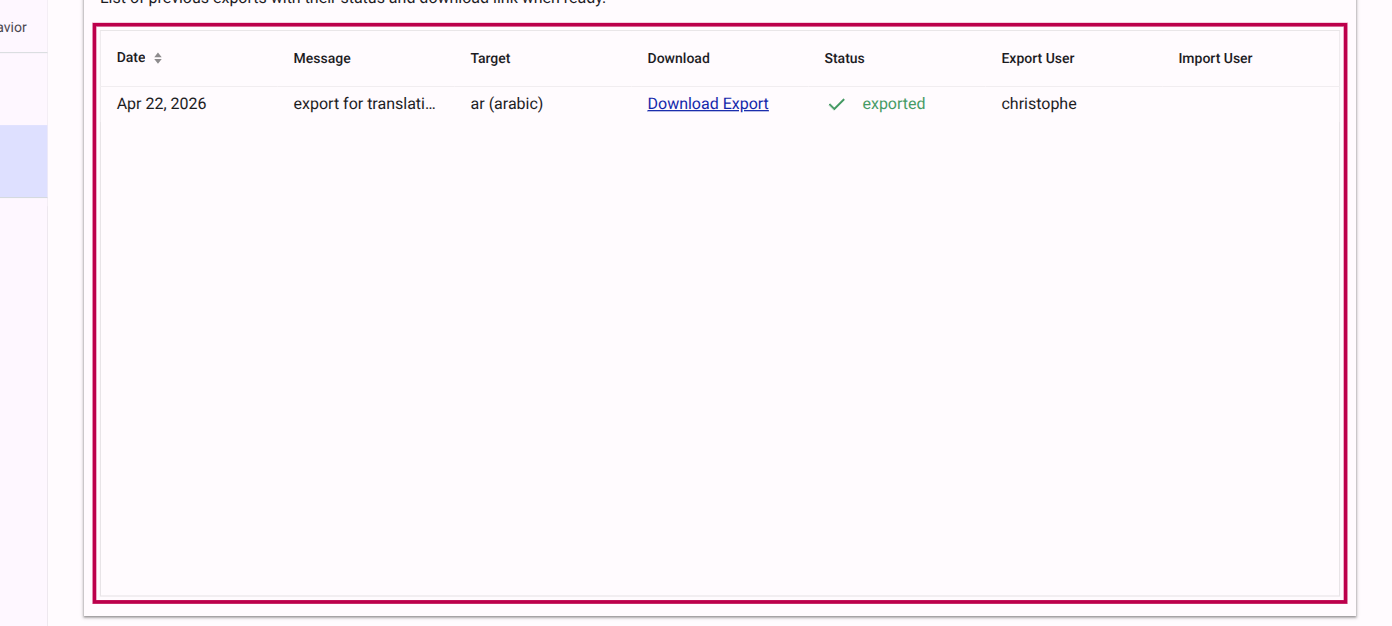
Editing with a Text Editor
You can use standard code or text editors (like VS Code, Notepad++, or Sublime Text). When editing, locate the translatable fields and update the target text string.
Example Snippet:
{
  "type": "question",
  "label": {
    "source": "What is your primary language?",
    "target": "ما هي لغتك الأم؟"
  }
}
WARNING
Only edit the translated text (e.g., the target value). Do not alter the id, type, source text, or the JSON formatting (quotes, commas, brackets). Modifying the structure will cause the import to fail.
Editing with an Online Editor
If you prefer a visual interface, you can use tools like JSON Editor Online or dedicated localization platforms that support JSON. These tools format the code into a readable tree structure, reducing the risk of accidental syntax errors (like deleting a necessary comma).
Structure of the Exported File
To help you navigate and translate the file effectively, here is an overview of the exported JSON structure.
The root of the file is divided into two main parts:
survey: Contains global survey translations, such as the overall surveyheadingand globaltextelements.form: Contains the hierarchical structure of your questionnaire.
The form structure strictly follows the builder layout:
- Pages (
"type": "page"): The highest level. Contains fields likeheading,subHeading, andshortHeading. - Sections (
"type": "section"): Found within pages. Contains aheading. - Questions (
"type": "question"): Found within sections. Contains detailed fields likelabel,supportingText,placeholder,prefixText,suffixText,errorMessage, andalttext. - Options (
"type": "option"): Found within multiple-choice questions. Contains alabelandspecifyLabel(if an "Other" text input is allowed). - Texts (
"type": "text"): Standalone descriptive text blocks found within pages or sections. Contains acontentfield.
Step 3: Import the translated form
Once translation is complete, you can import the file back into Accessible Surveys to apply the new languages.
Navigate back to the Import/Export settings and click the Import Survey Definition button.

Import Survey Definition button Click Upload File... to select your translated JSON file.
Upload the translated file Confirm the language that corresponds to the content in the file (e.g., Arabic).
Select language for import Review the details in the import dialog and confirm the action to update your survey with the translated text.
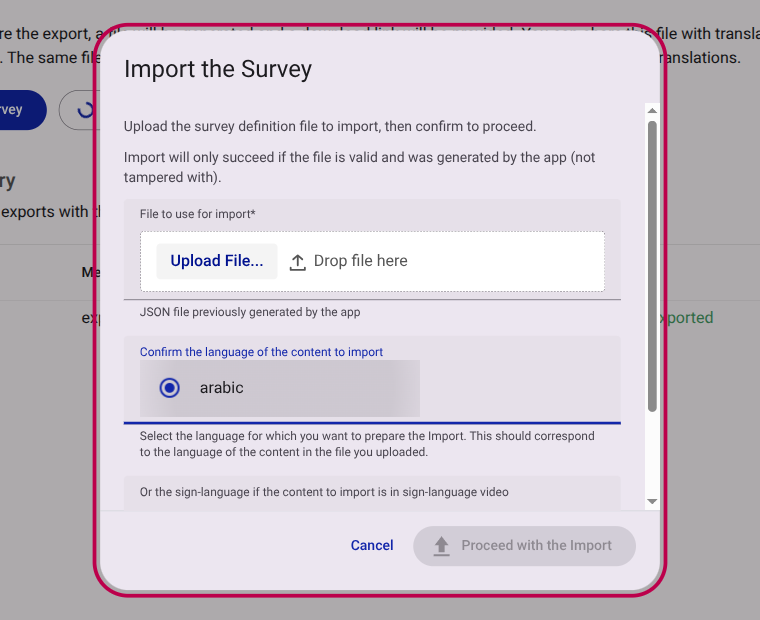
Confirm the import survey dialog
Your survey form is now updated with the translated content.