
Form Behavior Reference
The Form Behavior workspace manages the global settings that determine how a survey adapts to respondents, structures question presentation and transitions, and controls layout and typography styling.
The interface is organized into three tabs:
- Accessibility: Specialized interaction modes and global interaction rules.
- Layout: Pagination style, transition animations, page flow, and media illustration rules.
- Style: Master scale controls and fine-grained design tokens for layout and typography.
Accessibility
The Accessibility tab defines the interaction adaptations available to respondents and sets global accessibility rules for the form.
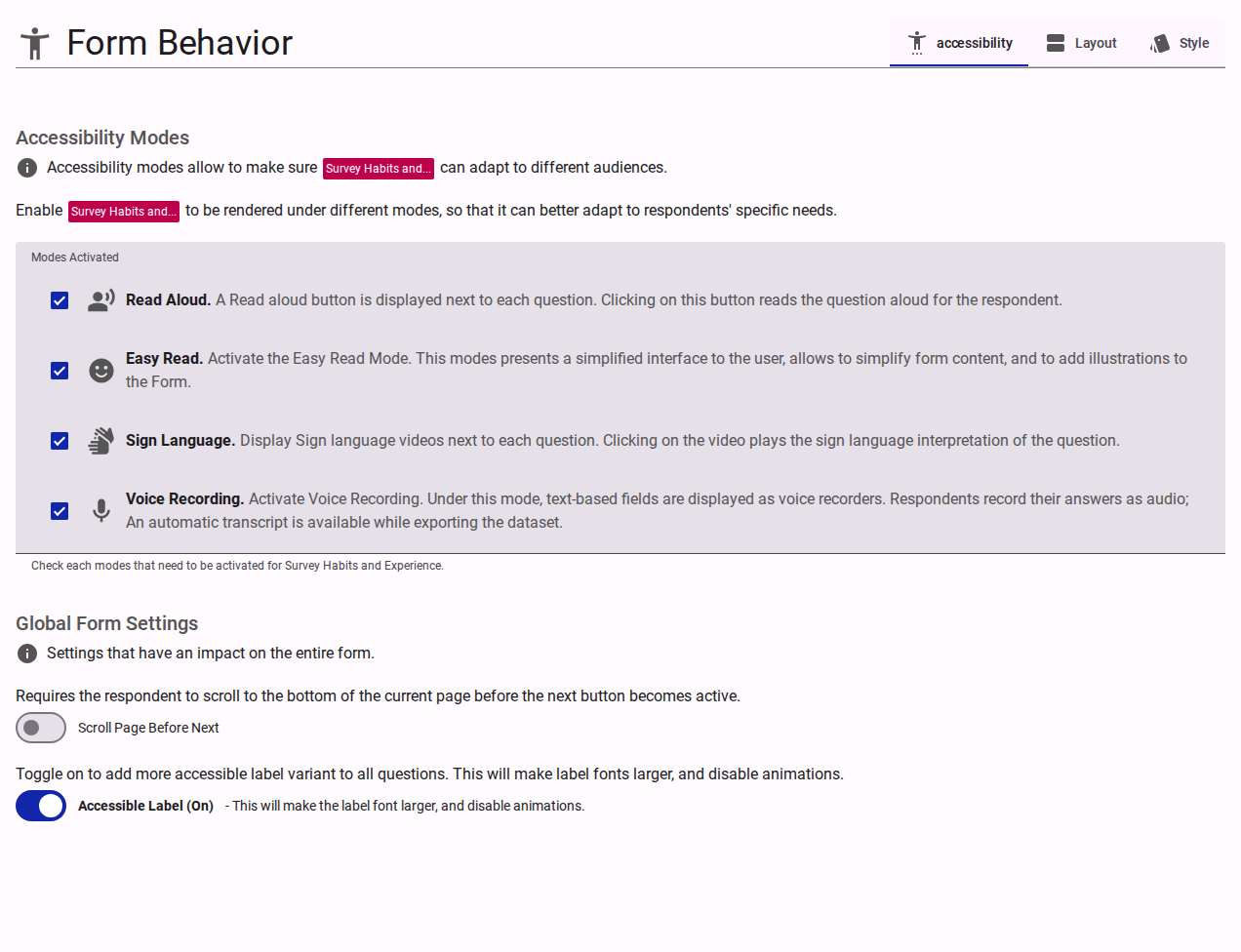
Accessibility Modes
The Modes Activated checklist specifies which optional interaction adaptations respondents can toggle during their session:
| Mode | Icon | Description |
|---|---|---|
| Read Aloud | record_voice_over | Displays a text-to-speech button next to each question, allowing respondents to have question text read aloud. |
| Easy Read | sentiment_satisfied | Activates Easy Read mode, presenting a simplified layout designed to reduce cognitive load, with support for simplified text and illustrative imagery. |
| Sign Language | sign_language | Displays embedded sign language interpretation video players alongside each question. |
| Voice Recording | mic | Replaces standard text inputs with an audio recorder, enabling respondents to record spoken answers. Automatic speech-to-text transcripts are generated during dataset export. |
Global Form Settings
Global settings apply across all questions and pages in the survey:
- Scroll Page Before Next: When enabled, respondents must scroll to the bottom of the current page before the "Next" button becomes active.
- Accessible Label: Toggles a high-visibility accessible variant for all question labels. Enabling this increases label font size and disables floating label animations to improve legibility.
WARNING
When Accessible Label is off, question labels are limited to 80 characters — the field stops accepting more input without showing a counter. Toggle Accessible Label on to remove the limit and allow labels of any length.
Layout
The Layout tab controls pagination, navigation transitions, and the positioning of media illustrations relative to question content.
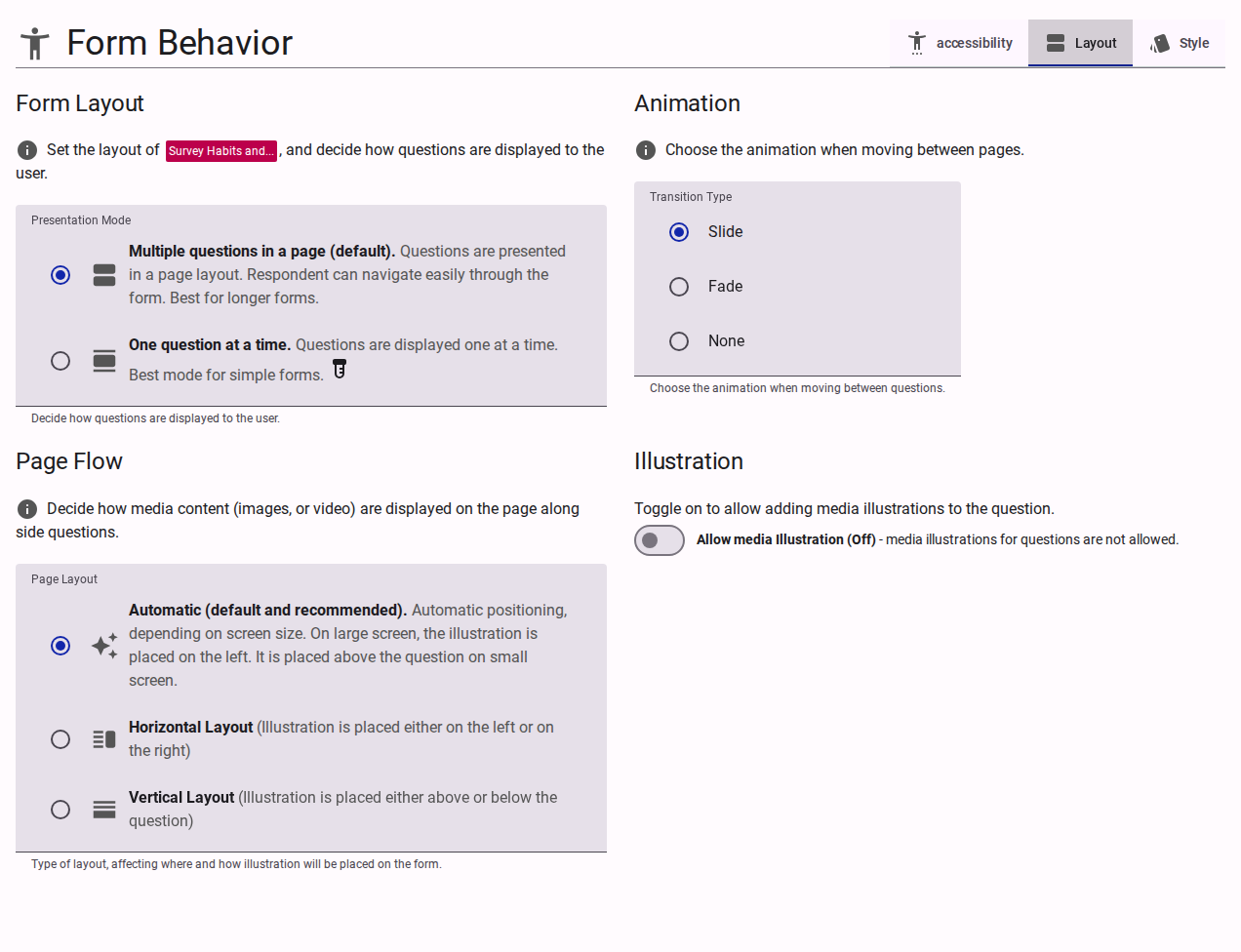
Form Layout
- Presentation Mode:
- Multiple questions in a page (default): Renders standard scrolling pages containing multiple questions. Recommended for longer forms and complex surveys.
- One question at a time (Beta): Displays a single question per screen with dedicated pagination. Recommended for simple surveys to maximize focus and reduce cognitive burden.
Animation
- Transition Type: Defines the transition animation applied when moving between questions or pages:
- Slide (default): Slides content horizontally during page transitions.
- Fade: Fades content in and out between steps.
- None: Immediate transition without animation.
Page Flow
- Page Layout: Dictates how media content (images or videos) is arranged relative to question text:
- Automatic (default and recommended): Automatically adapts positioning based on screen size. On large screens, illustrations appear on the left; on smaller screens, illustrations appear above the question.
- Horizontal Layout: Places illustrations side-by-side with question text.
- Horizontal Flow:
unset(default, illustration on left) orreverse(illustration on right).
- Horizontal Flow:
- Vertical Layout: Places illustrations in a vertical column with question text.
- Vertical Flow:
unset(default, illustration above question) orreverse(illustration below question).
- Vertical Flow:
Illustration
- Allow media Illustration: Enables authors to attach image or video illustrations to individual questions.
- Preserve Media Space: When enabled, the layout reserves empty container space for media even on questions without illustrations, ensuring consistent vertical alignment across pages.
Style
The Style tab provides a token-based design system to fine-tune survey typography, margins, paddings, and page dimensions.
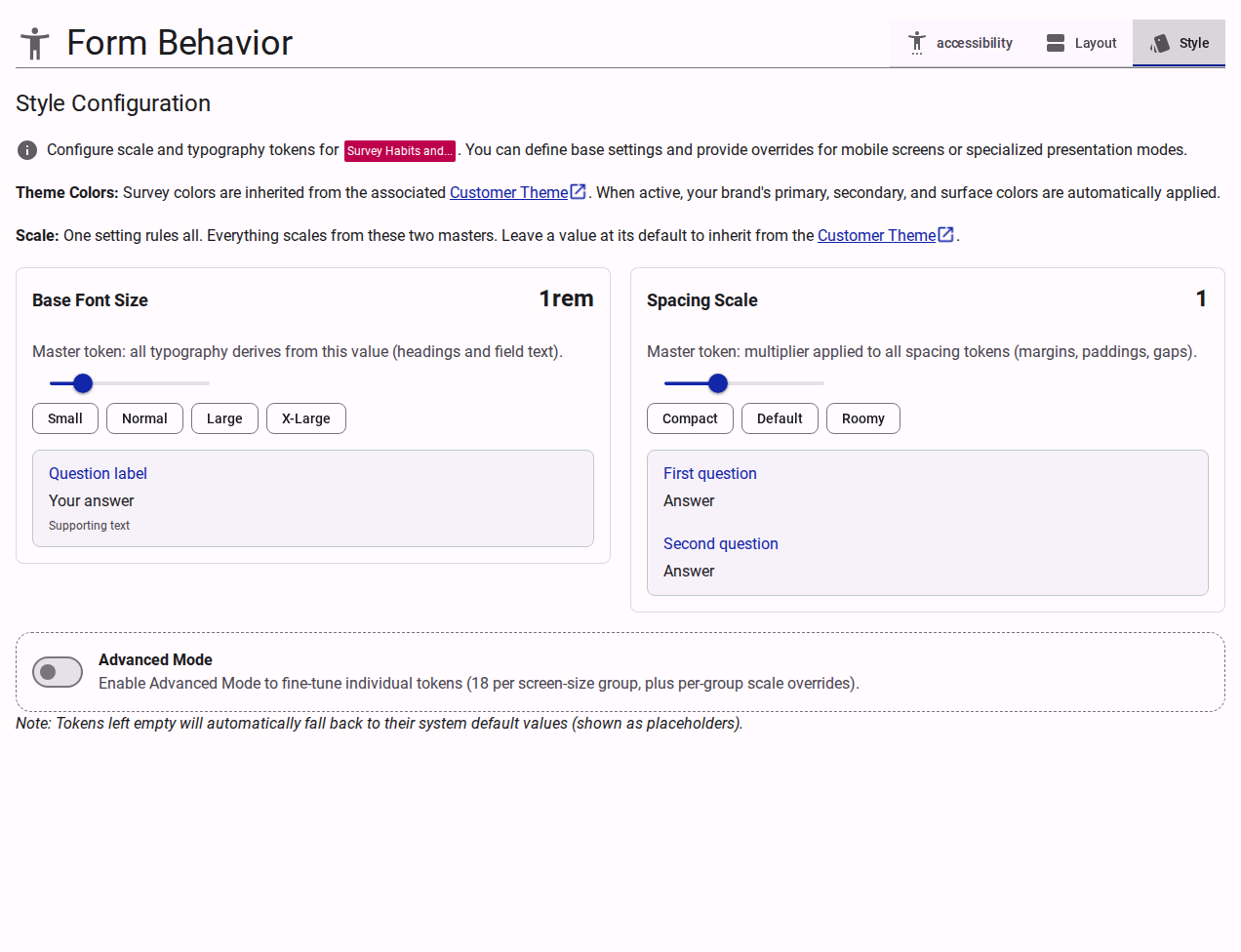
Theme and Scale Inheritance
- Theme Colors: Color palettes (primary, secondary, surface) are inherited from the associated Customer Theme.
- Scale Hierarchy: "One setting rules all." All spacing and typography tokens derive from the two master controls. Unset tokens automatically inherit default values from the Customer Theme.
Master Scale Settings
The two master scale controls provide immediate adjustment of survey density and typography scale:
| Setting | Default | Range | Presets | Description |
|---|---|---|---|---|
| Base Font Size | 1rem | 0.875rem – 1.5rem (step: 0.125rem) | Small (0.875rem), Normal (1rem), Large (1.25rem), X-Large (1.5rem) | Master token from which all survey typography (headings, labels, inputs, supporting text) derives. |
| Spacing Scale | 1 | 0.75 – 1.5 (step: 0.25) | Compact (0.75), Default (1), Roomy (1.25) | Multiplier applied to all spacing tokens (margins, paddings, gaps). Page width and elevation are not affected. |
Advanced Mode
INFO
Granular token overrides are available when Advanced Mode is enabled via the toggle switch or the top application bar.
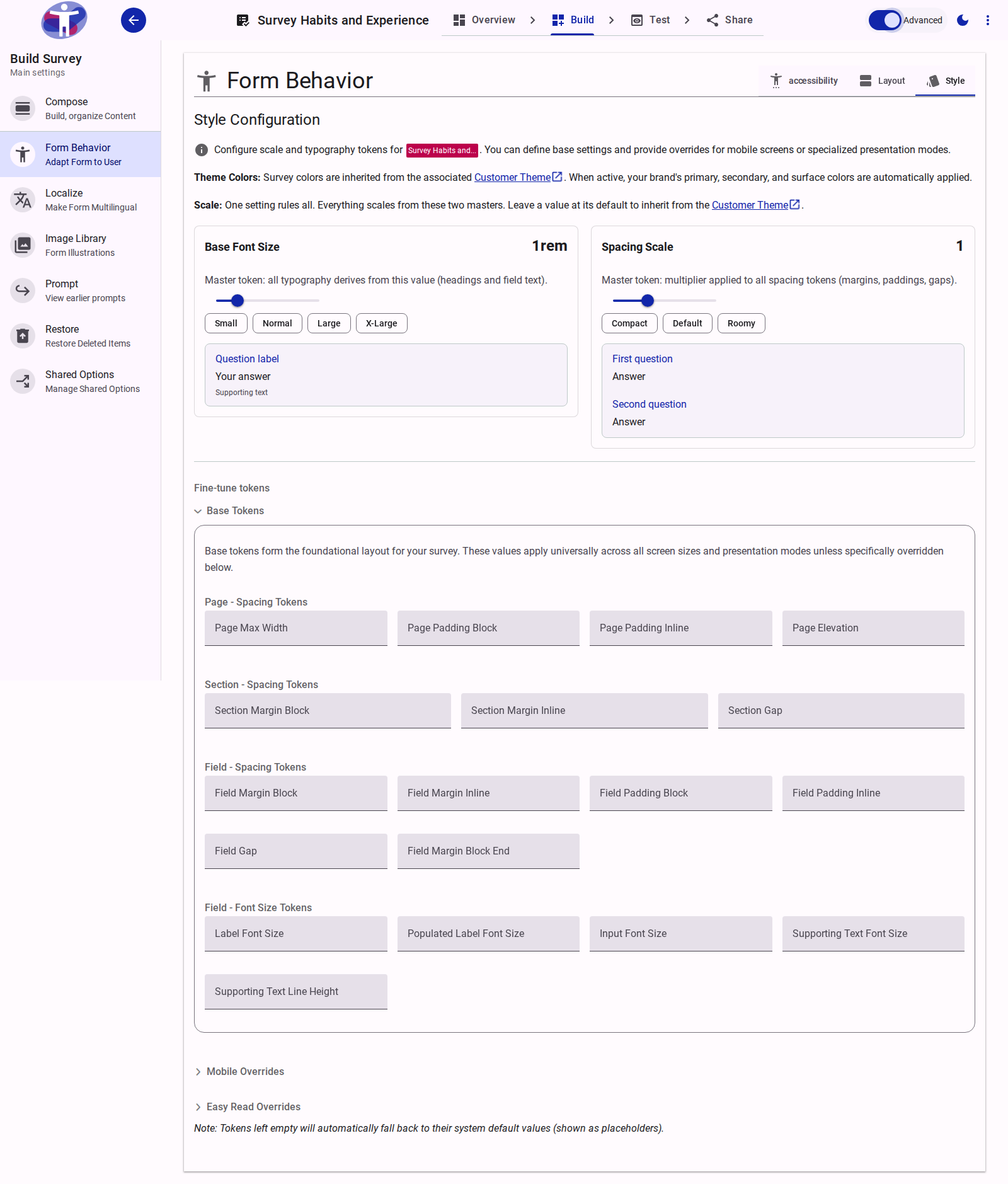
When Advanced Mode is active, tokens are organized into three hierarchical groups applied in order of specificity (highest priority wins):
- Base Tokens: Universal baseline values applied across all screen sizes and presentation modes.
- Mobile Overrides: Applied on narrow viewports (
max-width: 599px) to optimize display for mobile devices. - Easy Read Overrides: Applied only when Easy Read mode is active. This group has the highest priority; base font size defaults to
22px(1.375rem).
TIP
Tokens left empty automatically fall back to their system default values (displayed as placeholders in input fields).
Scale Tokens (Overrides Only)
Available in the Mobile Overrides and Easy Read Overrides groups to override master scales for specific contexts:
| Token | Schema Key | Description |
|---|---|---|
| Base Font Size | fontSizeBase | Context-specific override for the base typography scale (e.g., 1.25rem). |
| Spacing Scale | spacingScale | Context-specific multiplier applied to spacing tokens. |
Page Spacing Tokens
| Token | Schema Key | Default | Description |
|---|---|---|---|
| Page Max Width | pageMaxWidth | 800px (950px in Easy Read) | Maximum width of the survey page container. |
| Page Padding Block | pagePaddingBlock | 20px * spacingScale (6px * spacingScale on mobile) | Vertical padding (top and bottom) inside the page container. |
| Page Padding Inline | pagePaddingInline | 20px * spacingScale (6px * spacingScale on mobile) | Horizontal padding (left and right) inside the page container. |
| Page Elevation | pageElevation | 1 | Depth/shadow level of the page container. Accepts integer values from 0 to 5. |
Section Spacing Tokens
| Token | Schema Key | Default | Description |
|---|---|---|---|
| Section Margin Block | sectionMarginBlock | 0 36px * spacingScale (0 20px * spacingScale on mobile) | Vertical margin separating distinct sections. |
| Section Margin Inline | sectionMarginInline | 0 | Horizontal margin applied to sections. |
| Section Gap | sectionGap | 20px * spacingScale | Spacing between elements within a section. |
Field Spacing Tokens
| Token | Schema Key | Default | Description |
|---|---|---|---|
| Field Margin Block | fieldMarginBlock | 0 | Vertical margin applied outside individual fields. |
| Field Margin Inline | fieldMarginInline | 0 (42px 0 on mobile when Read Aloud is active) | Horizontal margin applied outside individual fields. |
| Field Padding Block | fieldPaddingBlock | 0 | Vertical padding applied inside the boundary of a field. |
| Field Padding Inline | fieldPaddingInline | 38px * spacingScale (6px * spacingScale on mobile) | Horizontal padding applied inside the boundary of a field. |
| Field Gap | fieldGap | 20px * spacingScale (10px * spacingScale on mobile) | Internal spacing between distinct elements within a field (e.g., label and input). |
| Field Margin Block End | fieldMarginBlockEnd | 48px * spacingScale (20px * spacingScale on mobile) | Bottom margin applied below fields to separate them from subsequent elements. |
Field Typography Tokens
| Token | Schema Key | Description |
|---|---|---|
| Label Font Size | labelFontSize | Size of the primary question label text. |
| Populated Label Font Size | populatedLabelFontSize | Size of the label text when the field is populated or actively focused. |
| Input Font Size | inputFontSize | Size of the text typed into input fields. |
| Supporting Text Font Size | supportingTextFontSize | Size of helper text or validation messages displayed below the field. |
| Supporting Text Line Height | supportingTextLineHeight | Line height applied to multi-line supporting text. |
Related Content
- Survey Builder Overview: Introduction to builder workspaces and navigation.
- Compose Reference: Adding and organizing pages, sections, and questions.
- Activating Accessibility Modes: Step-by-step guide to configuring accessibility options.
- Using Easy Read Mode: How to structure content and illustrations for Easy Read mode.
- Customer Theme Reference: Configuring customer-wide color palettes and typography defaults.
- Survey Distribution & Deploy: Setting up survey links, campaigns, and behavioral tracking.