
Section Reference
A Section is an essential structural container inside a Page. Sections group thematically related questions and text blocks, define visual subheadings, apply cascading visibility logic, and enable reusable Section Sharing across surveys and teams.
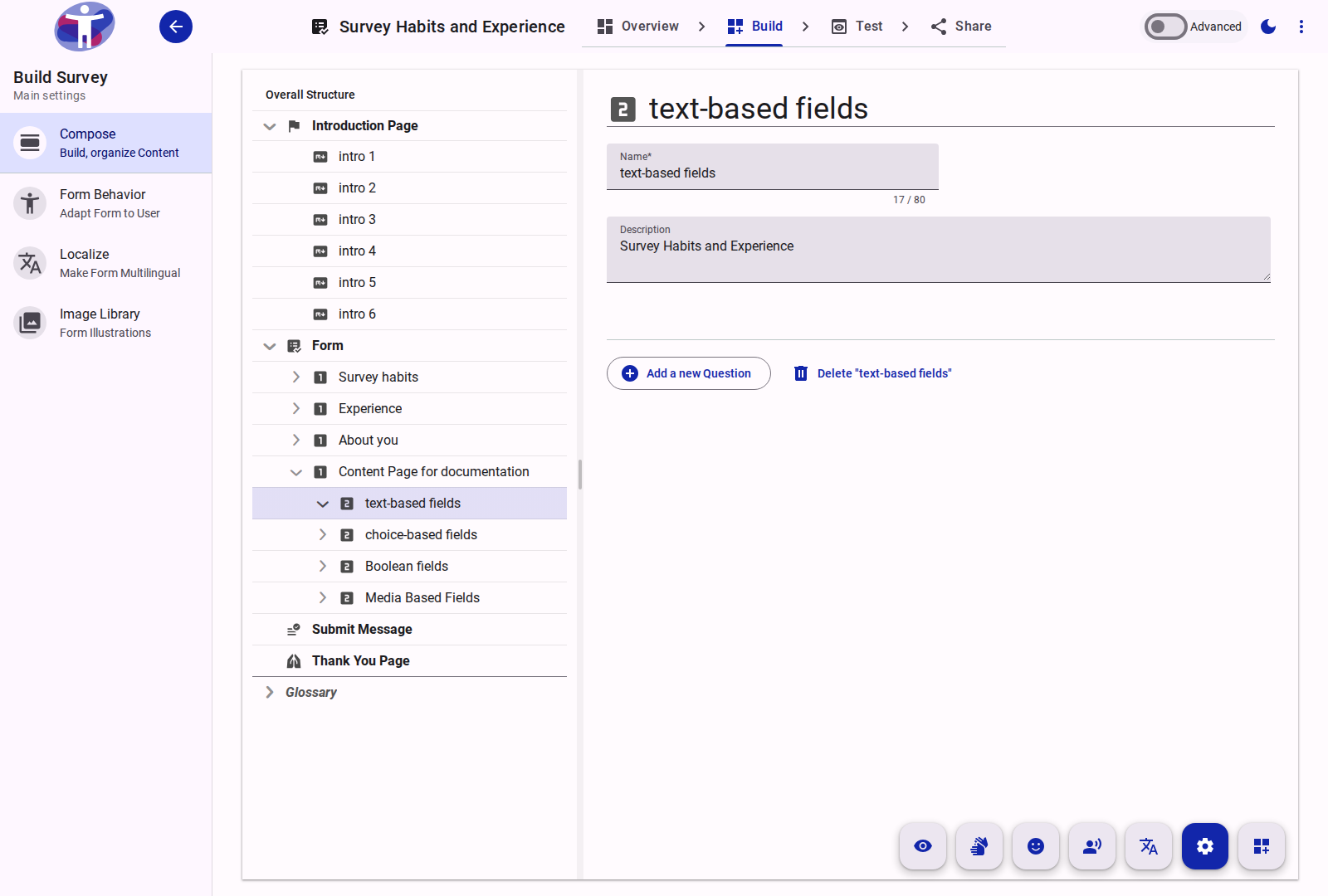
Hierarchy and Containment
Sections reside inside Pages and contain questions or standalone text blocks:
$$\text{Page} \longrightarrow \mathbf{Section} \longrightarrow \text{Question / Text} \longrightarrow \text{Option}$$
Grouping questions into sections allows managing complex forms in modular chunks rather than sprawling flat question lists.
Identity Properties
- Name (
name): Internal administrative title used in the tree view and library searches. - Section Description (
shortDesc): Internal notes or subtitle context explaining the section's purpose. - Visible Title & Context: Displayed to respondents as a section header above the contained questions.
Section Sharing Properties
Sections can be published to the Section Library and embedded across multiple surveys. In Advanced Mode, the Sharing section configures how a shared section behaves:
Scope (scope)
The sharing scope controls who can discover and embed the section from the Section Library:
| Scope | Visibility | Usage |
|---|---|---|
Team (team) | Current team members only | Reusing common question blocks within your own workspace. |
Customer (customer) | All teams in your organization | Standardizing corporate demographic profiles, customer feedback modules, or company-wide consent forms. |
Global (global) | All platform users | Curated, validated question standards published by system administrators. |
Live Reference vs. Embedded Copy
When embedding a shared section from the Section Library, editors choose between two linking models:
- Live Reference (
liveRef: true): The section remains dynamically linked to the source definition. It is read-only in the consuming survey: any updates, improvements, or translations made by the authoring team flow automatically into all surveys referencing it. - Copy (
copySection): Creates an independent, disconnected copy of the section in your survey. Your team owns and edits the questions without altering the library source or receiving upstream updates.
Response Keying (props.storeType)
Response keying determines where and how respondent answers to this section are stored:
| Keying Option | Value | Behavior |
|---|---|---|
| Per survey attempt (default) | survey | Answers are stored per survey attempt. Standard isolated survey data. Choose this to opt a shared section out of cross-survey prefilling (e.g. consent agreements). |
| Per respondent | user | Answers are stored once against the respondent's identity. Any other survey in the customer organization embedding this section automatically pre-fills with their previous answers. |
| Per organization | organisation | Answers are keyed to the respondent's organization or business unit. |
Prefill Modes (props.prefill)
When a respondent encounters a shared section that already holds their stored answers from a previous survey, the prefill mode dictates their user experience:
| Prefill Mode | UI Presentation | Respondent Interaction |
|---|---|---|
| Quiet (default) | Inline pre-filled | The section renders pre-filled with a slim informative banner. The respondent can review or edit their answers directly. |
| Review | Collapsed summary card | The section appears collapsed as an overview card. The respondent expands the card only if they wish to verify or update answers. |
| Interstitial | Keep-or-Update prompt | A dedicated transitional step asks whether to keep previous answers or modify them. "Keep" shows a summary; "Update" expands the fields. |
Frozen Sections (frozen)
The Frozen switch protects stable or validated sections from inadvertent modification:
- Frozen (On): Locks the section completely. Nobody can edit properties, modify questions, or change translations — including the originating source team.
- Frozen (Off): Normal editing allowed by authorized team members.
Randomization and Fixed Positioning
In Advanced Mode, sections support fine-grained randomization controls:
- Randomize Items (
props.randomize): Shuffles the order of child questions and text items within this section for each respondent session. - Fixed Position (
props.fixed): If the parent Page has randomization turned on, toggling Fixed Position on the section guarantees it stays anchored in its authored position (for example, keeping introductory demographic sections first).
Cascading Visibility Logic
Applying a logical condition to a Section applies to all child items:
- If the condition is false, the entire section and all contained questions are hidden simultaneously.
- Hidden child questions are automatically exempt from mandatory (
required) answer validation.
Section Actions
From the Section row context menu or footer:
- Add a new Question: Opens the question-type chooser to add a field.
- Add a new Text: Inserts an informational markdown block into the section.
- Copy Section: Duplicates the section and all contained questions into the active page.
- Delete Section: Soft-deletes the section (recoverable via the Restore Tool).
- Translate: Translates section headers and child questions in Localize Mode.