
Editing a survey
Once a survey has been created, you can edit its structure, logic, and settings at any time.
Step 1: Open the Survey Editor
From your survey workspace, locate the survey you wish to edit. Click on the survey row to expand it and reveal the survey details panel.
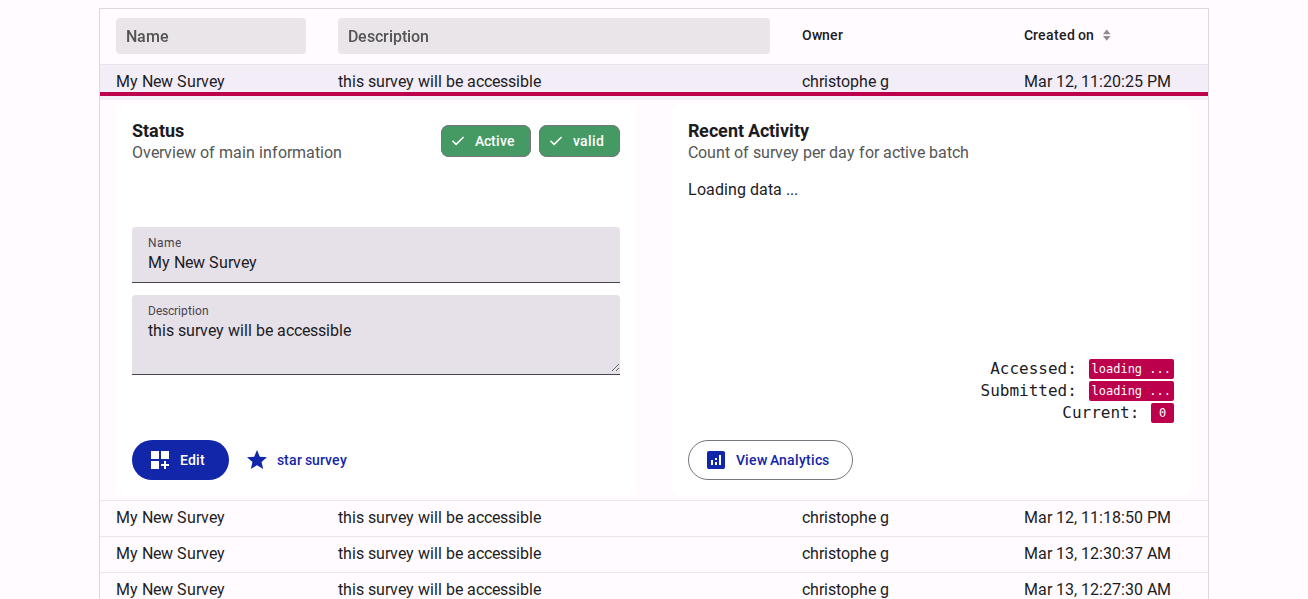
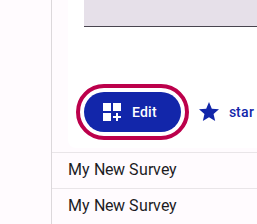
Within the expanded panel, click the Edit button.
Step 2: Navigate the Survey Structure
You are now in the Survey Editor. The editor displays the overall structure of your survey in a tree grid on the left side of the screen. This structure includes the Introduction Page, the Form itself, and the Thank You Page.
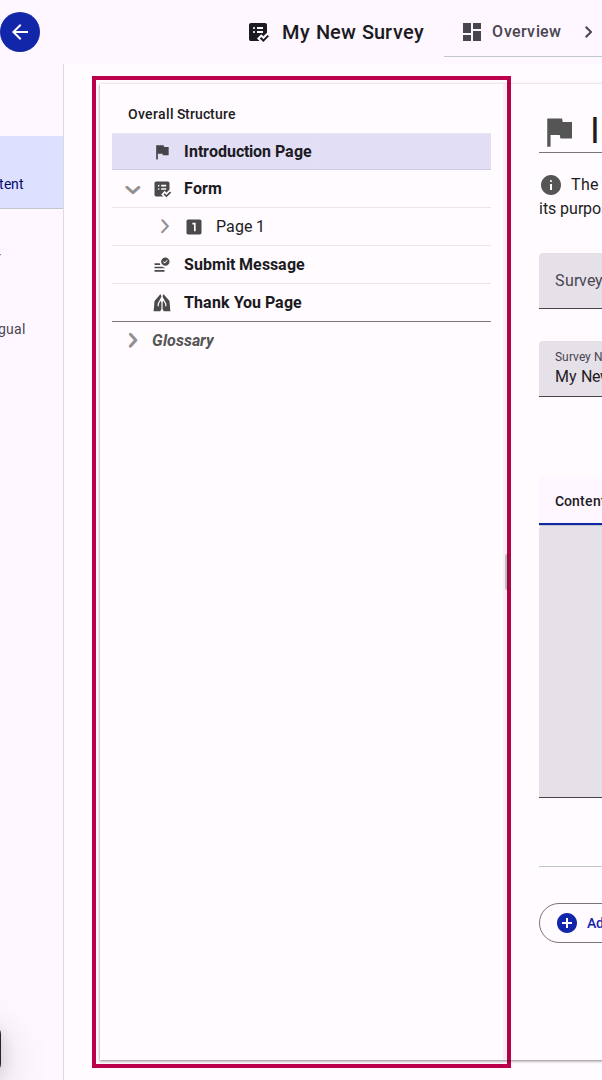
To edit the content of your form, expand the "Form" node in the tree and click on a specific page (e.g., "Page 1").
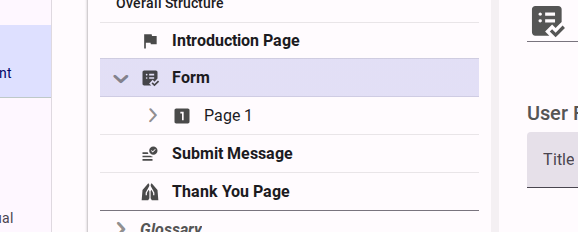
The right panel will update to show the settings and content for the selected page. You can edit the page title and other metadata here.
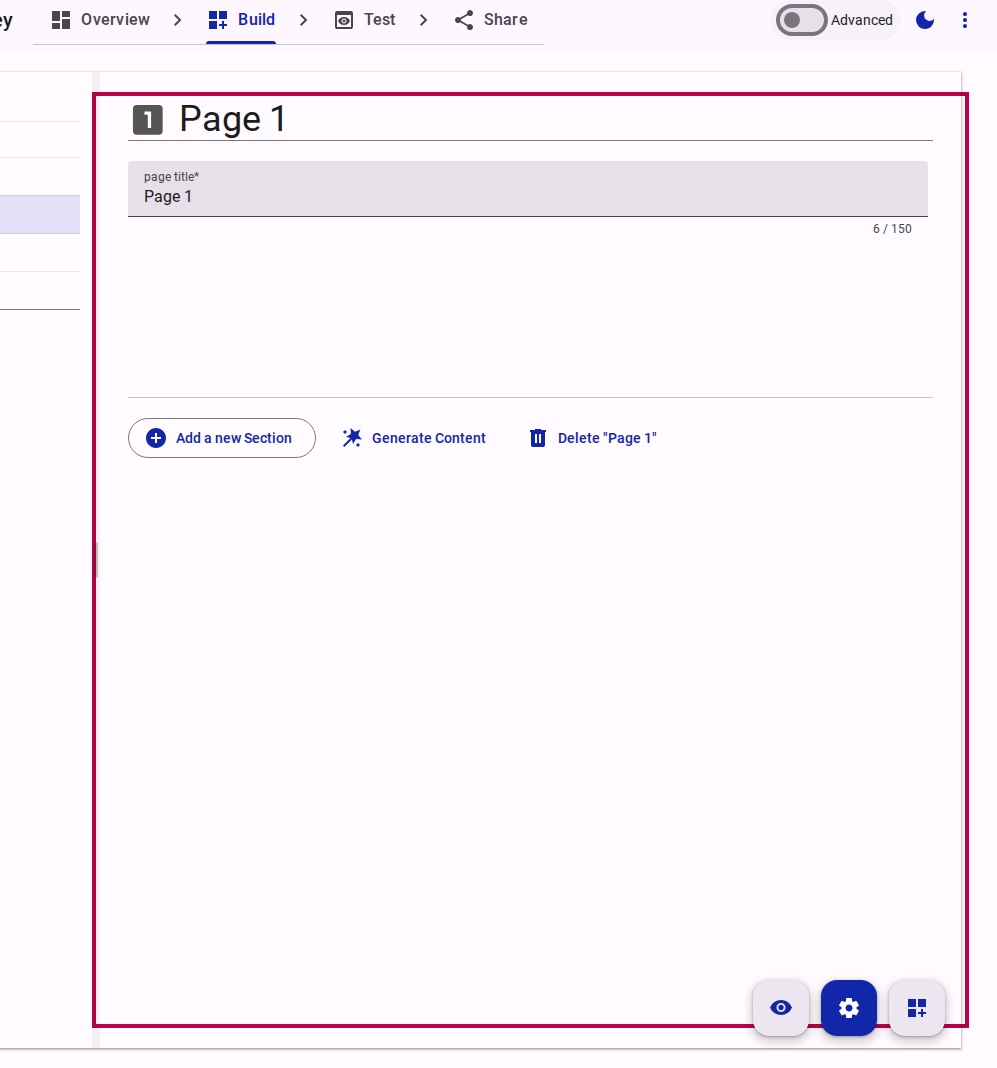
Step 3: Add Content Mode
To add actual questions to your page, you need to switch to Add Content Mode. Click the "Add Content Mode" button (typically located at the bottom right or in the view toolbar).
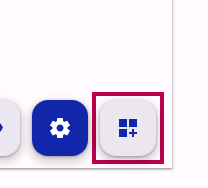
This will open the interface that allows you to drag and drop new questions into your form sections. For more details on adding questions, refer to the How to add content to a form guide.