
Compose Reference
The Compose tool is the structural editor for a survey form. It enables the creation and arrangement of hierarchical elements, including pages, sections, and individual questions.
Interface Elements
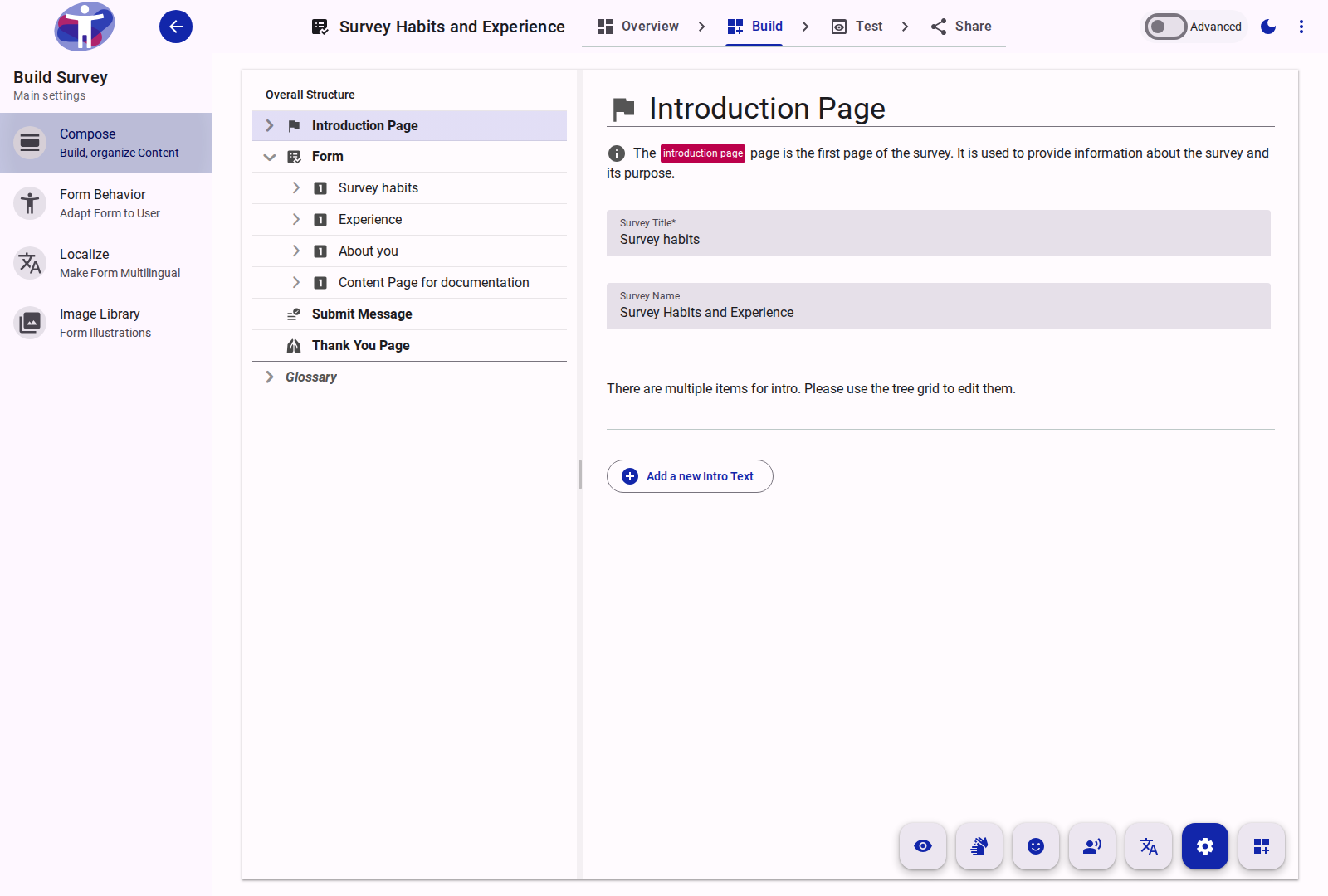
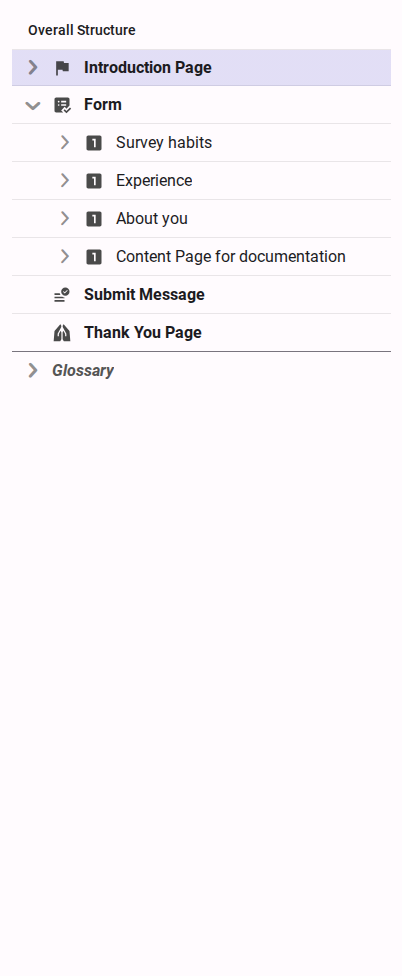
The Compose view consists of a navigation tree for structure management and an editing pane for configuring the selected element.

Tree Grid Filtering
The structural tree grid includes column-header filter controls to help authors inspect, validate, and audit specific subsets of items across large questionnaires.
Available Filters
Filter controls appear as interactive icon buttons in column headers depending on the active editing mode:
| Filter | Header Icon | Mode Availability | Behavior |
|---|---|---|---|
| Generated content | wand_stars | Settings (when prompt active) | Shows only items generated by AI that are pending validation. Also accessible via the prompt action FAB. |
| Needs review | rate_review | Settings | Filters to items with open review findings (structure, logic, translation, accessibility, or content). Disabled when no findings exist. |
| Visibility settings | visibility_off | Settings (Advanced) & Visibility | Filters to items with conditional logic (logic.hidden or visibilityModes). Disabled when no items have visibility rules. |
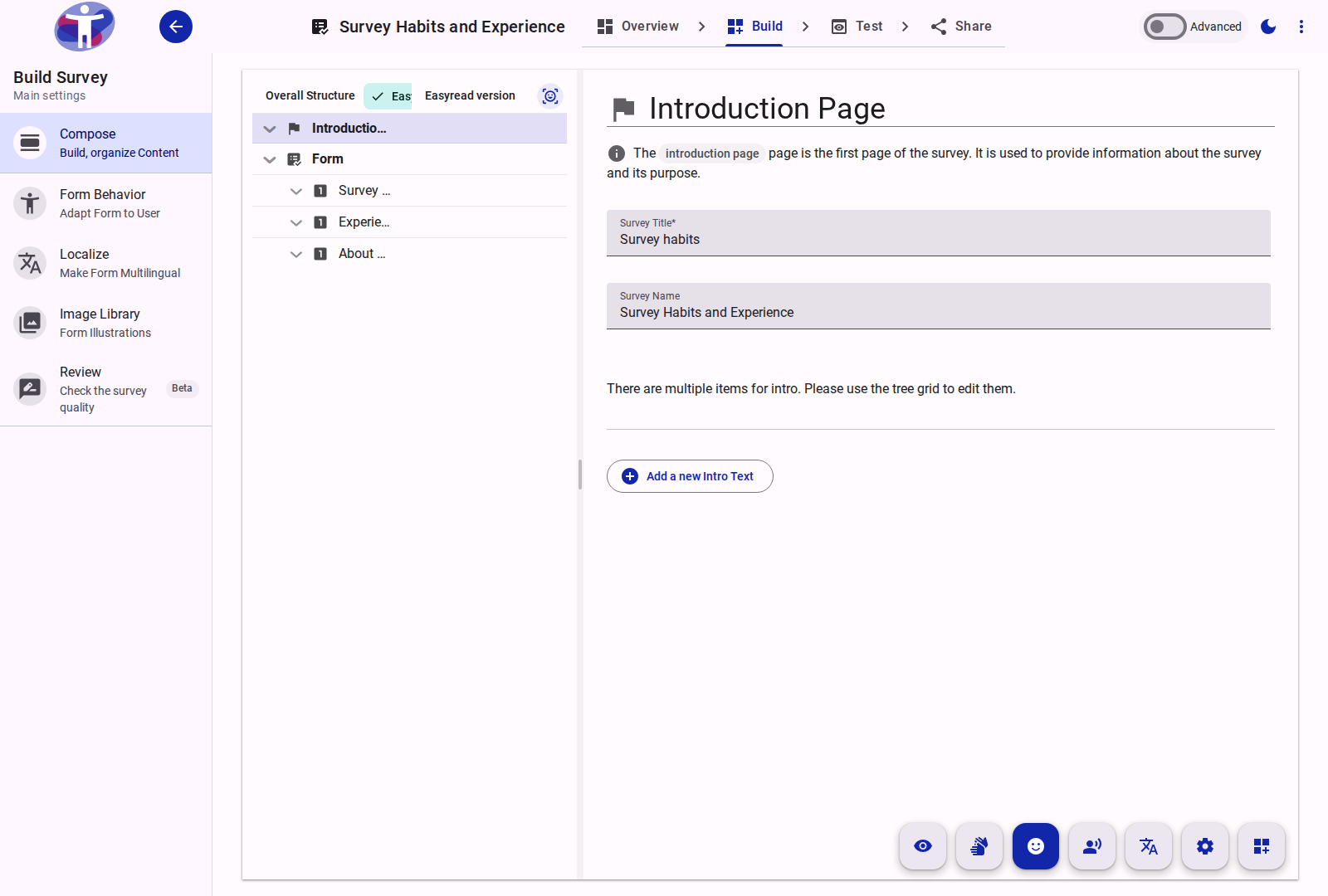
| Easy Read images | ar_on_you / image_not_supported | Easy Read | Tri-state cycle: items with images → items without images (candidates missing an illustration) → filter off. |
| Read Aloud voices | record_voice_over / volume_off | Read Aloud | Tri-state cycle: items with recorded/generated voice → items without voice → filter off. |
| Sign Language videos | co_present / videocam_off | Sign Language | Tri-state cycle per language column: items with validated video in that language → items without video → filter off. |
Filter State & Tree Behavior
- Filter chip indicator: When a filter is active, an
<md-filter-chip>appears in the grid header alongside Overall Structure (e.g.,Needs review only (3)orEasyread images only (6)). Clicking the chip's remove icon or clicking the active header button clears the filter. - Preserving context: Matching items keep their ancestor nodes in the hierarchy, and ancestor branches expand automatically so matched questions and options stay visible in their surrounding sections.
- Drag-and-drop safety: Drag-and-drop reordering is temporarily disabled while a filter is active to prevent unintended structural shifts.
- Mutually exclusive: Activating any column filter replaces the previous filter.
Quick Review Access from Compose
When open quality findings exist across your survey, a floating Review button appears directly in the bottom modes toolbar next to the prompt action FAB. Clicking Review navigates straight to the Review Reference workspace, allowing rapid context switching between composing structure and addressing findings.
Supported Element Types
The following elements can be added and configured within the Compose tool:
- Form: The root container for the survey.
- Text Page: Non-interactive pages for information, such as introductions or thank-you messages.
- Page: A structural container representing a single screen or logical division of the survey.
- Section: A subgrouping element within a page to organize related questions.
- Question: Interactive data collection fields (e.g., text, multiple choice, rating).