
How to set access rights for forms
As the creator (Owner) of a survey, you control who has access to view, edit, or translate your forms. By adding team members and assigning specific roles, you can collaborate securely.
NOTE
Only the 'Owner' of a form can manage access rights. To be granted access, a user must already have an account on the application and be associated with your organization or program.
Step 1: Navigate to the Access view
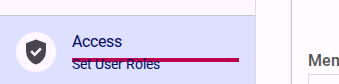
From the survey editor, navigate to the Share section in the top menu, then click on the Access option in the left-hand navigation menu.
Step 2: Set access rights for team members
In the Access view, you can assign permissions to different team members.
- Enter the email address of the user you want to add.
- Select the appropriate access level (e.g., read, write, or admin).

- Click the Add Access button.
Once added, the user will appear in the 'User List' at the bottom of the page, and they will immediately be granted the specified permissions for the survey.
TIP
A form 'Owner' can also assign their ownership rights entirely to another user using a similar process from this screen.
TIP
Refer to the Customer App reference to see how to add members to your team and manage their roles at the organization or program level, which is a prerequisite for granting them access to your survey forms.