
Sharing Logical Expressions
When you build complex surveys, you may find yourself using the same visibility rules or logical conditions for multiple questions or sections. Instead of rebuilding the same logic each time, you can name a logical expression to make it "shared", allowing you to easily reuse it elsewhere in your form.
Step 1: Create and Name a Logical Expression
First, navigate to an item that already has the logical expression you want to share.
- Select the item (e.g., a question) in the Compose view.
- Activate Visibility Mode by clicking the Visibility Mode button in the toolbar.
- In the logic editor, provide a Name for your expression. This action automatically makes the expression available to other items.
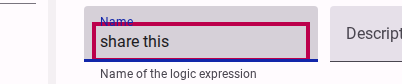
You can also optionally provide a description to help you and your team understand the purpose of this logic later.

Step 2: Reuse the Logical Expression
Now that your logic is shared, you can apply it to any other item.
- Select the item where you want to apply the same logic.
- Ensure Visibility Mode is active.
- Instead of creating new logic, click on the Select an existing expression dropdown menu.
- Choose the named expression you created in Step 1.

TIP
Changes made to a shared expression will affect all items that use it. This makes it very efficient to update your survey logic from a single place.