Introduction to Logic Expressions
Logical expressions are mathematical expressions which return a result of either true or false. In Accessible Surveys, these expressions are primarily used to dynamically show or hide pages, sections, or questions.
This reference provides the basic syntax and operators you need to build logic into your forms.
Basic Syntax
Expressions evaluate the user's answers against specific conditions. The engine evaluates the value of a logical expression and assigns it to its bound attribute (e.g., visible).
Binding Survey Fields
To evaluate a respondent's answer within your logical expression, you must bind the relevant survey field (or answer) to the expression as a variable.
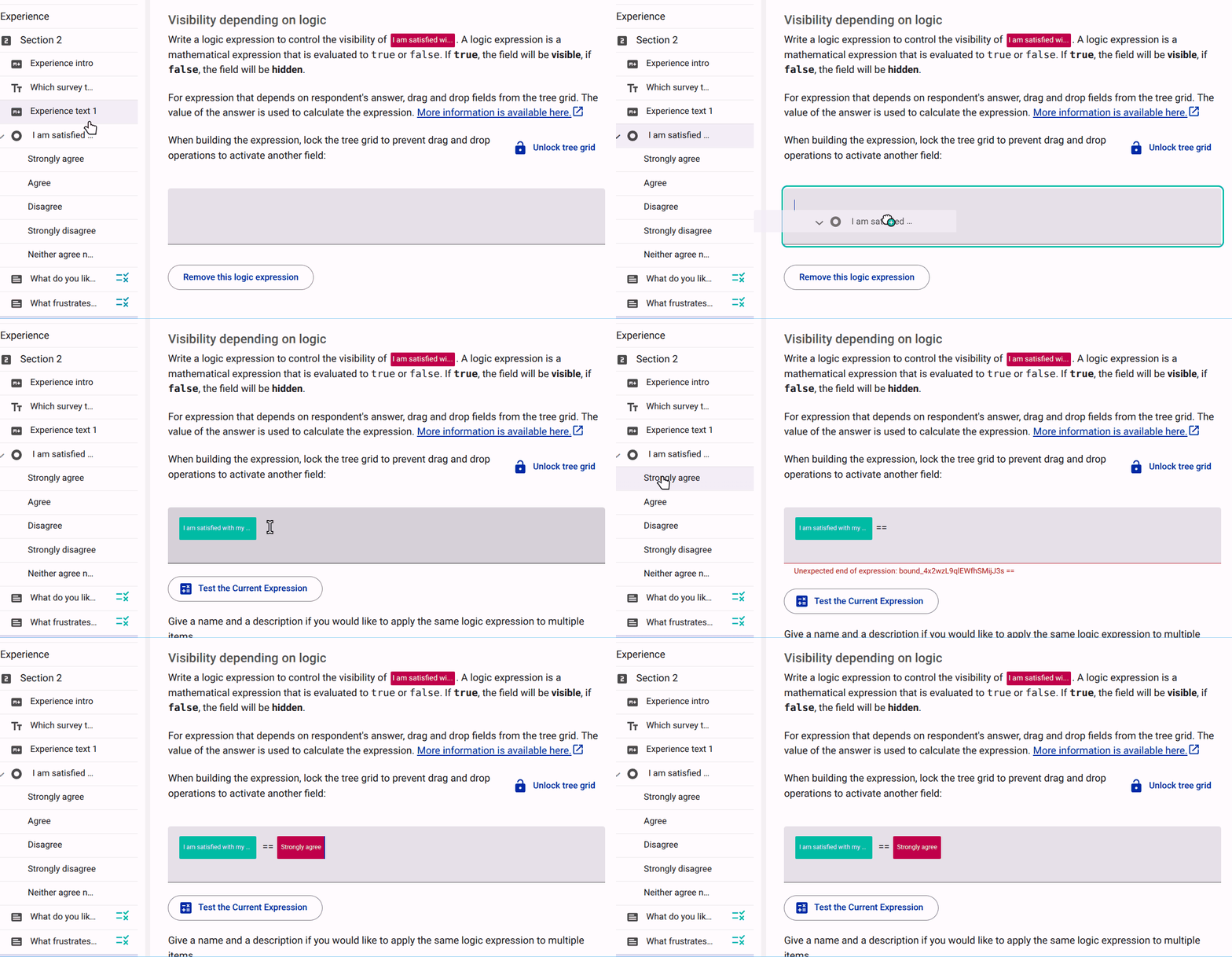
This is done by dragging and dropping items from the structure tree on the left directly into the logic editor field:
- For free text or numeric questions: Drag and drop the question item itself into the expression field.
- For choice questions (e.g., dropdowns, checkboxes): Expand the question in the tree and drag and drop the specific option into the expression field.
Hiding Items
When the expression evaluates to true, the field is visible. When the expression evaluates to false, the field is hidden. This means that you should write the condition for hiding an item, not showing it.
Examples
Show a question only when an answer is provided
If you want to show a question only when the respondent has provided an answer to a previous question (e.g., What is your name?), you would:
- drag the question
What is your name?into the expression field, then - enter
!=in the field, and finally - type
""(empty string) to check if the answer is not empty:
`What is your name?` != ""Here, the expression answer != "" evaluates to true when the respondent has entered any text, which means the item will be visible. If the respondent leaves it blank, the expression evaluates to false, and the item will be hidden.
Show a question only when a text answer contains a specific word
If you want to show a question only when the answer to What is your favorite fruit? contains the word "apple", you would:
- drag the question
What is your favorite fruit?into the expression field, then - enter
inin the field, and finally - type
"apple"to check if the answer contains that word:
"apple" in `What is your favorite fruit?`Here, the expression "apple" in answer evaluates to true when the respondent's answer includes the word "apple", which means the item will be visible. If the respondent's answer does not contain "apple", the expression evaluates to false, and the item will be hidden.
Show a question only when a specific option is selected
If you want to show a question only when "Do you like fruit? (Yes/No)" is answered with "Yes", you would:
- drag the question
Do you like fruit?into the expression field, then - enter
==in the field, and finally - drag the option
Yesto the left of the expression:
`Do you like fruit?` == `Yes`Here, the expression answer == "Yes" evaluates to true when the respondent selects Yes, which means the item will be visible. If the respondent selects No or leaves it unanswered, the expression evaluates to false, and the item will be hidden.
TIP
You need to drag the option
Yesinto the expression field (instead of writing"yes") as the system does not store the stringyeswhen the respondent selects that option. Instead, it stores a specific value (e.g.,yes_option_id) that represents that choice. By dragging the option into the expression field, you ensure that the expression is doing the correct comparison.
Question Types and Data Storage
WARNING
The way an answer is stored depends on the question type, which determines the correct operator to use in your expression:
- Radio Groups and Dropdowns: These store a single answer as a String. You can use standard equality operators like
==or!=(e.g.,favorite_fruit == "apple").- Group Questions (Checkboxes): These store multiple selected answers in an Array. Because an array can contain several values, you MUST use the
inoperator to check if a specific option was selected (e.g.,"apple" in fruits_checked).
Comparison Operators
Use these operators to compare values in your form data:
| Operator | Symbol | Description |
|---|---|---|
| Equal | == | True if the left and right values are exactly the same. |
| Not equal | != | True if the values are different. |
| Greater than | > | True if the left value is strictly larger. |
| Greater than or equal | >= | True if the left value is larger or equal. |
| Less than | < | True if the left value is strictly smaller. |
| Less than or equal | <= | True if the left value is smaller or equal. |
| Element in array or string | in | True if the left value is found within the right value (e.g., in a string or list of checkbox answers). |
Logical Operators
Use logical operators to combine multiple conditions:
| Operation | Symbol | Description |
|---|---|---|
| Logical AND | && | True only if both sides are true. |
| Logical OR | || | True if at least one side is true. |
| Negate | ! | Inverts a boolean value (e.g., !(expression)). |
TIP
Hiding with OR: If you want to hide an item when either condition A or condition B is met, use ||. Using && would only hide the item if both conditions were met simultaneously.
Testing the Expression
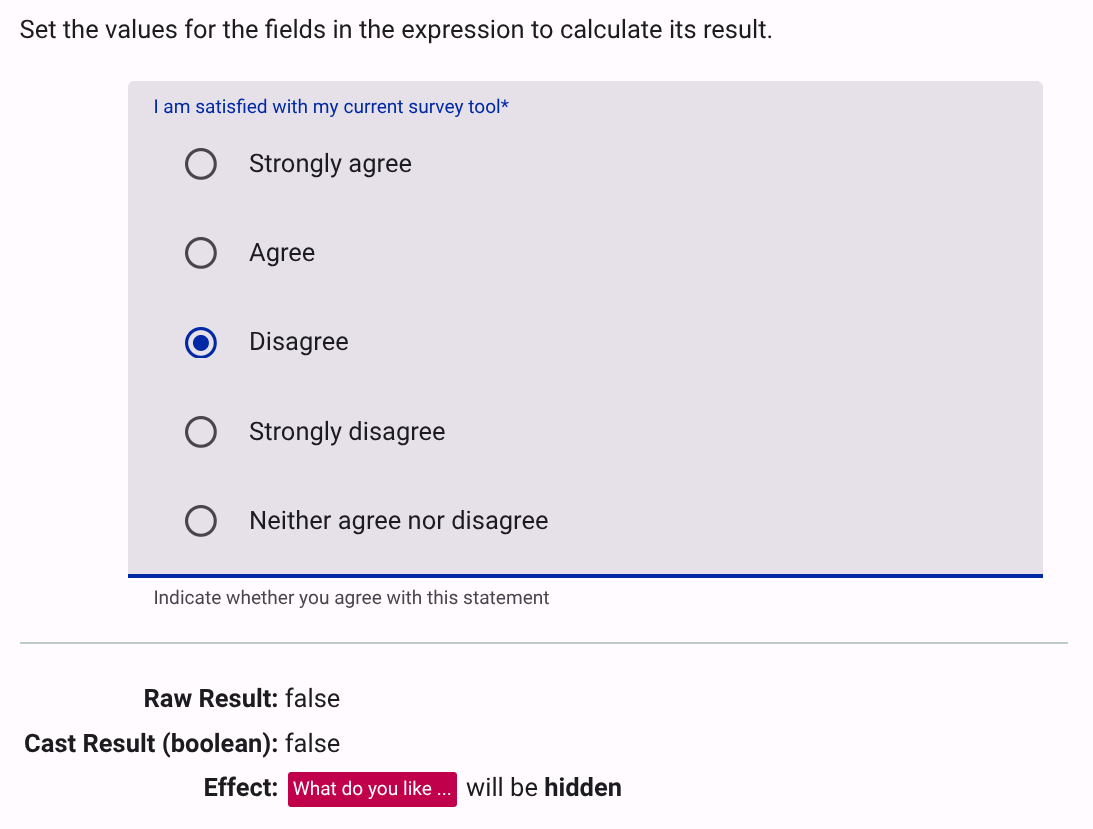
The logic editor provides a "Test Expression" feature that allows you to simulate how the expression evaluates based on different answers. This is a crucial step to ensure your logic behaves as expected before deploying the survey. You can input various values for the bound variables and see the resulting evaluation of the expression in real-time. This helps you identify any logical errors or misunderstandings about how the operators work with different data types.
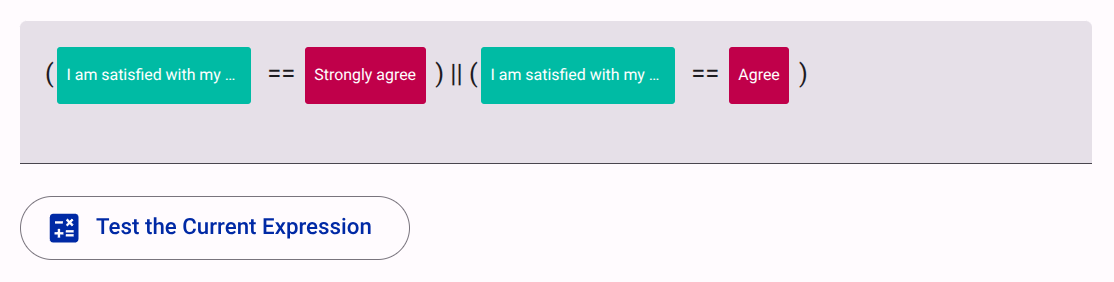
For example the following expression checks whether respondent Strongly agrees or Agrees to the question I am satisfied with my survey tool:
Clicking on "Test Expression" allows you to simulate different responses and see how the expression evaluates, ensuring that your logic is correctly set up to show or hide items based on the respondent's answers: