
Localize Reference
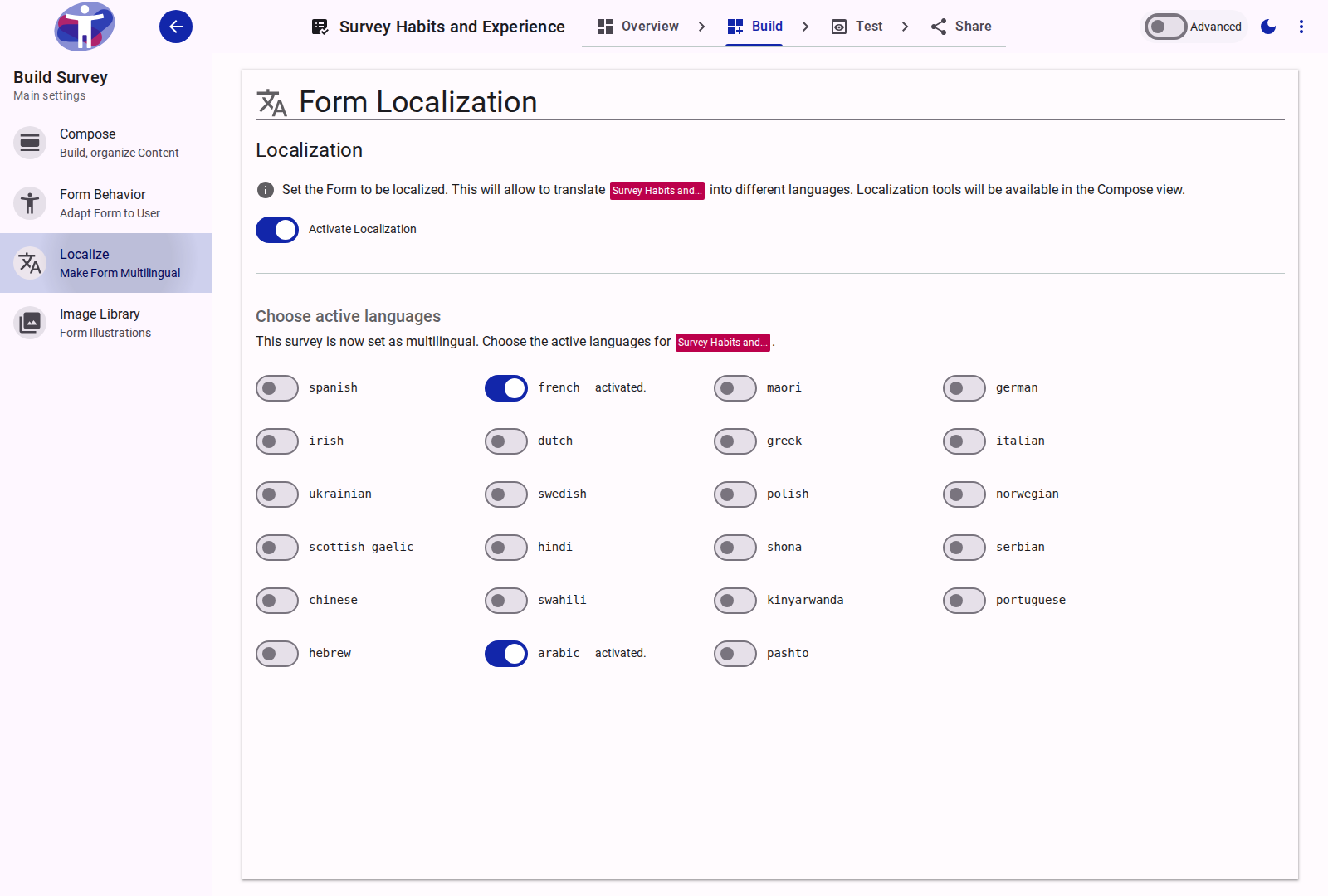
The Localize page provides controls to enable multilingual support for your survey and activate the languages you want to offer to respondents.
Overview
By default, a survey is configured in a single primary language. The Localize view allows authors to turn the survey into a multilingual form:
- Activate Localization Switch (
isLocalized): Enables multilingual support. Once activated, localization controls become available across the Survey Builder. - Choose Active Languages: Displays switches for all languages supported by your organization (configured under Customer Portal Settings). Toggling a switch activates that language for this survey.
Translating Your Survey
Activating languages on this page unlocks translation workflows in the Survey Builder:
- Compose View (Localize Mode): Open Build → Compose and switch to Localize Mode in the bottom toolbar. This displays a side-by-side editing interface where you can translate question labels, options, supporting text, and email messages for each active language.
- AI Translate Action: Use the AI translation tool in Compose to automatically generate translations across missing fields.
- Review Panel: The Review panel automatically audits all active languages and flags any untranslated questions, options, or messages.
Offline Translation with JSON Files
Exporting and importing translation files does not take place in this drawer. To export survey content to a JSON file for professional translators, bulk-edit sign language video IDs, or import completed translations, use Share → Import/Export.
Email Messages in Multilingual Surveys
When a survey has active email messages (invitations, confirmations, reminders, or follow-ups), an Email group appears in the Compose tree. When Localize Mode is active, you can translate each message's Subject and Body side by side with the primary language.
Related Content
- How to Localize a Survey — Step-by-step translation guide
- Import/Export Translations Reference — Exporting and importing JSON translation packages
- Compose Reference — Side-by-side translation in Localize Mode