
Page Reference
A Page is a primary structural container within the survey Form. In multi-page surveys (multipleQuestionsPerPage), each Page represents an individual screen presented to the respondent. Pages group related Sections, provide structured screen headings, and support page-level randomization and visibility rules.
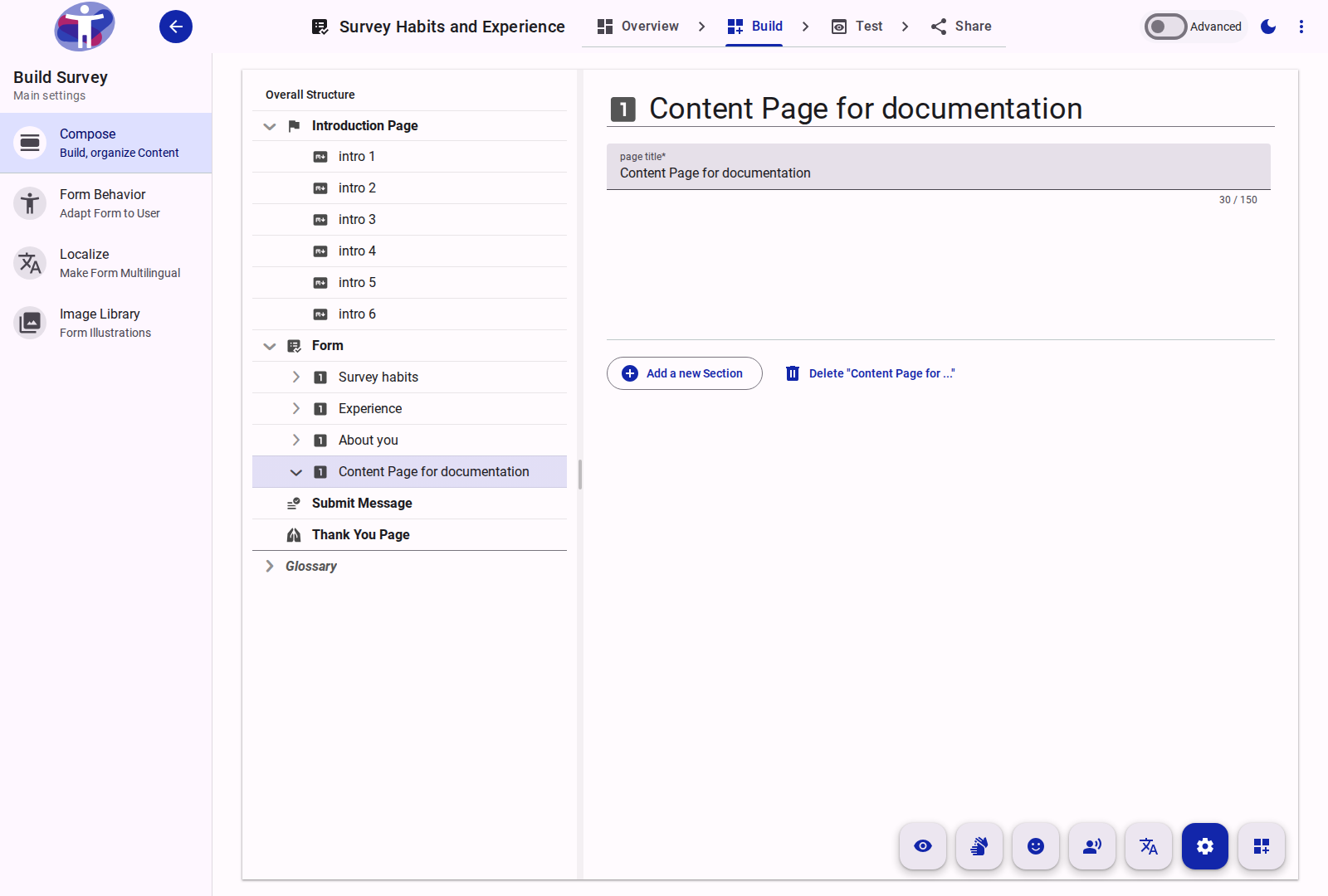
Structural Hierarchy
Pages sit directly inside the Form container:
$$\text{Form} \longrightarrow \mathbf{Page} \longrightarrow \text{Section} \longrightarrow \text{Question / Text}$$
A Page cannot be nested inside another Page or Section. All data collection fields (Questions) belong to Sections inside a Page.
Page Properties
Selecting a Page in the structure tree displays its configuration options:
Administrative Settings
- Name (
name): Internal identifier used in the editor tree and builder navigation. Not shown to respondents.
Localized Page Headings
Page headings are translated per language in Localize Mode:
| Field | Requirement | Character Limit | Role in Respondent UI |
|---|---|---|---|
Page Title (heading) | Required | 150 characters | The primary heading rendered at the top of the screen when the page loads. |
Page Subtitle (subHeading) | Optional | 300 characters | Explanatory context or instructions displayed immediately below the page title. |
Short Title (shortHeading) | Required | 30 characters | Compact label used in tab bars, breadcrumbs, and pagination indicators where space is restricted. |
Randomization and Fixed Positioning
Pages support bi-directional randomization controls:
- Randomize Sections (
props.randomize): When toggled on, shuffles all sections and questions contained within this page for each respondent session. - Fixed Position (
props.fixed): If the parent Form has page randomization enabled (props.randomize), enabling Fixed Position ensures this specific page remains in its original sequence (for example, keeping demographic questions strictly on the first or last page).
Visibility Logic and Conditional Branching
Form logic can be attached directly to a Page via the context action Add Visibility Logic:
- Cascading Skipping: When a Page's visibility expression evaluates to false, the entire page and all its nested sections and questions are skipped completely.
- Validation Exemption: Skipped pages do not enforce
requiredfield validation, allowing respondents to proceed seamlessly through subsequent pages. - Data Cleanup: Answers submitted on a page that is subsequently hidden by branching logic are handled according to the survey's Logic and Branching rules.
Available Actions
From the Page context menu (right-click in tree) or bottom drawer actions:
- Add a new Section: Inserts a new Section container into this Page.
- Move Up / Move Down: Reorders the page within the Form.
- Add Visibility Logic: Attaches a conditional rule controlling whether this page appears.
- Expand all / Collapse all: Recursively toggles all sections and questions in this page.
- Translate: Edits the page's
heading,subHeading, andshortHeadingacross all target survey languages. - Delete Page: Soft-deletes the page and all child sections. Deleted pages can be recovered from the Restore Tool.