
Providing Rich Formatting
Accessible Surveys uses Markdown to allow you to add rich formatting to your questions, descriptions, and messages. This ensures that your content is both visually appealing and structurally accessible.
Step 1: Use the Content Editor
Text content is a fundamental item of a survey, that allow to provide rich formatting like headings, bold and italic text, lists, links, and more.
To add text content, follow the how-to-add-content-to-a-form guide and select text (markdown) as the item to add.
Other parts of the survey, like the Introduction or the Thank You page provides a rich-text (markdown) editor by default.
Once added, you can format your text in two ways:
- Using the Toolbar: Use the icons at the top of the editor to quickly apply formatting like Bold (B), Italic (I), Links, and Lists without needing to memorize syntax.
- Typing Markdown Directly: You can still type standard Markdown syntax directly into the editor for faster formatting.
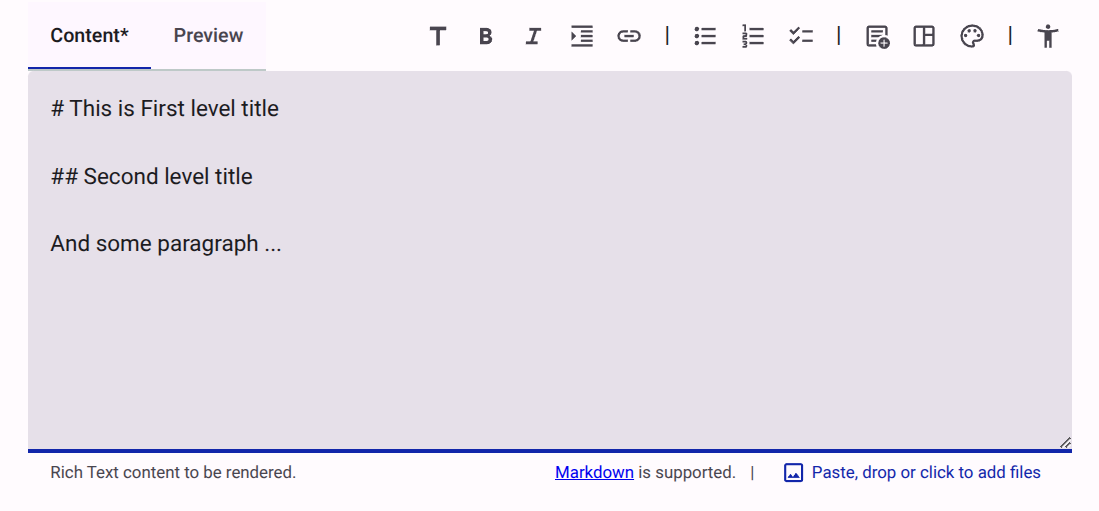
Text Formatting & Shortcuts
You can select text and click the corresponding toolbar button, or use these keyboard shortcuts:
| Formatting | Shortcut |
|---|---|
| Headings (H1 - H6) | Ctrl + 1 to Ctrl + 6 |
| Bold | Ctrl + B |
| Italic | Ctrl + I |
| Link | Ctrl + K |
| Lists | Ctrl + U or Ctrl + O |
| Quote | Ctrl + Q |
INFO
The editor used in Accessible Surveys is a shared component used across our platform. For a detailed technical breakdown of every toolbar button, keyboard shortcut, and advanced layout option, see the Rich Text Editor Reference.
Step 2: Add Advanced Components, Media, and Layouts
The toolbar provides dedicated menus to insert advanced components without writing code:
Interactive Content: Add YouTube videos, tooltips, expandable summaries (details), and Material Design icons.
Media: Add images via the toolbar, pasting from the clipboard, or dragging and dropping files directly into the editor.
Layouts: Insert responsive 2- or 3-column layouts, fixed columns, and spacing elements.
Theme-Aware Content: Use the Theme menu to define content that is only visible in Light or Dark mode (e.g., different logo versions).
Styling: Use the visual color picker to apply text and background colors that automatically adapt to your survey's active accessibility theme (e.g., dark mode or high contrast).
Accessibility Controls: When editing a survey, the toolbar includes an Accessibility menu to easily configure text or components to show or hide based on the user's active accessibility mode (e.g., Easy Read, Sign Language).
INFO
Accessible Surveys Markdown also supports writing HTML directly. For a complete reference on available CSS classes, layout factors, and custom web components, see our Markdown Reference.
Step 2 (Optional): Add Images and Files
You can easily add images or other media to your content by:
- Clicking the Add Files icon in the toolbar.
- Dragging and dropping files directly into the editor.
- Pasting images from your clipboard.
Step 3: Preview Your Formatting
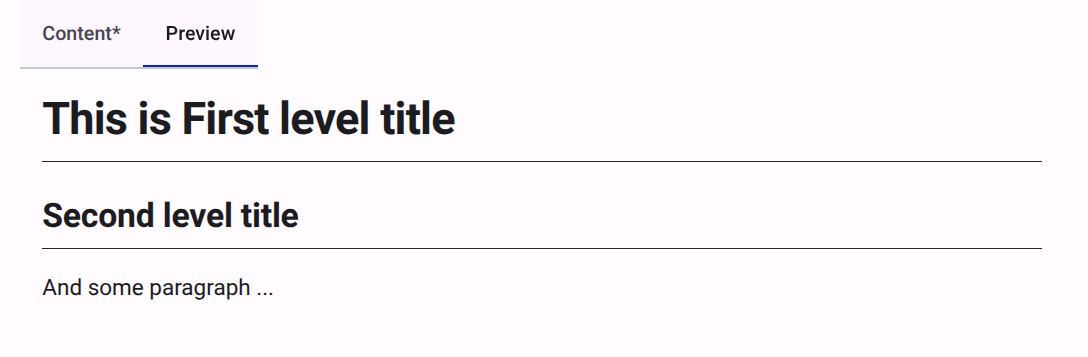
To see how your formatting will appear to respondents, click the Preview tab at the top of the editor. This provides a real-time rendering of your Markdown content.
INFO
For a deeper dive into why we use Markdown, see our Explanation: Using Markdown.