
Training Course Session 2: Adding Accessibility Options
Overview
In Session 1, you created your 'Training Survey'. In this session, you will enhance it by adding essential accessibility features.
Estimated time: 15-20 minutes
Learning Outcomes
By the end of this session, you will be able to:
- Use the 'Form Behavior' menu to activate accessibility modes.
- Create an Easy Read version of your survey.
- Add a sign language video to your survey.
- Choose a Read Aloud voice.
- Understand how the Voice Recording option works.
- Test your accessibility options.
NOTE
The 'Training Survey' uses British Sign Language (BSL), but you can offer any sign language—or even multiple sign languages—in your own surveys.
Training Materials
British Sign Language (BSL) Videos
Use the following YouTube IDs to add BSL videos to your 'Training Survey'.
| Question | YouTube ID |
|---|---|
| 1.1 'Which survey tool does your organisation use the most?' | dsL489ipJxM |
| 1.2 'I am satisfied with my current survey tool' | 6KxVTBEfcUQ |
| 1.3 'What do you like about the survey tool you are using?' | 4LfklqWfq3A |
| 1.4 'What frustrates you about the survey tool that you are using?' | hK1L5y5iRds |
| 2.1 'Do you like this survey?' | Zne0RX2she4 |
TIP
Survey builders currently need to provide their own sign language videos. We can provide details of recommended sign language service providers if required.
Easy Read Images
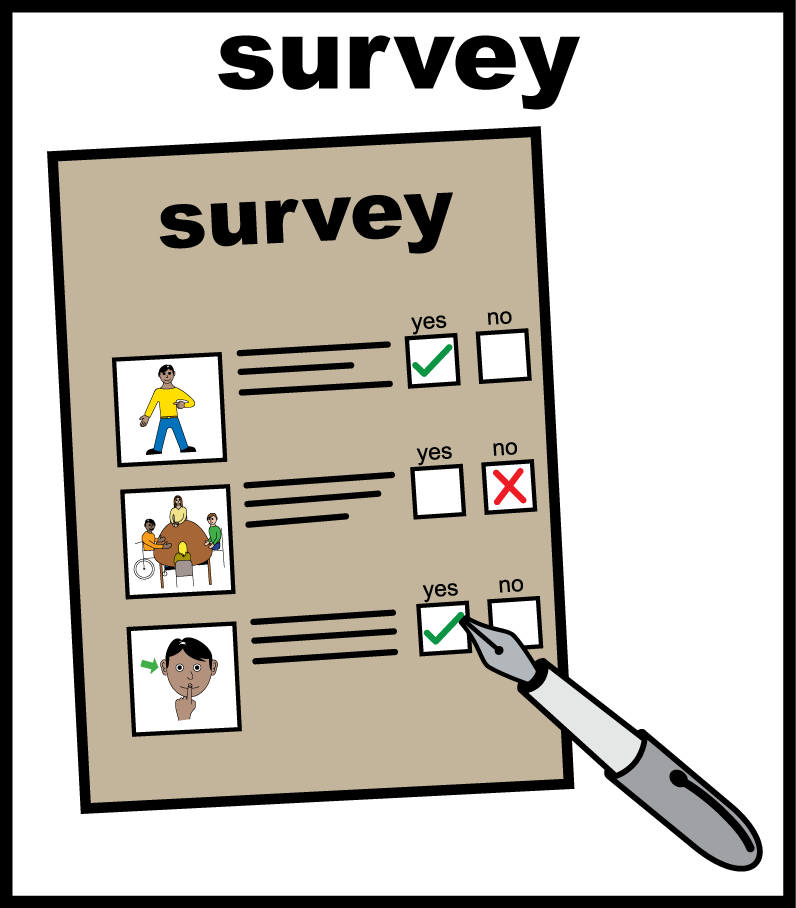
Download the following images to a local folder before starting the video. You can download them all at once or individually below.
📥 Download all Easy Read Images (ZIP)
| Image 1 | Image 2 | Image 3 |
|---|---|---|
 Download |  Download |  Download |
| Image 4 | Image 5 |
|---|---|
 Download | 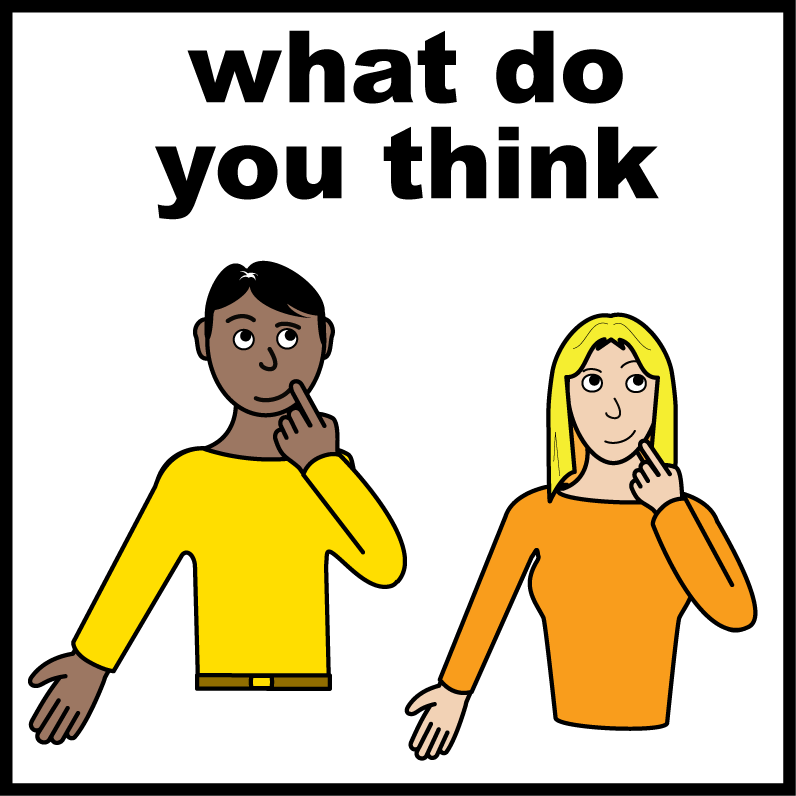 Download |
NOTE
These images are sourced from Easy on the i, a free library of symbols, photos, and graphics for Easy Read materials.
Instructions
Follow along with the video to add accessibility options to your survey.
Advanced Topics
For more advanced features related to accessibility, refer to the following guides:
- Adding Easy Read to your 'Introduction Page' and 'Thank You Page'
- Adding multiple sign languages to your survey
Next Steps
NOTE
Congratulations on completing Session 2! You are now ready to move on to Session 3 to learn how to translate your survey into multiple languages.