Use Sign Language
Accessible Surveys allows you to include sign language videos for every question in your survey. This ensures that respondents who use sign language as their primary mode of communication can access your survey content in their preferred format.
Enabling Sign Language in your Survey
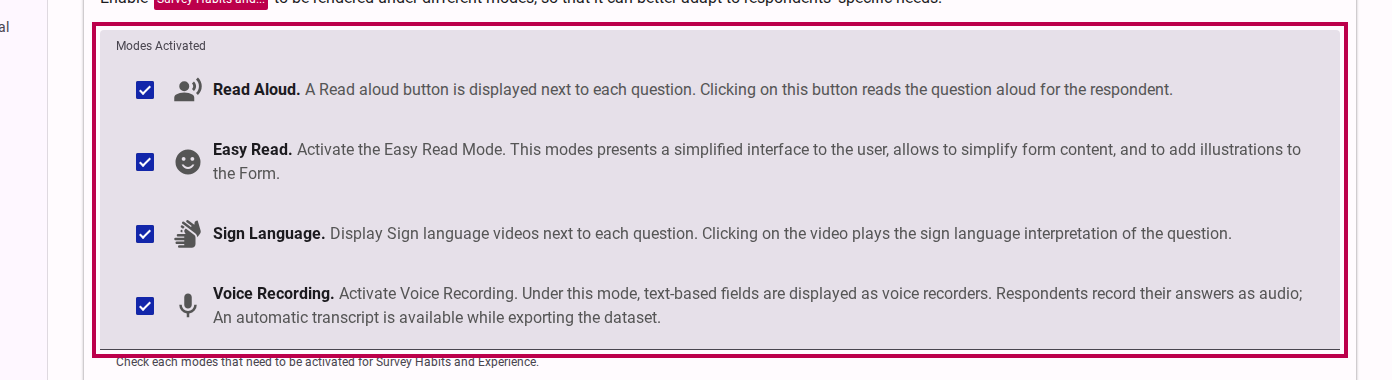
Before you can add sign language videos to your questions, you must enable the sign language mode in your survey's behavior settings.
- Navigate to the Behavior tab of your survey.
- In the Modes Activated section, ensure that Sign Language is selected.
Activating Sign Language Mode in the Editor
Once enabled, you can switch the editor to Sign Language mode to start adding content.
- In the Compose view, click the Sign Language Mode button in the accessibility toolbar.
Adding Sign Language Videos
With Sign Language mode active, you can now associate a video with each question or content element.
- Select a question or content element from the survey tree.
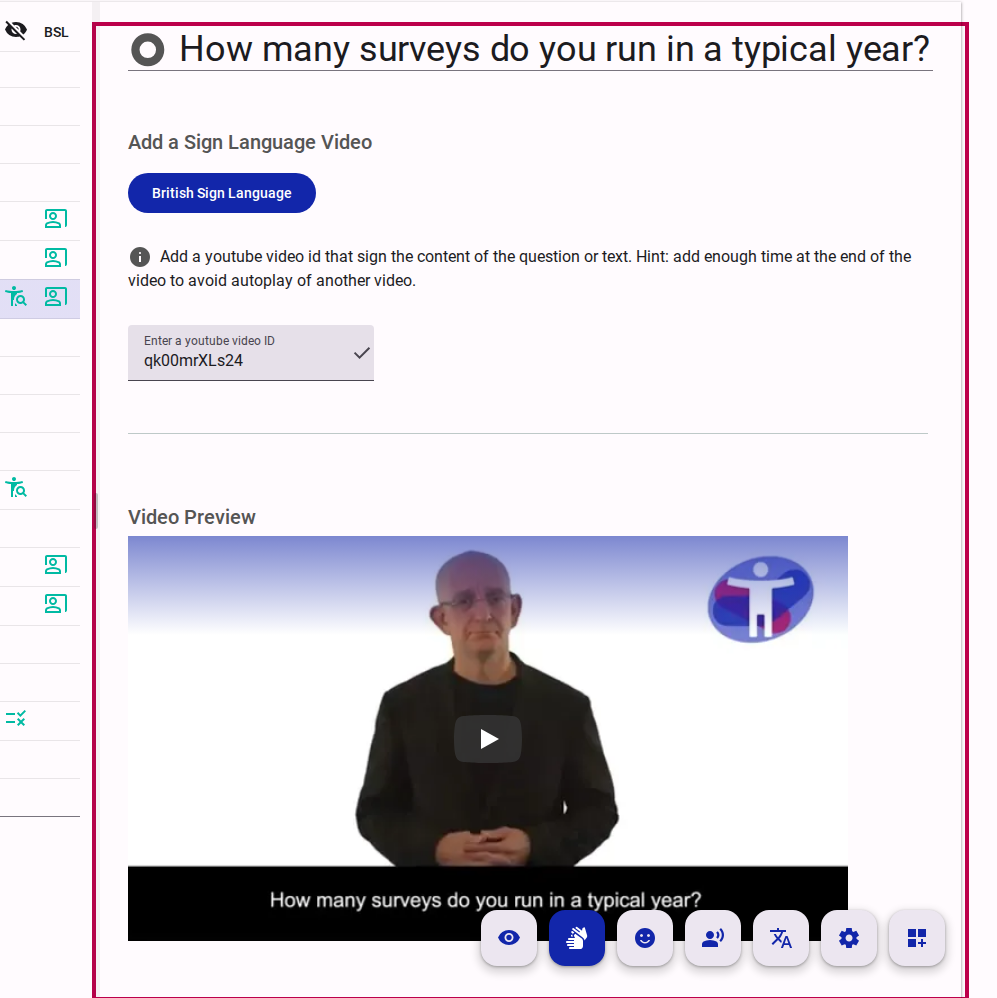
- In the content editor, click Add a Sign Language Video.
- Select the sign language you want to provide (if multiple languages are activated).
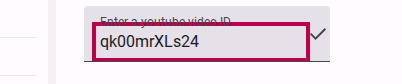
- Enter the YouTube Video ID for the sign language translation.
TIP
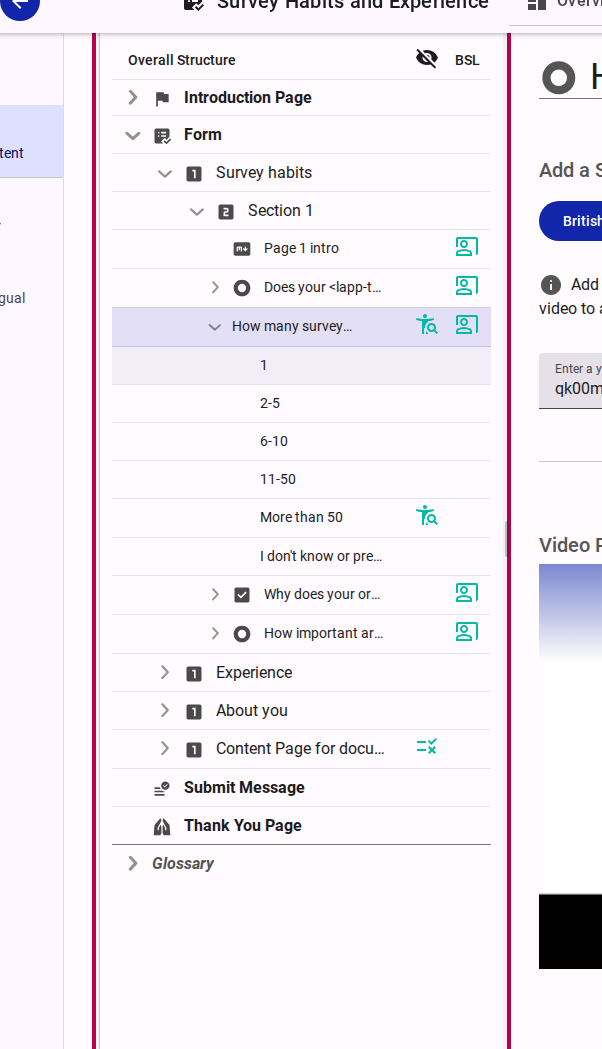
You can easily identify which items already have sign language content by looking for the sign language icon in the survey tree.
Bulk Uploading Sign Language Videos (Import/Export)
If you have many sign language videos to add, you can bulk-edit them using the Survey Definition export/import feature.
- Go to the Distribute tab and select Import/Export.
- Click Export Survey Definition and select the language you want to export. Click Create the Export to download the survey structure in JSON format.
- Open the downloaded file and add or update the
videoIdproperties for your questions with their corresponding YouTube Video IDs. - Return to the Import/Export section, click Import Survey Definition, and upload your modified file. The new Video IDs will be mapped back to your questions automatically.
Advanced Visibility for Sign Language
In some cases, you might want to show or hide specific content only when the respondent is using the sign language mode.
- Click the Visibility Mode button.
- Toggle Advanced Mode.
- In the visibility settings for a field, you can now specify that it should only be visible for the Sign Language mode.