
Image Library Reference
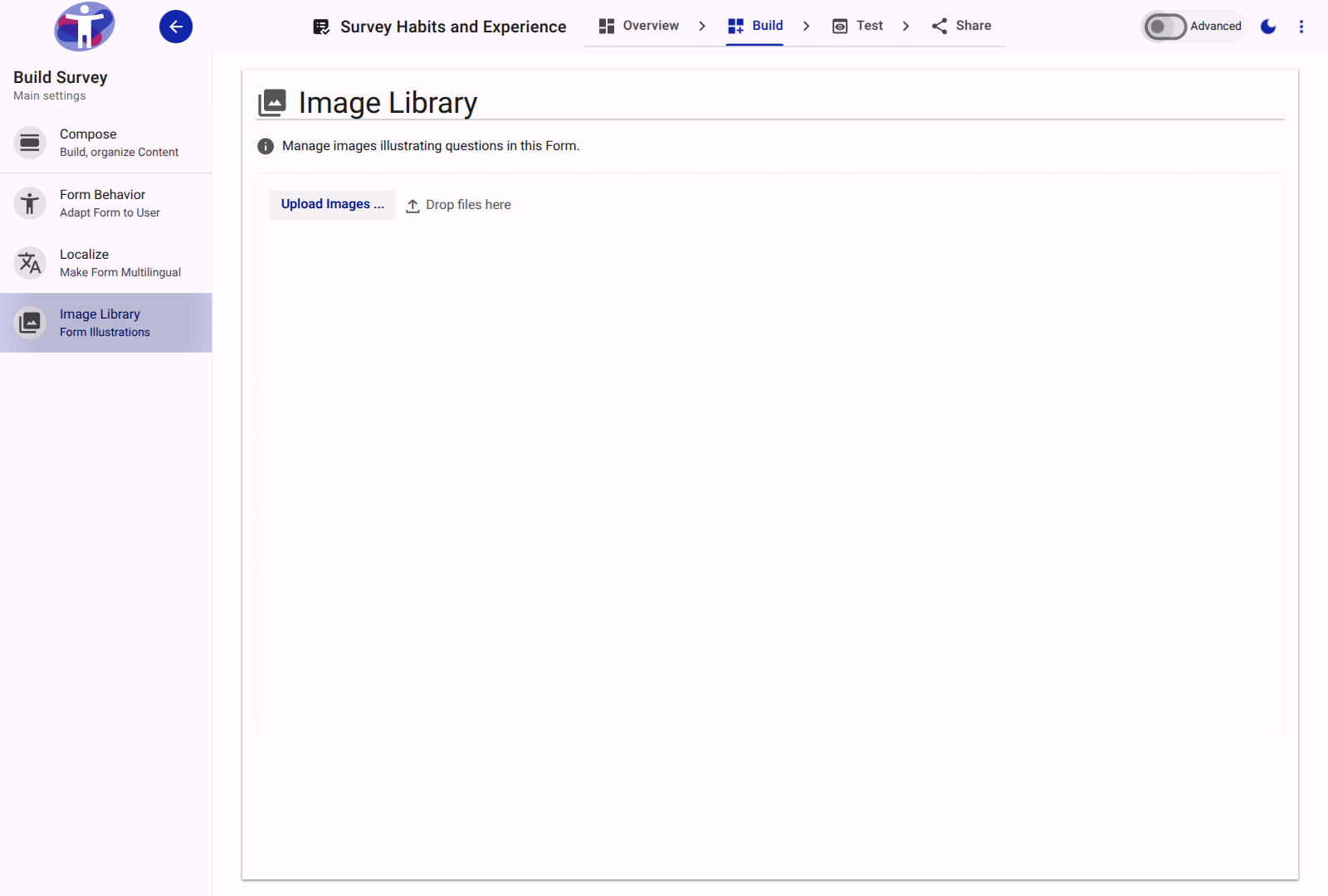
The Image Library provides a centralized gallery for managing visual assets—such as Easy Read illustrations, organization logos, and explanatory diagrams—used throughout the survey form.
Uploading Media
Click Upload Images ... to upload files from your device. The upload component supports:
- Supported Media Types: Images and videos (
accept="image/*, video/*"), including PNG, JPEG, SVG, WebP, GIF, and MP4. - Maximum File Size: Up to 5 MB per file (
5,000,000bytes). Files exceeding 5 MB will be rejected by the uploader. - Recommended File Size: We recommend keeping Easy Read images under 400 KB to optimize load times for mobile respondents, ideally using square (1:1) aspect ratios for layout consistency.
- Form Capacity: Up to 10,000 media files can be attached to a single survey form.
Gallery Management
Uploaded assets are organized in the media gallery grid (lapp-media-gallery):
- Selection: Click items to select them individually, or use multi-select to select several items at once.
- Preview: Inspect full-resolution images and video playback directly in the gallery.
- Download: Download any uploaded asset back to your computer.
- Delete: Remove unneeded assets from the library. Note: Ensure an image is not actively used in a question or Easy Read illustration before deleting it.
Using Images in Surveys
Once uploaded, assets in the Image Library can be referenced across your survey:
- Easy Read Illustrations: Assign images directly to questions or sections in Easy Read mode via the Compose tree.
- Free-Text Content: Embed images within Markdown text blocks, question descriptions, or introduction pages using the rich text editor's image insertion tool or standard Markdown syntax.
Related Content
- Adding Images to the Library How-to Guide — Step-by-step image management workflow
- Using Easy Read How-to Guide — Illustrating questions with Easy Read images
- Markdown Reference: Web Components — Formatting and embedding media in survey text