
Form Reference
The Form is the root structural container for all survey questionnaire elements. In the Compose tree hierarchy, the Form sits below the survey-level text elements (Introduction, Terms, Submit, and Thank You) and directly encapsulates all Pages, Sections, and Questions.
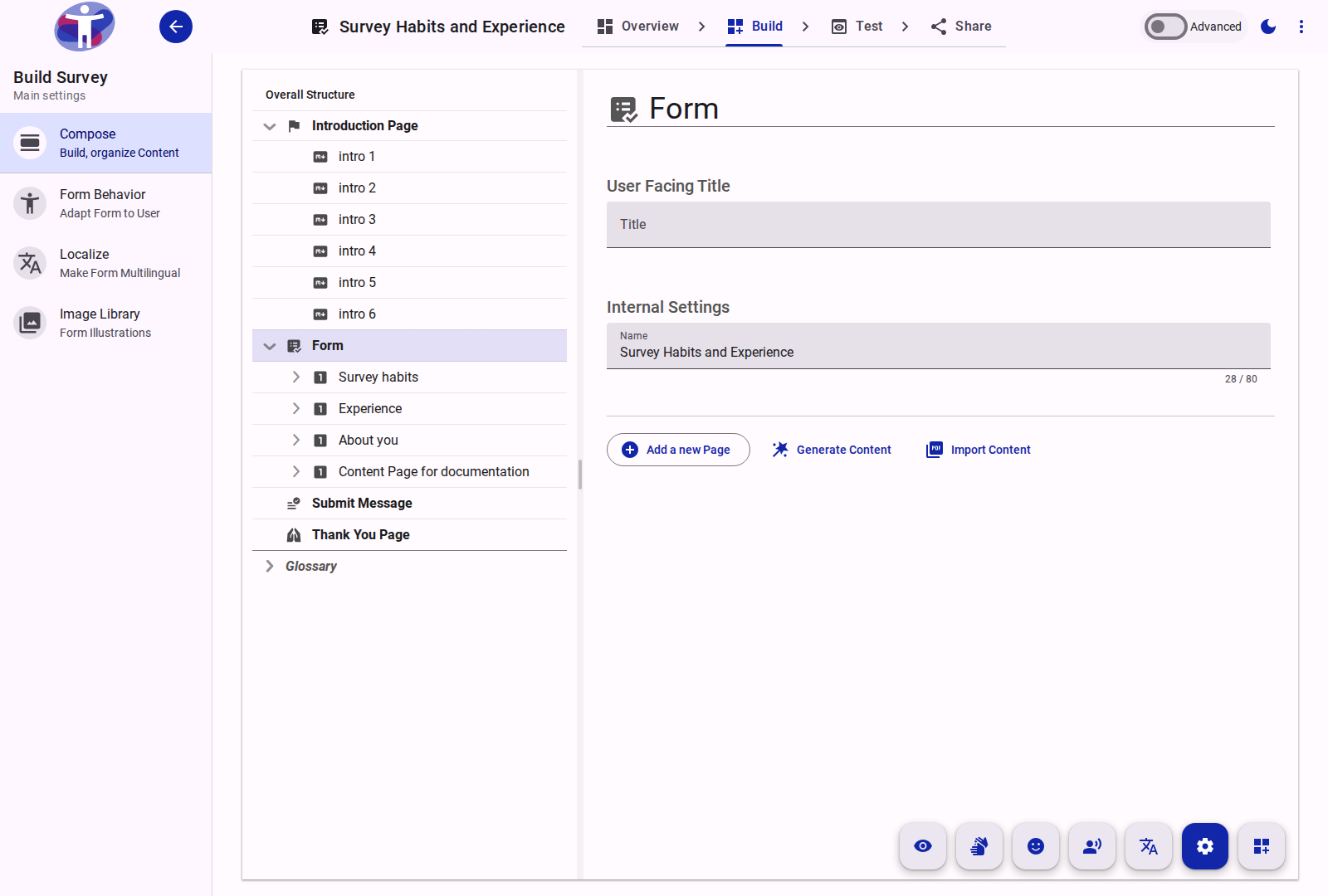
Hierarchy and Architecture
The questionnaire hierarchy is strictly structured:
$$\text{Survey Root} \longrightarrow \text{Form} \longrightarrow \text{Page} \longrightarrow \text{Section} \longrightarrow \text{Question / Text} \longrightarrow \text{Option}$$
Every question and section in the questionnaire is an item within the form's flat storage collection, while the Form document defines the overarching page order, global presentation mode, and questionnaire-wide styling tokens.
Form Identity Properties
Selecting the Form row in Build → Compose opens its properties in the right-hand settings drawer:
| Property | Setting Type | Scope | Description |
|---|---|---|---|
| Title | User-Facing Title | Translated per locale | The main heading displayed at the top of the form for respondents. |
| Name | Internal Settings | Internal only | The administrative name of the form in the editor. Not visible to respondents and not translated. |
| Form Description | Internal Settings (Advanced) | Internal only | Technical notes and internal authoring documentation (shortDesc). |
Form Name vs. Survey Name
The Name configured on the Form container is the internal identifier of the form data structure. It does not rename the survey. To change the survey's name in the workspace or the survey title seen on the landing page, edit the Introduction Page (see Rename a survey).
Global Configuration and Behavior
The Form container governs questionnaire-wide rendering rules configured in Form Behavior and the Form settings drawer:
Presentation Mode
The questionnaire supports two distinct navigation layouts:
- Multiple Questions Per Page (
multipleQuestionsPerPage): Standard web form layout. Respondents scroll through each Page containing its configured sections, questions, and informational text blocks before clicking Next to proceed to the following Page. - One Question At A Time (
oneQuestionAtATime): High-focus conversational layout. Each question is automatically isolated onto its own screen. Standalone text items appear above the following question by default, or can be forced onto their own dedicated screen using the End Page switch.
Global Question Settings
- Accessible Label (
questionSettings.accessibleLabel): When toggled on, renders a larger, high-contrast label variant across all form questions and disables decorative label animations. Crucially, turning on Accessible Label removes the standard 80-character limit on question labels, allowing comprehensive questions without validation truncation. - Allow Media Illustration (
questionSettings.allowIllustration): Enables attaching visual illustrations, diagrams, or contextual media to questions. - Preserve Media Space (
questionSettings.preserveMediaSpace): When illustrations are permitted, reserves uniform vertical whitespace on cards without media to maintain consistent visual alignment across questions. - Scroll Page Before Next (
scrollPageBeforeNext): Requires respondents to scroll to the very bottom of the current page before the Next navigation button activates, preventing accidental omission of off-screen items.
Page Randomization
- Randomize Pages (
props.randomize): Toggling on shuffles top-level pages for each respondent session. Individual pages can be exempted from shuffling by enabling theirprops.fixedswitch.
Available Actions
From the Form row context menu or the bottom action bar, editors can perform:
- Add a new Page: Appends a new Page container to the end of the form.
- Add a new Text: Inserts a standalone rich-text markdown block at the form level.
- Expand all / Collapse all: Recursively expands or collapses all descendant Pages, Sections, and Questions across the entire form tree.
- Translate: Opens the Form title and description in Localize Mode for translation into target languages.
- Import Content / Generate Content: Launches batch AI content generation or JSON structured schema import.