
Team Audiences
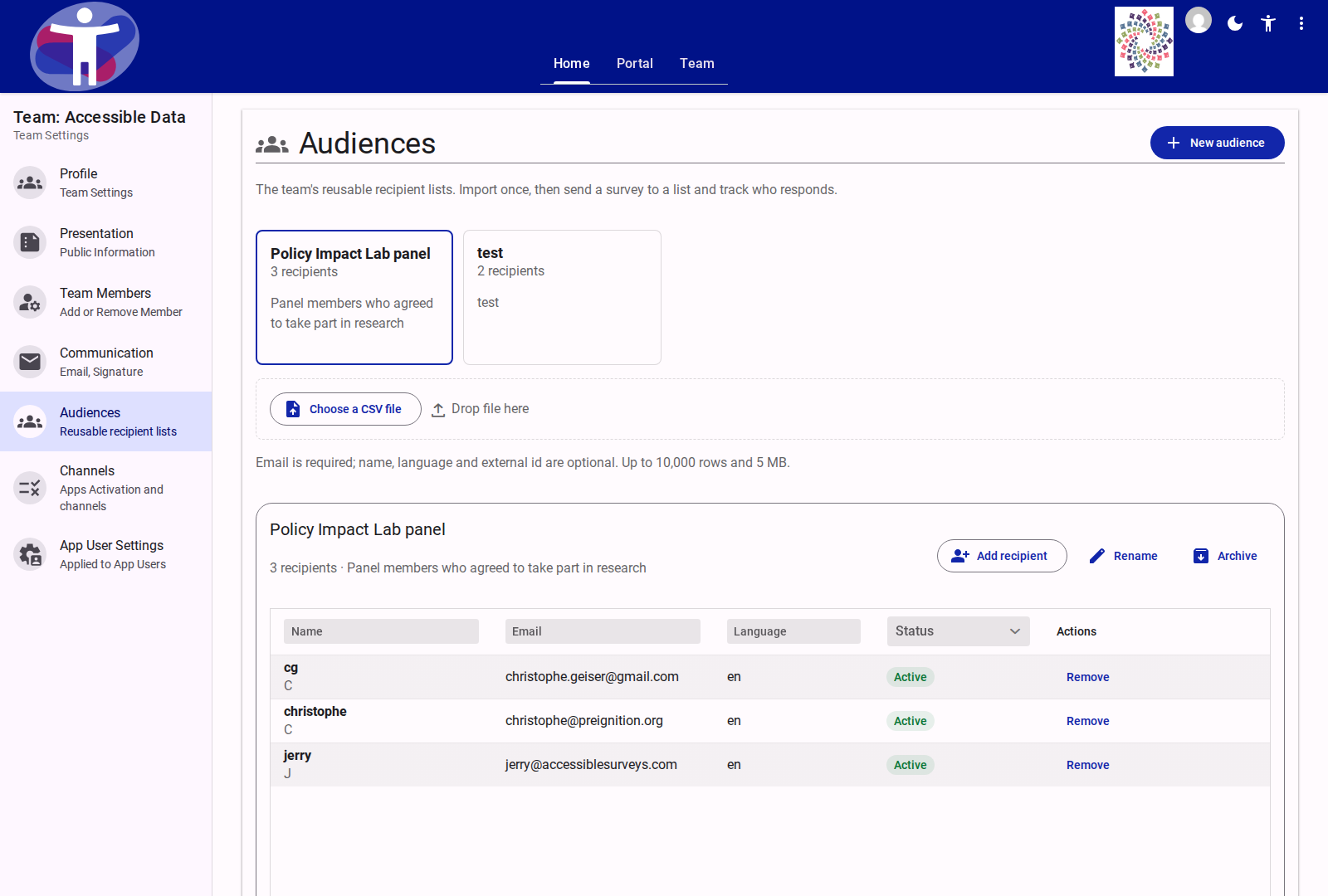
The Audiences page in Team Settings (/customer/{teamId}/team/audiences) manages the team's reusable recipient lists for survey invitation runs.
A team stores one Recipient record per normalized email address, while Audiences act as named membership lists (audienceIds). A single person can belong to several audiences within the same team without duplicating their recipient record.
Audiences are shared across apps: the Survey app uses them for invitation runs, and the Listserv app imports them to seed channel subscribers. Suppression applies to both.
Audience Cards and Lifecycle
Each audience appears as a selectable card at the top of the workspace displaying:
- Name: The display name of the audience (up to 120 characters).
- Subtitle: Total
recipientCount(and anArchivedindicator when archived). - Description: Optional summary explaining the list's origin or purpose.
Creating an Audience
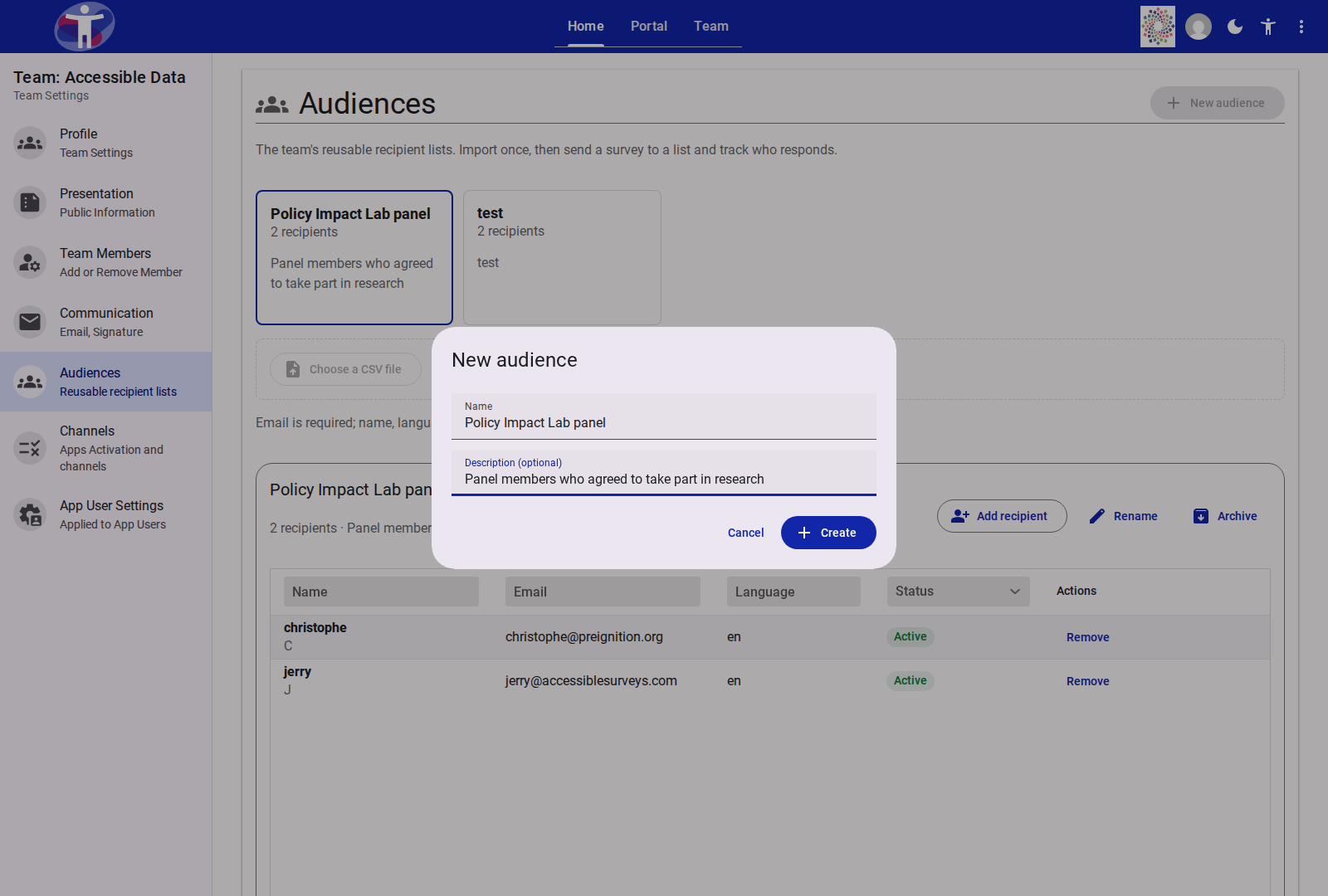
Clicking New audience opens a modal dialog with two fields:
| Field | Required | Description |
|---|---|---|
| Name | Yes | Display name for the audience. Must not be empty. |
| Description (optional) | No | Free-text note describing the recipient group. |
Uploading on an Empty Team
If a team has no audiences yet, uploading a CSV file directly on the page automatically creates the team's first audience named after the CSV filename (without its extension) and opens the import preview dialog.
Audience Actions
The selected audience's detail header provides the following actions based on the member's team role:
| Action | Minimum Role | Behavior |
|---|---|---|
| Add recipient | Editor | Opens a dialog to add or update a single recipient (Email, optional Name, optional Language such as fr or fr-CA). Disabled when the audience is archived. |
| Rename | Editor | Opens the Audience settings dialog to update the audience's Name and Description. |
| Archive / Restore | Editor | Toggles the audience between active and archived. Archived audiences are read-only and cannot be selected for new invitation runs until restored. |
| Export | Admin / Owner | Downloads a CSV of all recipients in the selected audience, including full email addresses. Recorded in the team audit log (audience-export). |
| Delete audience | Admin / Owner | Deletes the audience after confirmation. Recipients remain in the team's other audiences. Recorded in the team audit log (audience-delete). |
CSV Import Specification
Recipients can be bulk-imported into any active audience by clicking Choose a CSV file or dropping a .csv file onto the upload zone.
File Requirements and Canonical Columns
- Format:
.csv(text/csv), up to 10,000 rows and 5 MB (5,000,000bytes). - Canonical target fields:
| Target Field | Required | Automatic Header Aliases | Normalization & Validation |
|---|---|---|---|
email | Yes | email, e-mail, mail, emailaddress | Trimmed, lowercased, max 254 chars, must contain one @ and a dotted domain with no whitespace. |
name | No | name, fullname, firstname, lastname | Optional display name used for the {{name}} merge field and Progress search tokens. |
language | No | language, lang, locale | Platform language code (e.g., en, fr). Region tags like fr-CA fall back to their base language (fr) if the region is not separately configured. |
external_id | No | externalid, id | Optional identifier from an external CRM or panel database. |
Unrecognized columns default to Ignore and can be remapped interactively in the preview dialog. Reserved prototype property names (__proto__, constructor, prototype) are rejected.
Import Preview and Warranty Dialog
After uploading a CSV, customer-audience-import-dialog parses the file on the server and displays a live preview before any changes are committed:
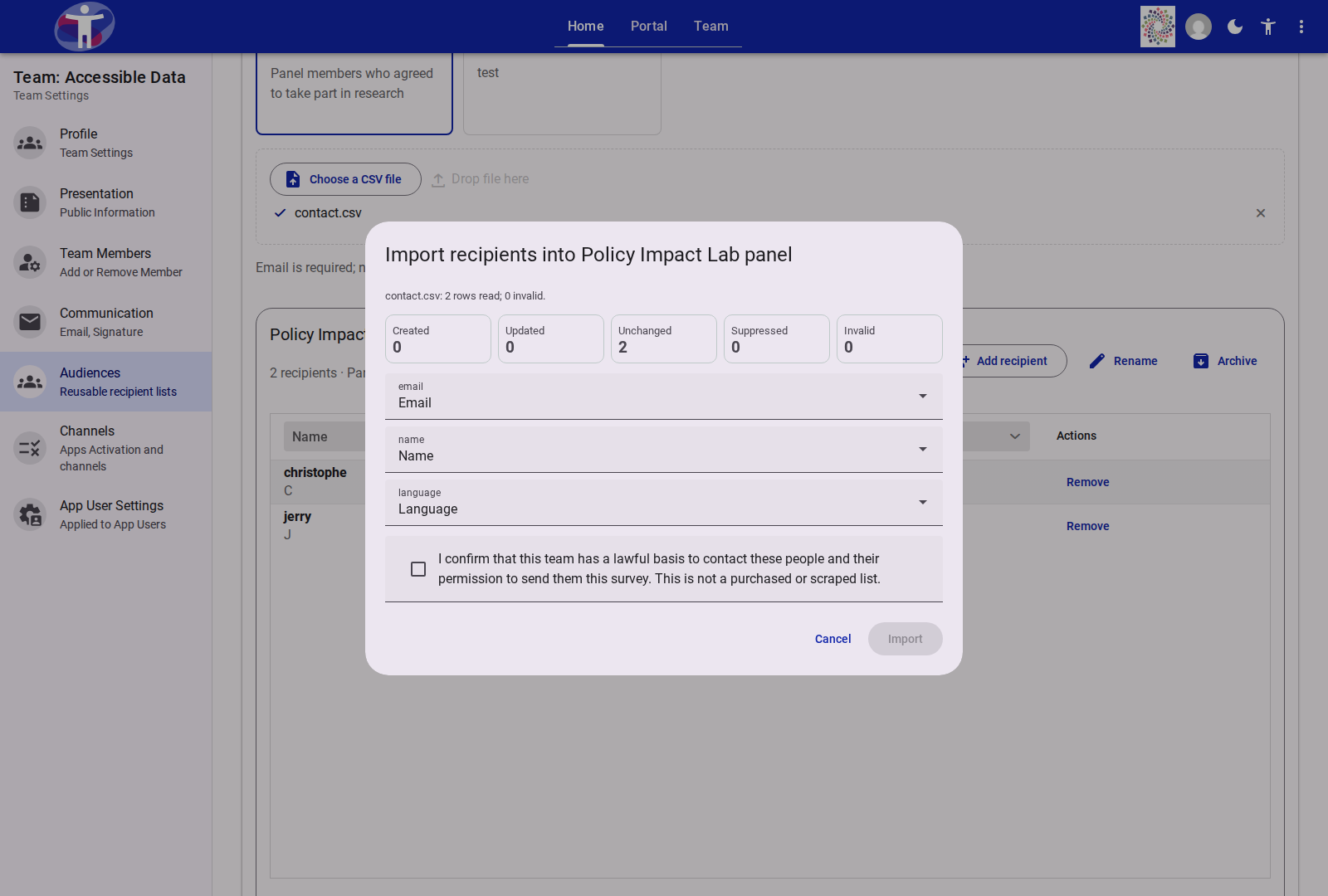
- Dry-run outcome tiles:
- Created: New recipient records that will be added to the team and linked to this audience.
- Updated: Existing team recipients whose metadata (
name,language,external_id) or audience membership will be updated. - Unchanged: Recipients already present in the audience with identical values.
- Suppressed: Recipients matching the customer-wide suppression list. They are added to the audience with
status: 'suppressed'so the list stays accurate, but they are never emailed. - Invalid: Rows with missing or malformed email addresses. Invalid rows do not block valid rows.
- Header mapping: One dropdown per CSV column allowing the editor to map the column to
Email,Name,Language,External id, orIgnore. Changing a mapping immediately recomputes the preview. - Error report: If
Invalid > 0, each failing row is listed with its row number and reason, and Download error CSV exportsrow,email,reasonfor offline correction. - Import warranty: The Import button remains disabled until the user ticks:
"I confirm that this team has a lawful basis to contact these people and their permission to send them this survey. This is not a purchased or scraped list."
Committing an import records an import-commit entry (including the accepted warranty version) in the team audit log.
Recipient Grid
The recipient table (#recipient-grid) displays all recipients belonging to the selected audience, sorted alphabetically by name or email.
| Column | Filter / Control | Description |
|---|---|---|
| Name | Text header filter | Displays the recipient's name (or email if unnamed) and their initial badge. |
| Text header filter | Full normalized email address (visible to team owners, admins, and editors). | |
| Language | Text header filter | Two-letter language code (or — when unset). |
| Status | Select header filter (Active, Suppressed) | Active (green badge) or Suppressed (red badge — unsubscribed, complained, or hard-bounced). |
| Actions | Row buttons | Remove (editors, admins, owners) removes the person from the selected audience while keeping them in the team's other audiences. Delete (admins and owners only) removes the recipient from the entire team and every audience. |
System Limits and Permissions
Quotas and Caps
| Limit | Value |
|---|---|
| Maximum audiences per team | 50 |
| Maximum recipients per audience | 10,000 |
| Maximum rows per CSV import | 10,000 |
| Maximum file size per CSV import | 5 MB |
| Maximum outbound invitation/reminder emails per team per day | 20,000 |
Access Control Matrix
| Role | View Audiences & Full Emails | Create, Edit, Archive, Import, Add/Remove Member | Export CSV, Delete Audience, Delete Recipient from Team |
|---|---|---|---|
| Team Owner / Admin | Yes | Yes | Yes |
| Team Editor | Yes | Yes | No |
| Team Guest | No | No | No |