
How to Manage Team Audiences
A team audience is a reusable recipient list. Survey invitations and Listserv channels both draw from it, so a person appears once in the team and can belong to several audiences without being duplicated. This is the canonical guide for creating and maintaining audiences; the Survey and Listserv guides link here instead of repeating the CSV steps.
You need the team Owner, Admin or Editor role. Exporting and deleting an audience needs Owner or Admin.
Before you start
- Open the team: Customer Portal → Teams → Open → Audiences.
- Prepare a CSV with at least an email column. Optional columns are name, language and external ID.
- Confirm your team has a lawful basis to contact these people and their permission to receive the survey or broadcast. Purchased or scraped lists are not permitted.
Create an audience
- Select New audience.
- Enter a Name (up to 120 characters) and an optional Description.
- Select Create.
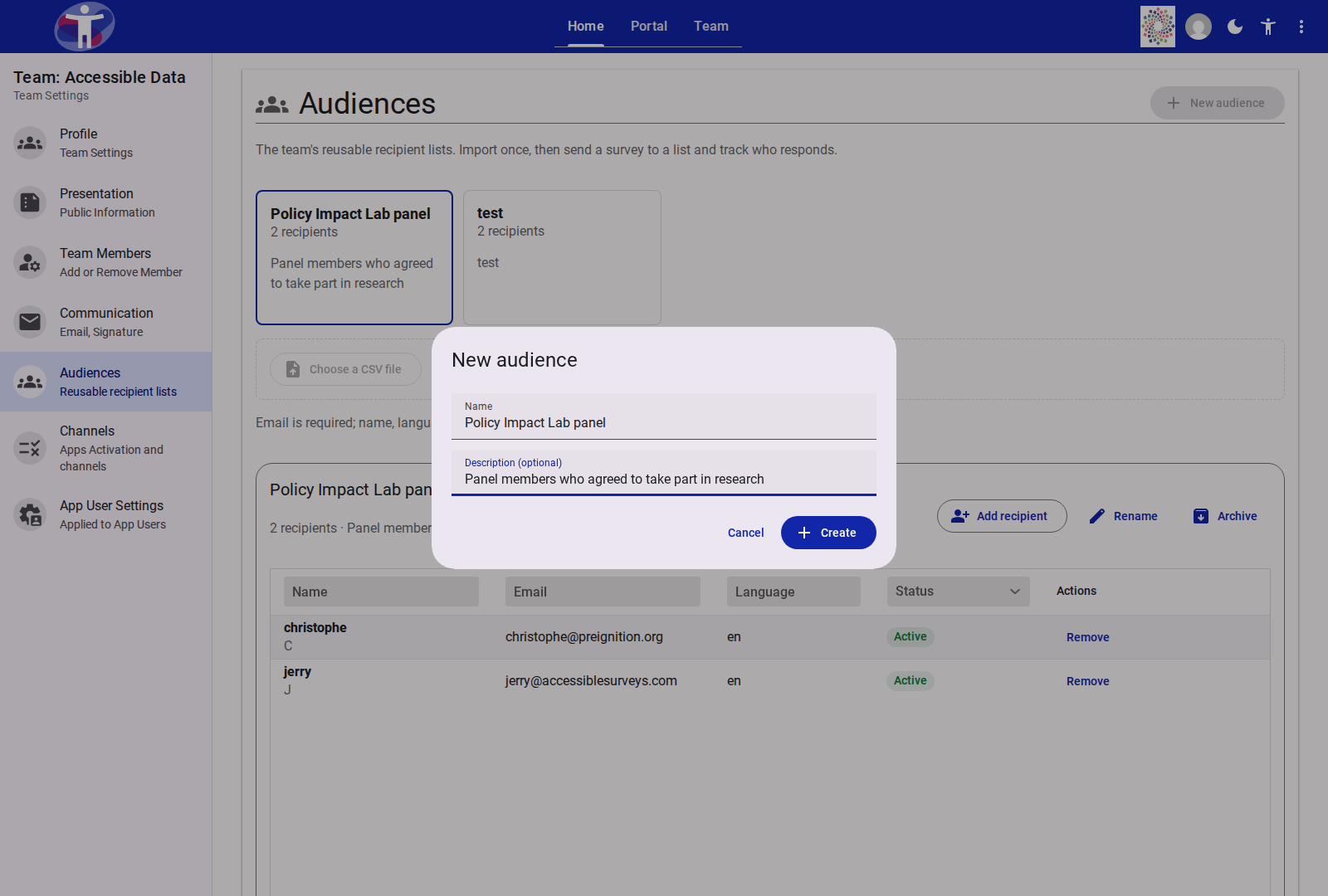
A team can hold up to 50 audiences. If the team has no audiences yet, uploading a CSV directly on the page creates the first audience from the file name.
Import recipients from a CSV
Select the audience card.
Select Choose a CSV file, or drop a
.csvfile on the upload zone.In the Import recipients dialog, review the dry run:
Tile What it means Created New recipients that will be added to the team and the audience. Updated Existing recipients whose details or membership will change. Unchanged Already in the audience with identical values. Suppressed On the organization-wide suppression list; added to the audience but never emailed. Invalid Missing or malformed addresses; they do not block the valid rows. Check the Column mapping: each CSV column maps to Email, Name, Language, External id or Ignore. Change a mapping to recompute the preview.
If invalid rows exist, select Download error CSV (
row,email,reason) and fix them.Tick the warranty confirming lawful basis and permission.
Select Import.
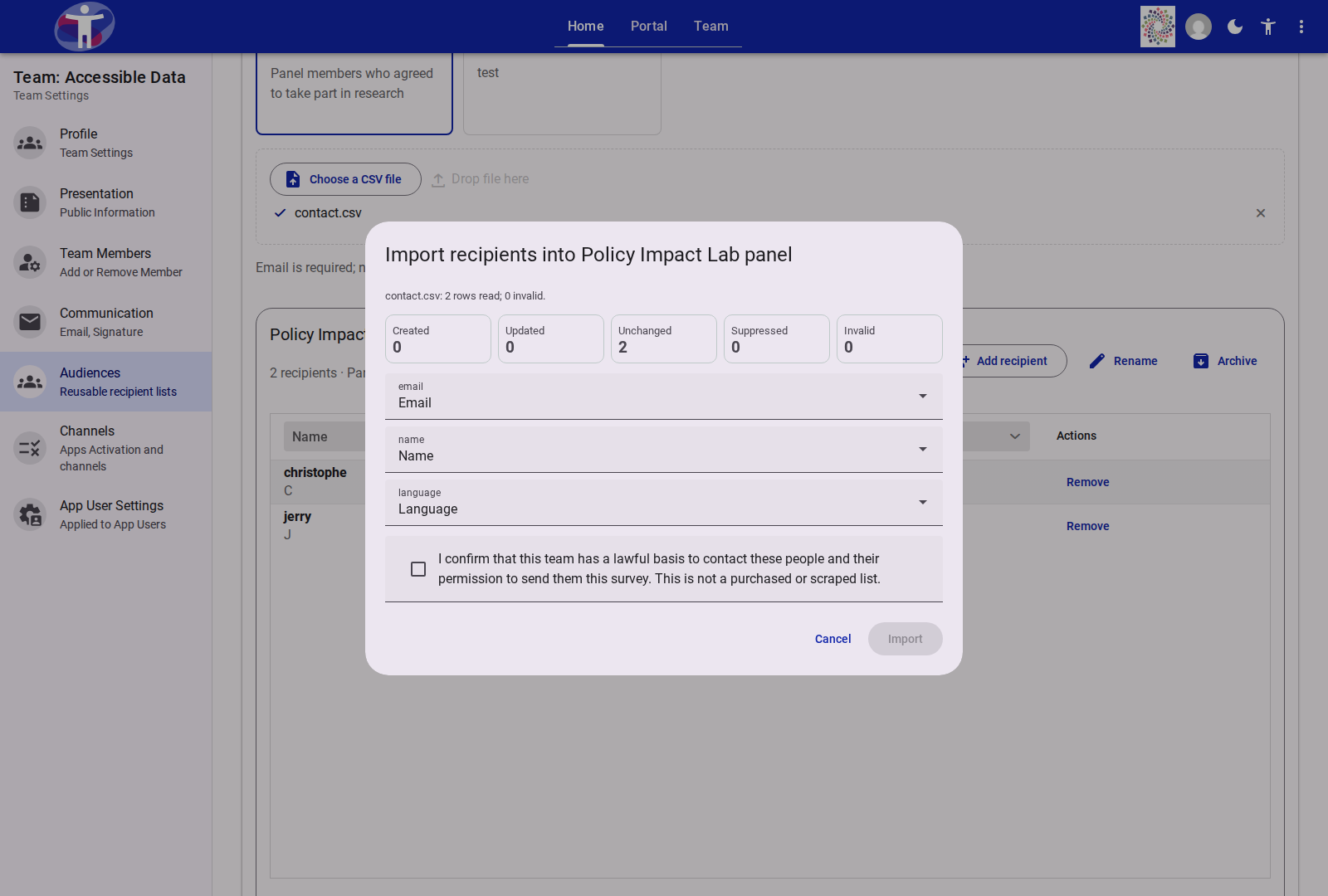
Limits: 10,000 rows and 5 MB per file. Re-importing the same file is idempotent.
Column rules
| Field | Required | Normalization |
|---|---|---|
| Yes | Trimmed, lowercased, at most 254 characters, must contain @ and a dotted domain. | |
| Name | No | Display name used in {{name}} and search. |
| Language | No | Platform language code; a region tag falls back to its base language. |
| External id | No | Identifier from a CRM or panel database. |
Common header spellings (e-mail, mail, full name, lang, locale) are recognized. Map anything else explicitly; unmapped columns are ignored.
Work with recipients
Select an audience card to open its recipient grid, sorted by name or email.
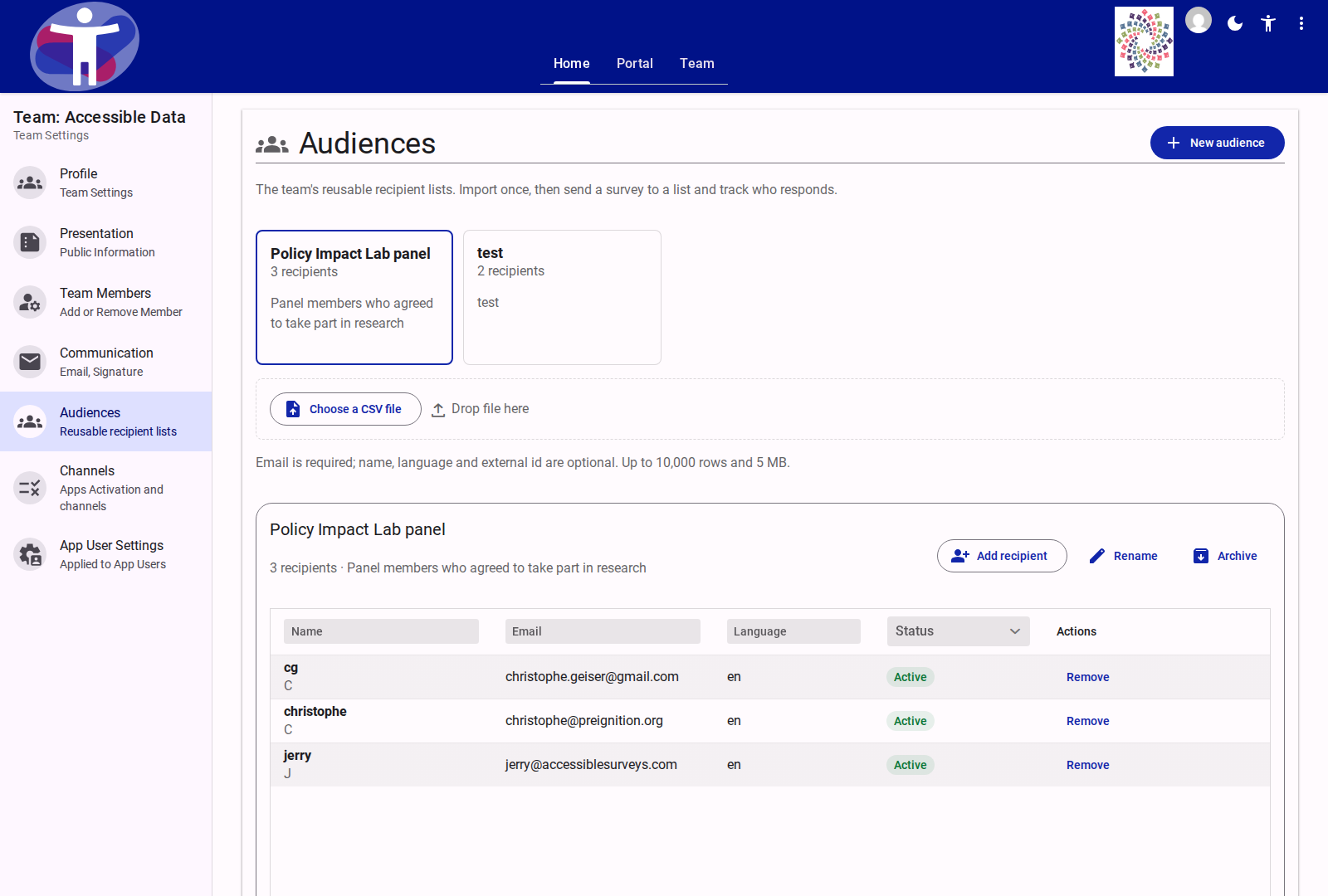
- Add recipient: enter an email, and optionally a name and language.
- Remove: removes the person from the selected audience but keeps them in the team's other audiences.
- Delete from team: removes the recipient from the team and every audience (Owner or Admin only).
- Filter: use the column filters for name, email, language and status (
ActiveorSuppressed).
Adding or removing members requires Editor or above. Archived audiences are read-only.
Rename, archive or delete an audience
- Rename: open Audience settings and update the name or description.
- Archive: makes the audience read-only and unavailable for new invitation runs until restored. Existing sends are unaffected.
- Restore: returns an archived audience to active.
- Delete audience: removes the audience after confirmation. Recipients stay in the team's other audiences.
Export and delete are recorded in the team audit log.
Export an audience
Select Export (Owner or Admin) to download a CSV of the audience's recipients, including full email addresses. Exporting is an auditable action; handle the file as personal data.
Use the audience elsewhere
- Survey invitations: choose the audience in Share → Distribute → Invitations. See How to Send Invitations to a Team Audience.
- Listserv: import the audience in Channel Settings → Audience Import. See Importing a Team Audience.
Both reuse the same team records, so an address suppressed in one place is suppressed for the other.
Troubleshooting
- "Invalid" rows: check for spaces, missing domains, or a header mapped to the wrong column. Fix the CSV and re-import.
- A recipient is missing after import: they may be suppressed. Filter by status to confirm.
- Import button stays disabled: tick the warranty; it is mandatory for every import.
- Cannot export: exporting requires Owner or Admin.
- Audience not offered in the Survey or Listserv picker: confirm it is not archived and belongs to the same team as the survey or channel.
Related Content
- Team Audiences Reference: Limits, statuses and permissions.
- How to Send Invitations to a Team Audience: The invitation run.
- Importing a Team Audience: The Listserv import flow.
- Understanding Access and Permissions: Who can edit an audience.