
Catch Issues Early, Stay in Touch Effortlessly
Date: 2026-10-20
Version: 2.2.0
Publishing a survey usually comes with two nagging questions: Did I miss a broken condition, an accessibility barrier, or an untranslated question? and How do I invite a contact list or follow up with respondents without linking their answers to their email addresses?
This release answers both — and makes complex survey logic much easier to maintain:
- A new Review workspace checks your survey from top to bottom across structure, logic, translation, accessibility, and content quality and lets you fix issues with a click.
- Focused structure tree filters: Filter the Compose tree by generated content, open review findings, conditional visibility, or missing Easy Read, audio, and sign-language media — with automatic ancestor expansion and drag-and-drop protection.
- One-click Review access: When open review findings exist, a dedicated Review button in the Compose toolbar lets you jump straight to findings and back.
- New Team Audiences & Survey Invitations let you import a reusable contact list in Team Settings → Audiences, compose and test multilingual invitation emails on Share → Email, distribute unique links (
/v2/{surveyId}/i/{token}) from Share → Distribute, and track delivery, completion rates, and reminders in Analytics → Progress — without ever linking a respondent's answers to their address. - The new Email tab under Share also handles submission confirmations, opt-in reminders, and follow-ups with respondent consent and automatic data expiry built right in.
- The new Expressions page gives you a single place to inspect and clean up every logical rule in your form.
- Faster respondent pages: Public survey links now open sooner, especially on mobile and slower connections.
1. Review Your Survey Before You Publish
You no longer have to click through every branch or wait for a build error to find out something is off. The new Review step sits right in the Survey Builder (between Compose and Form Behavior) and brings all quality and accessibility checks into one place.
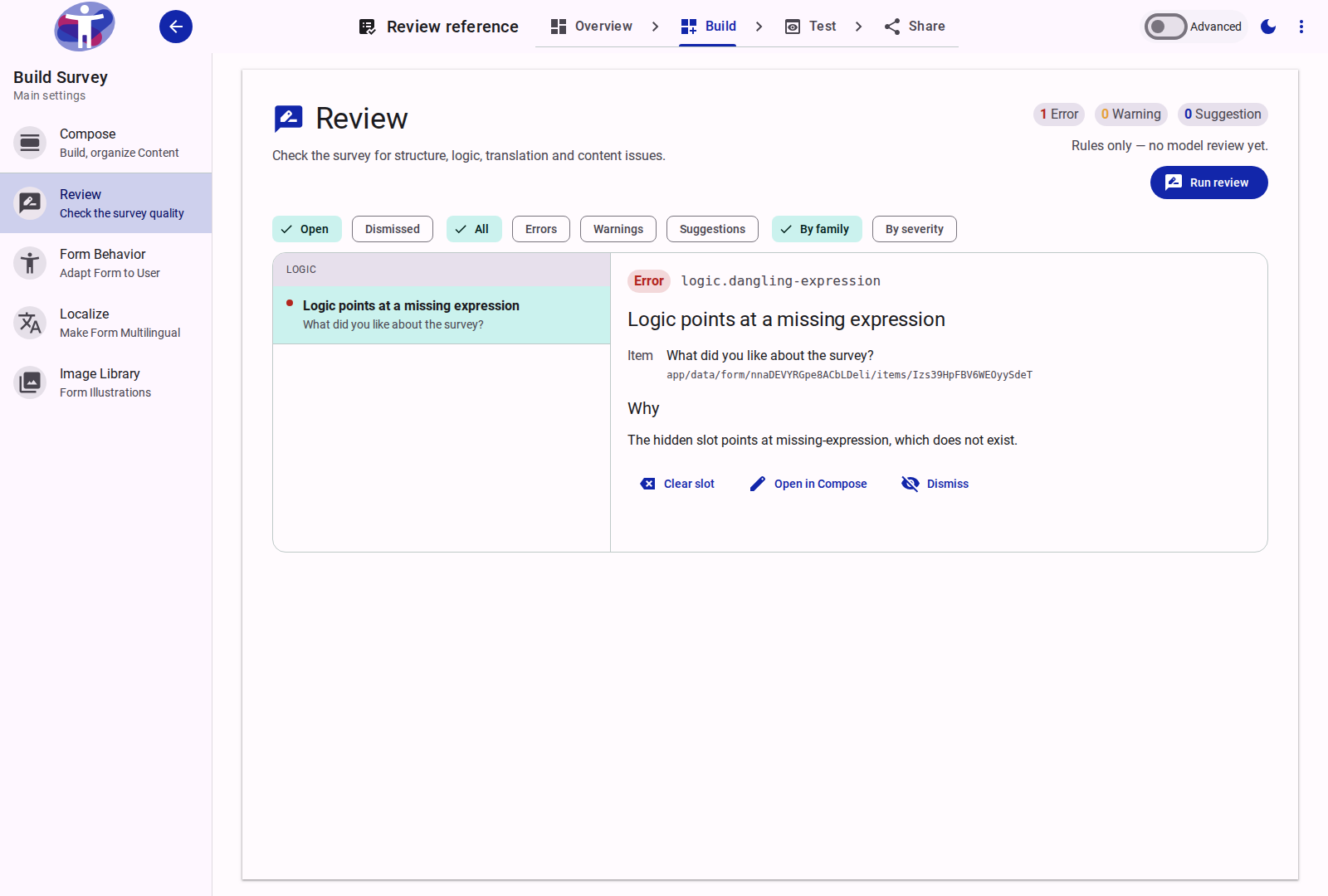
Five check families, combining instant rules with AI review
- Structure, logic and translation rules run when you click Run review — catching empty sections, broken logic references, unused expression dependencies, unpublished shared sections, and missing translations. These rules are free; the model review runs alongside them. The editor keeps the survey structure live, but does not build the review findings until you ask.
- Accessibility checks (rules + AI) combine four deterministic checks with model-assisted plain-language review:
- Plain language (measured + AI): Flags overly long sentences (over 25 words) and clusters of complex words (12+ characters), while the AI review (
accessibility.clarity) spots jargon, unexplained acronyms, bureaucratic phrasing, and convoluted sentences that length rules alone cannot judge — offering a plain-language rewrite you can apply in one click. - Descriptive link text: Catches vague links like click here or read more so screen-reader users know where a link leads.
- Question control fit: Warns when a question's input control doesn't match what its label asks for — such as an open text field asking for a date, email, phone number, URL, or number, a radio/dropdown asking to select all that apply, or checkboxes asking to select one.
- Theme color contrast: Checks your active light and dark themes against the WCAG AA 4.5:1 contrast standard so every text/background pair stays readable.
- Plain language (measured + AI): Flags overly long sentences (over 25 words) and clusters of complex words (12+ characters), while the AI review (
- On-demand AI content review looks at your survey the way a thoughtful colleague would — flagging leading or double-barrelled questions, repetitive items, and topics you might have missed.
Fix issues on the spot
Most findings come with a direct action right inside the review panel, so you don't have to hunt through the form tree:
- Plain-language and wording suggestions: Click Apply to accept a clearer phrasing (with Undo if you change your mind).
- Missing translations: Translate a single item or every missing item in a language at once.
- Broken or stale logic: Clear slot on a dead reference, Remove dependency when an expression lists a binding it no longer uses, or jump straight to the rule.
- Missing coverage: Insert a suggested question or Activate an unpublished shared section.
- Not relevant? Dismiss any suggestion (you can always Restore it later).
Try it out
Open any survey and go to Build → Review. You'll also see small review markers right in the Compose tree and a final review summary in Share → Build just before you publish.
- Learn more: Review Reference · Accessibility Checks · Review Actions · Editor Markers
2. Respondent Emails — Without the Mailing List Headache
Want to send respondents a copy of their submission, nudge people who stopped halfway through, or share your findings once the report is ready? The new Share → Email page lets you do all three while keeping email addresses out of your survey dataset by default.
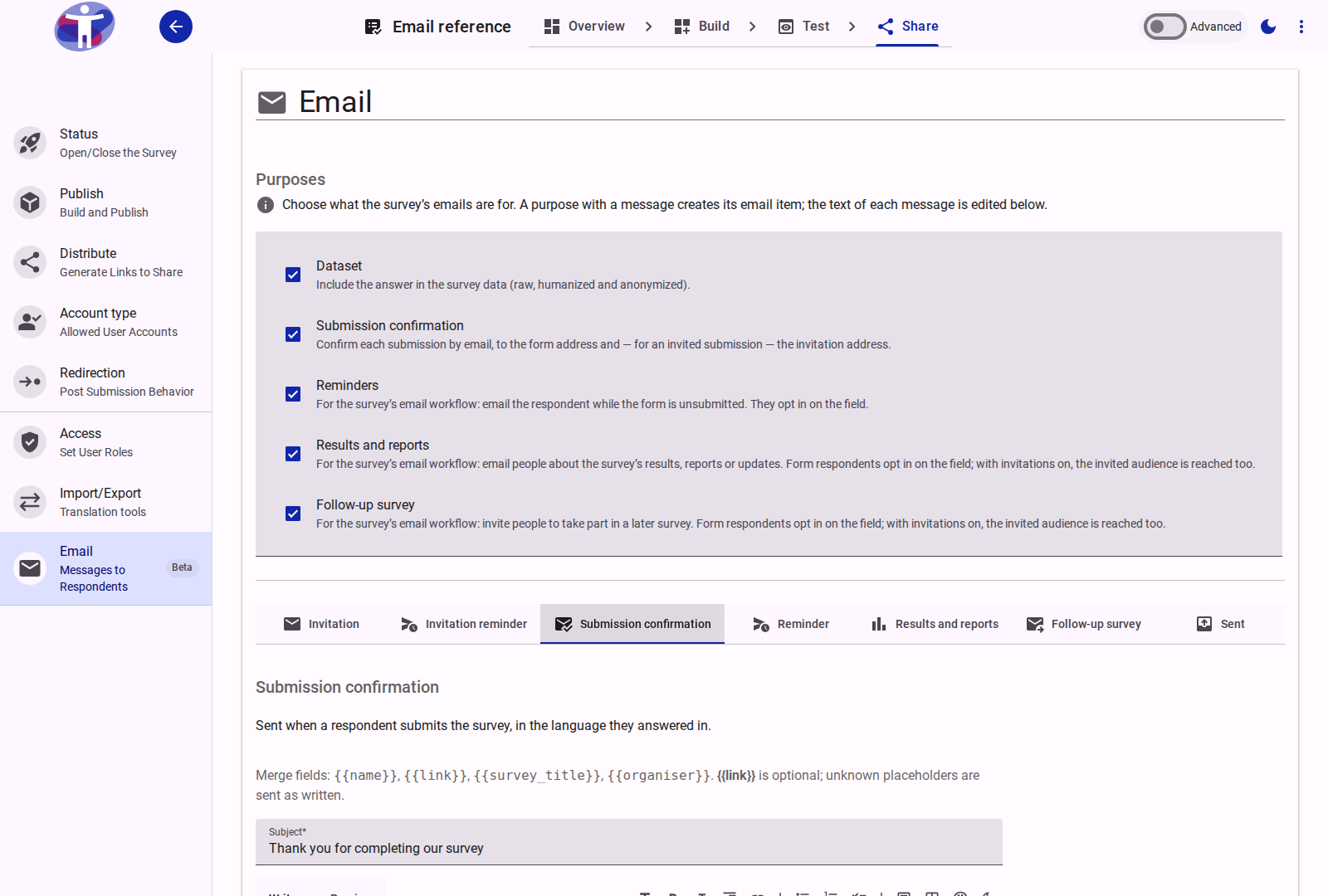
Three ways to reach respondents
- Submission confirmation: Sent automatically as soon as someone submits their response.
- Reminders: If a respondent opts in and leaves before finishing, the survey sends up to two gentle nudges. Switch on Advanced mode and open the Advanced tab to customize how many reminders go out, how many days apart, and the cutoff date.
- Follow-ups (Results and reports & Follow-up survey): Ready to share what you learned or invite people to phase two? Write your message on its tab, preview how many opted-in respondents (and invited audience members) will receive it, and click Send results and reports or Send follow-up survey right beside Send test email.
Every message is sent in the respondent's chosen language, supports merge fields ({{name}}, {{link}}, {{survey_title}}, {{organiser}}), and includes a one-click unsubscribe link (no login required) on every opt-in email.
How to set it up in 3 steps
- Under Purposes on Share → Email (or in an Email question's settings in Build → Compose), check the purposes you need (Submission confirmation, Reminders, Results and reports, or Follow-up survey). Checking a purpose creates its email item and tab.
- On Share → Email, write your subject and Markdown body for each active message tab and click Send test email to preview it in your own inbox.
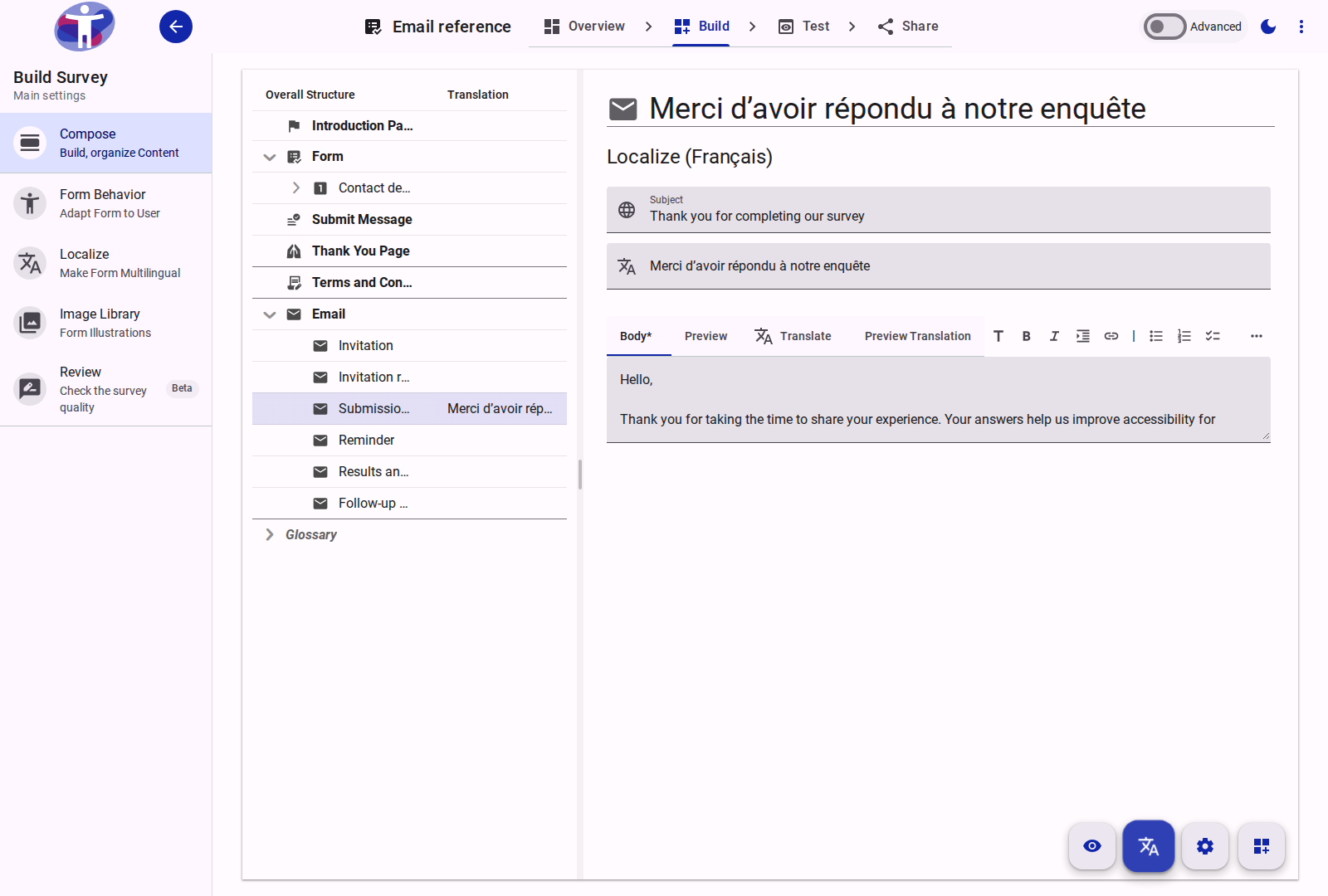
- For multilingual surveys, expand the Email group in Build → Compose and switch on Localize Mode to translate each message's subject and body side by side — or run the AI Translate action to translate them alongside the rest of your survey.
Privacy by design (and easy data cleanup)
Kept separate from answers: Unless you explicitly check the Dataset purpose, email addresses stay out of your response data and exports.
Automatic expiry: Consent records and the email addresses attached to them are automatically deleted after 180 days (configurable on the Advanced tab in Advanced mode).
One-click Purge: Need a clean slate after a study wraps up? Survey owners can now use Purge data to wipe collected responses, sessions, and consent records while keeping the survey structure intact. You'll get a clear preview of what will be removed before you confirm.
Learn more: Email Reference · Reminders · Follow-up Emails · Purge Collected Data · Data Privacy and Security
3. Audit and Manage Logical Expressions in One Place
When a survey has dozens of visibility rules and validation conditions, keeping track of which expressions are shared, where they are used, and which ones are left over from earlier drafts can be tedious. In Advanced Mode, the new Build → Expressions page lists every logical expression in your form — whether named (shared) or unnamed.
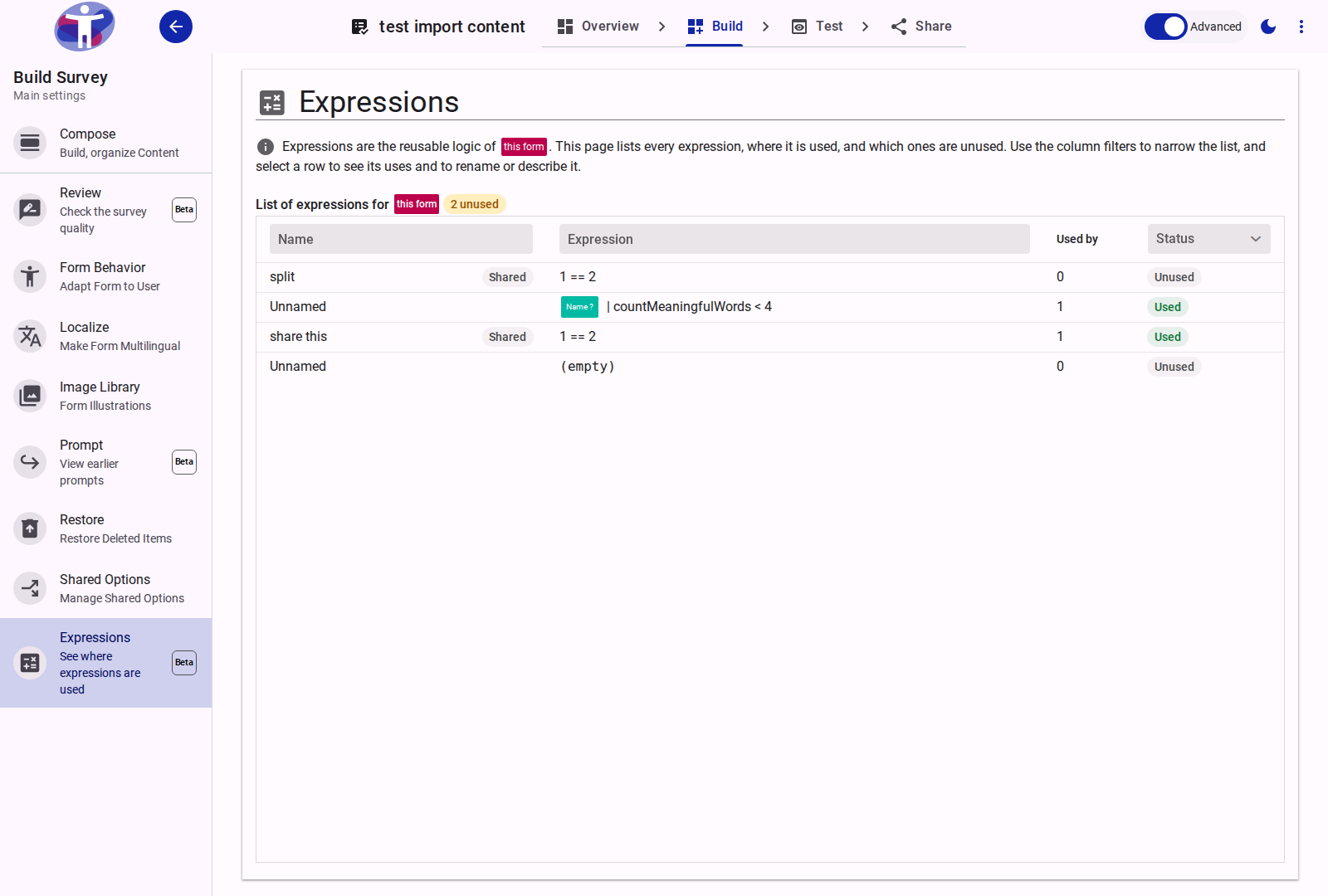
What you can do on the Expressions page
See every rule in readable form: Expressions are rendered with human-readable question and option labels rather than internal IDs, and you can filter the grid by Name, Expression text, or Status (Used, Unused, Deleted ref, or Used · deleted ref).
Trace where each expression is used: Expand any row to see every question, section, page, or survey text that uses it, which logic slot it controls (Hidden, Required, Read-only, or Invalid), and click Open in compose to jump straight to that item.
Share, rename, or unshare in place: Give an unnamed expression a Name and Description to make it reusable across your form, or clear its name to remove it from the shared picker without breaking items that already use it.
Clean up unused logic safely: Delete unused expressions with confidence — deletion is automatically blocked if an active or soft-deleted item still references the expression, and any deleted expression can be recovered from Build → Restore.
Learn more: Sharing Logical Expressions
4. Team Audiences, Survey Invitations & Live Progress Tracking
When you already hold a list of people you have permission to contact — such as a research panel, a member directory, or workshop participants — you can now manage that list once at the team level, send each person a unique survey link, and track who has responded without compromising the anonymity of their answers.
Build reusable lists in Team Settings → Audiences
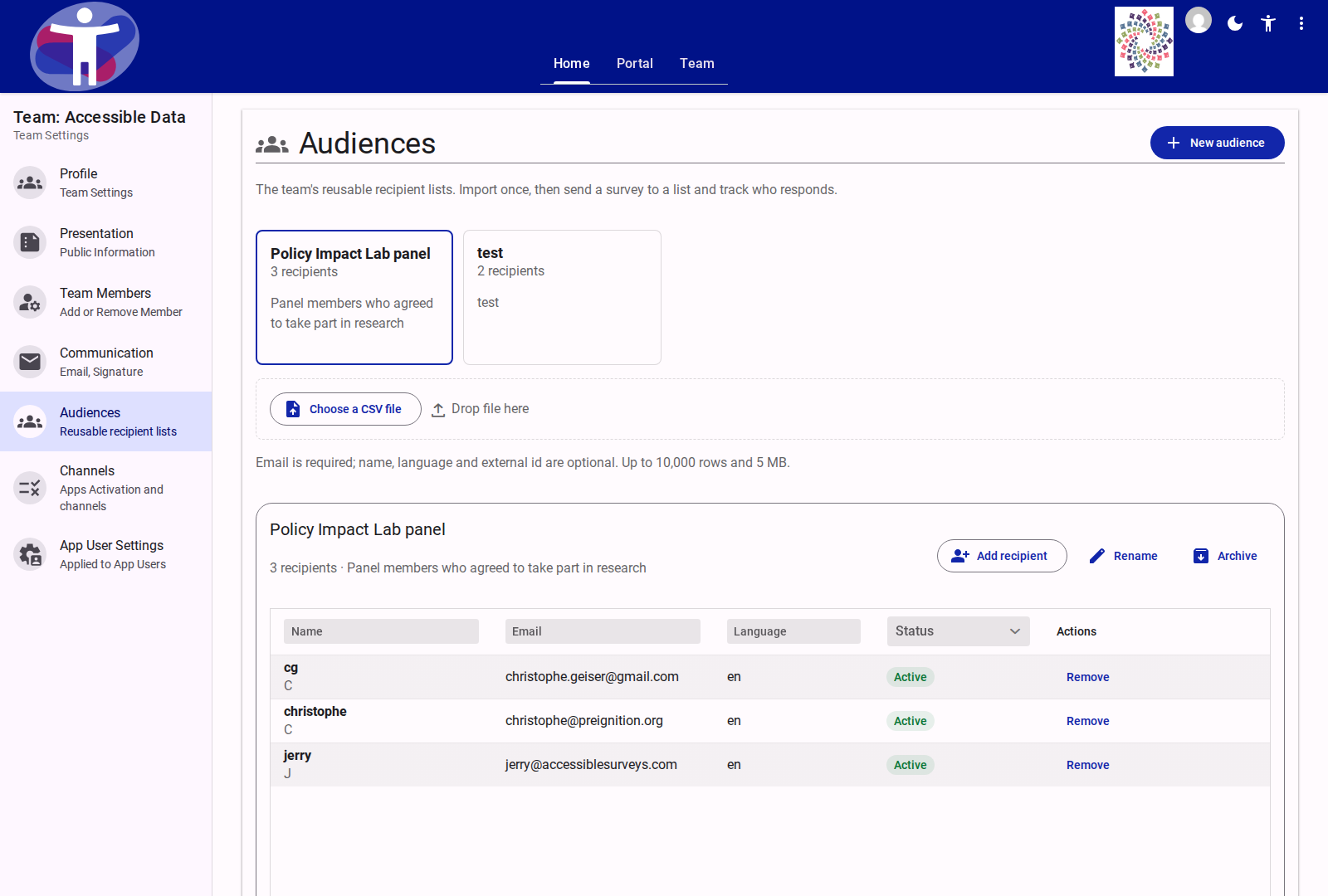
Create named audiences in the Customer Portal and import recipients from a CSV file (email, plus optional name, language, and external_id columns, up to 10,000 rows and 5 MB). Each person is stored once per team even when they belong to several audiences, and the import preview shows created, updated, unchanged, suppressed, and invalid counts before you commit.
Write and test your invitation on Share → Email
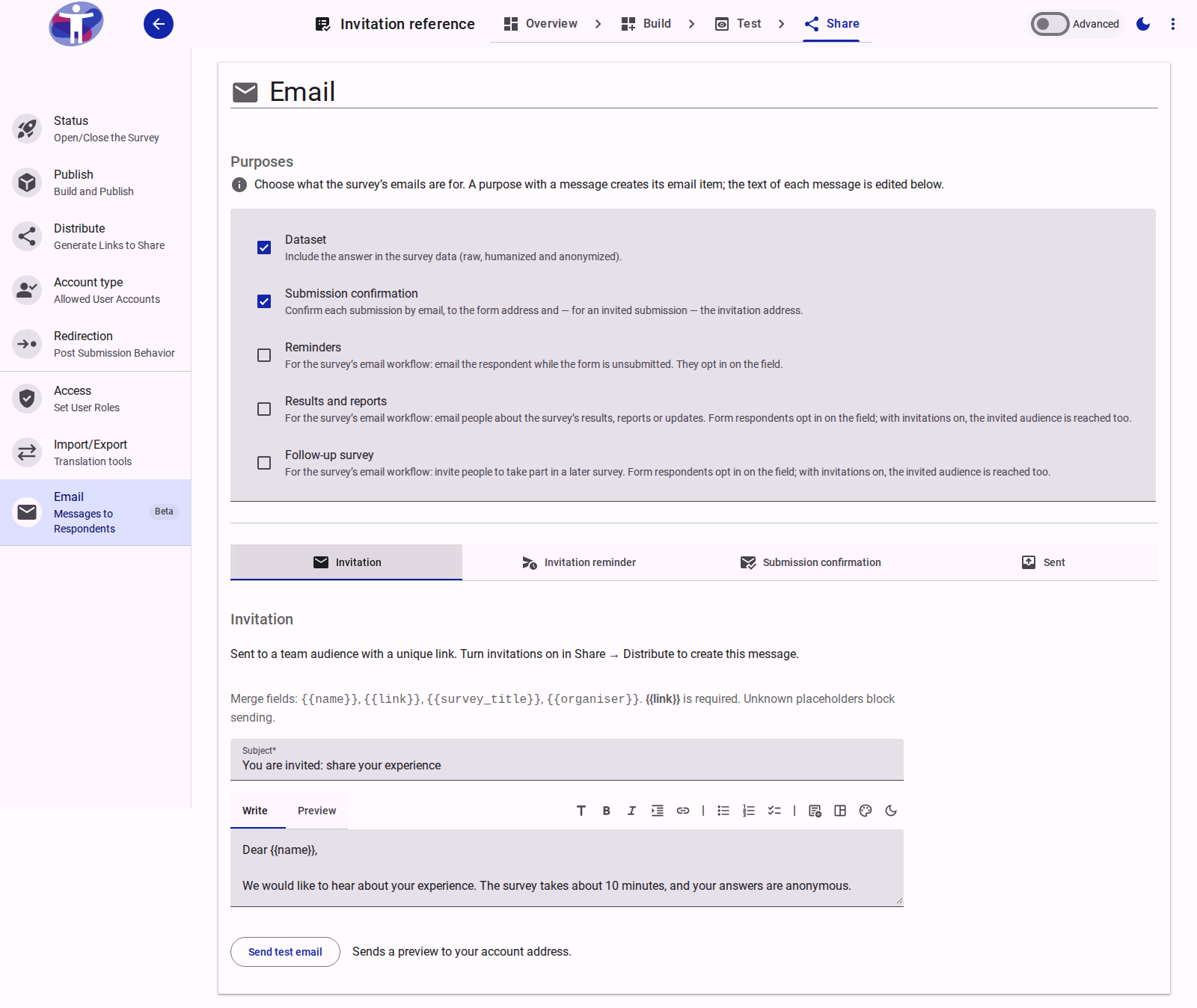
Turning on Send email invitations in Share → Distribute creates the Invitation and Invitation reminder tabs on Share → Email (and under Email in Build → Compose). Write a plain-text subject and Markdown body using {{link}} (required), {{name}}, {{survey_title}}, and {{organiser}} merge fields, customize the optional Invitation reminder message and default reminder schedule (0–3 reminders and their delays), and translate them in Localize Mode or with the Translate action. Click Send test email on any message tab to preview the rendered email in your own inbox without creating an invitation record.
Distribute to an audience and choose your access mode
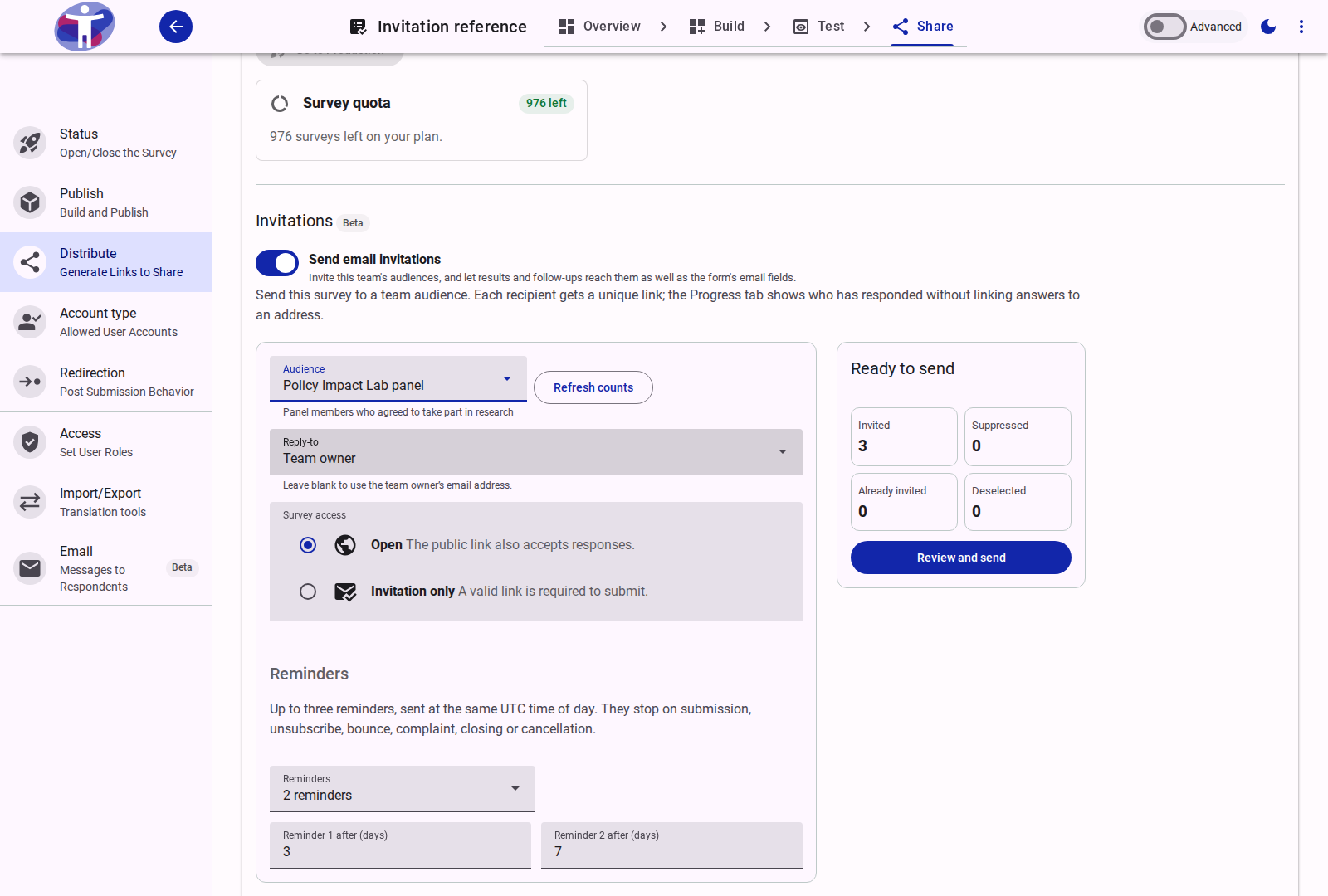
In Share → Distribute, the new Invitations section lets you pick an audience, choose between Open (the public link also accepts responses) and Invitation only (a valid /v2/{surveyId}/i/{token} link is required to submit), schedule up to three automated reminders, and review the exact eligible, suppressed, and already-invited counts before sending.
Follow delivery and participation in Analytics → Progress
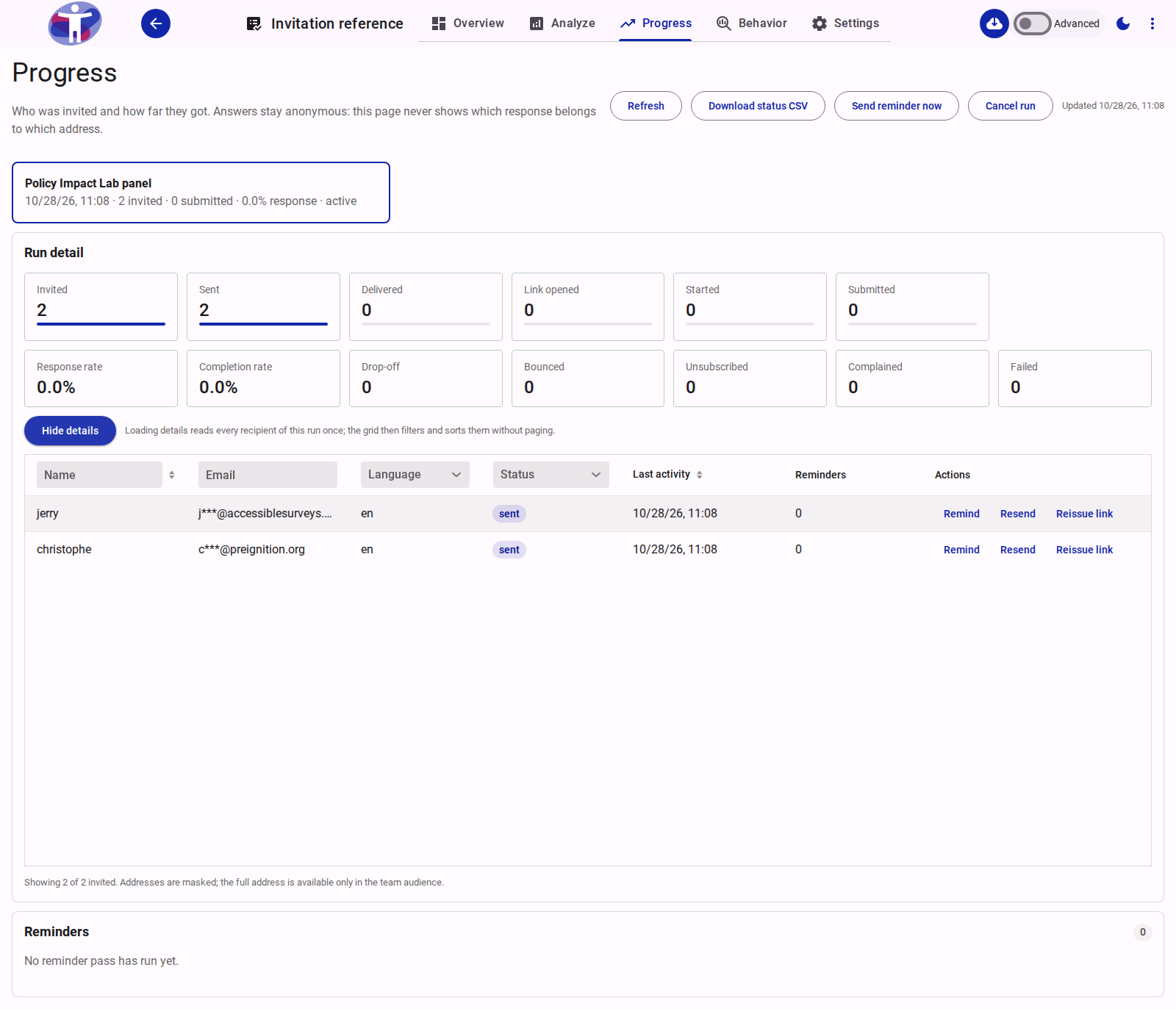
Once sent, the new Analytics → Progress tab tracks every invitation wave in real time:
- Funnel and rates: See
Invited,Sent,Delivered,Email opened,Survey started,Started answering, andSubmittedcounts alongsideResponse rate,Completion rate,Drop-off,Bounced,Unsubscribed,Complained, andFailedtiles. - Masked recipient details: Click Load details to filter recipients by status or language, download a masked status CSV, send a manual reminder (
Remind), re-send an invitation (Resend), or replace a compromised link (Reissue link). - Strict anonymity boundary: Organizers see whether an invited person responded, never which answers are theirs — no invitation ID, token, or email address ever enters a response document or dataset export.
- Learn more: How to Send Invitations to a Team Audience · Team Audiences Reference · Distribute Invitations Reference · Invitation Progress Reference
5. Faster Respondent Surveys
Public survey links now open faster. Respondents download only what they need to answer, so the first question appears sooner — especially on mobile devices and slower connections. Surveys that do not use behavioral tracking get an even lighter page.
6. Focused Survey Design with Tree Grid Filters & Quick Review Access
As questionnaires grow to dozens or hundreds of items, finding which questions lack an Easy Read image, which sections carry complex visibility logic, or which fields have open quality findings can feel like finding a needle in a haystack.
The structural tree in Build → Compose now features column-header filters and a direct Review mode shortcut:
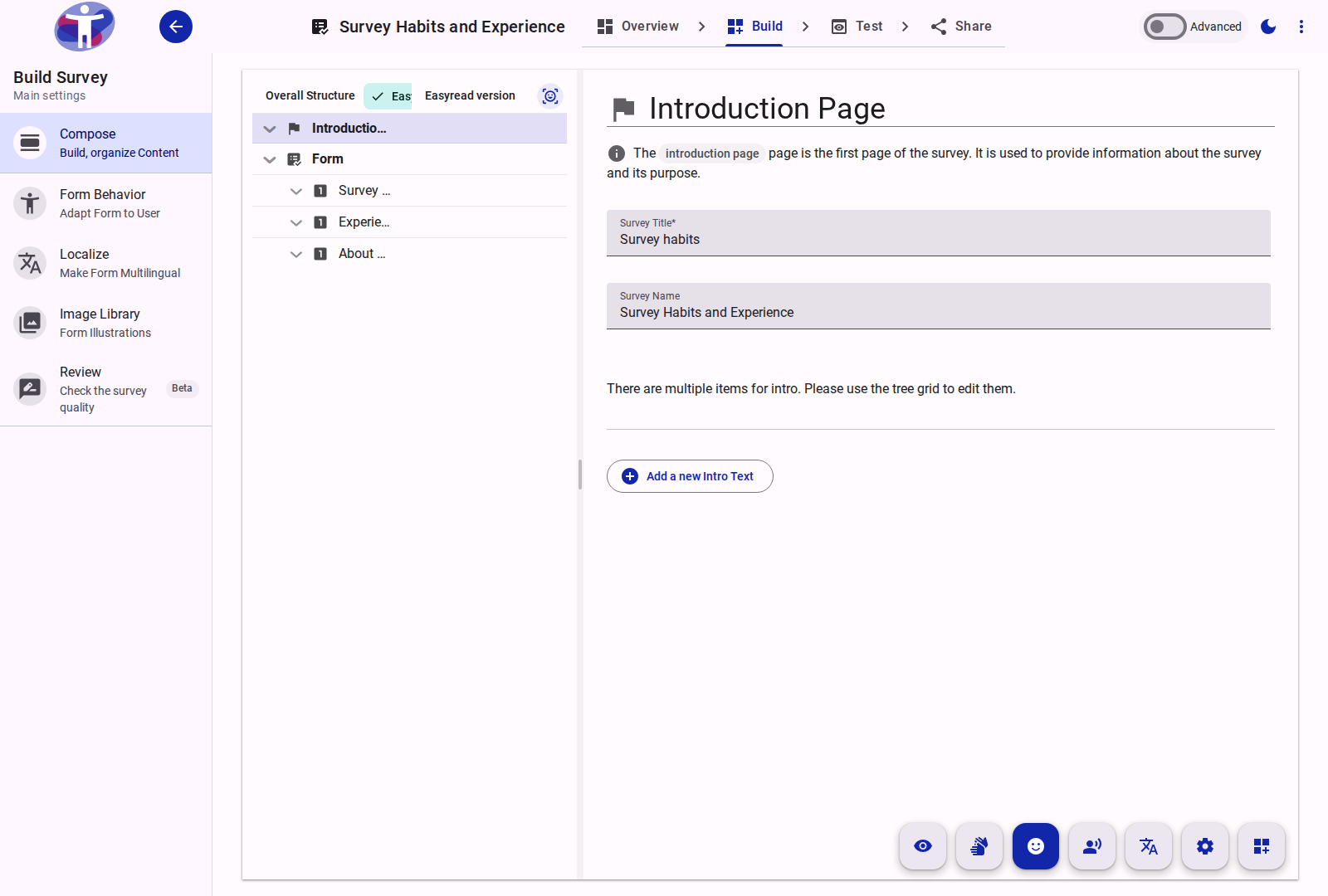
Instant column filters
- Review findings (
rate_review): Click the review column header to isolate items with unresolved structure, logic, translation, accessibility, or content findings. - Generated content (
auto_awesome): Filter to AI-generated fields awaiting validation. - Visibility settings (
visibility): Show only questions and sections governed by conditional display rules (logic.hiddenorvisibilityModes). - Tri-state media filters: In accessibility modes (Easy Read, Read Aloud, Sign Language), click the media column header to cycle between:
- Items with media: see questions with an image, voice recording/generation, or sign-language video.
- Items without media: quickly spot questions and options that still need accessibility assets.
- Filter off: restore the full tree. For sign language, each active language column filters independently for its specific videos.
Built for safe editing
Hierarchy in context: Matching items preserve their parent pages and sections, which auto-expand so you never lose structural context.
Drag-and-drop protection: Reordering via drag-and-drop is temporarily locked while a filter is active to prevent accidental layout mistakes.
Clear status indicator: An active filter chip (e.g.
Easyread images only (6)orNeeds review only (3)) appears in the tree header with a one-click remove button.Jump to Review from Compose: Whenever open review findings exist, a Review action button appears directly in the bottom modes toolbar next to the prompt action FAB, saving you from navigating through menus to resolve issues.
Learn more: Compose Reference · Review Reference
Good to Know
- You stay in control of AI: AI review only runs when you click Run review, and it never edits your survey behind your back. Where AI credits are enabled, the panel shows the cost (1 credit per run) before you start.
- Always up to date: If you edit your survey after running a review, the panel lets you know your findings are from an earlier draft.
- Safe testing: Test submissions never trigger emails or create consent records, and Send test email on any message tab of the Email page sends a preview only to the signed-in editor without creating an invitation or consent record.
- Organization-wide suppression: An unsubscribe, spam complaint, or hard bounce on an invitation adds a keyed hash of the address to a customer-wide suppression list that survives survey or audience deletion, ensuring people who opt out are never re-contacted.
- Updated privacy policy: Because the platform privacy policy now covers survey emails, invitation records, consent retention, and data purging, returning respondents may be prompted to re-confirm consent on their next visit.