
Audience Import for Listserv Channels
Date: 2026-11-03
Version: 1.1.0
Launching a new listserv channel — or bringing an established partner or member list onto an existing one — shouldn't require asking every contact to complete a double opt-in form again or adding subscribers one by one.
With Audience Import, channel owners and editors can now seed a listserv channel directly from any of their team's reusable Audiences (Team Settings → Audiences). The workflow previews what will happen to every contact before writing anything, records an explicit data-controller consent warranty, supports resumable runs up to 10,000 unique recipients, and keeps a read-only audit log of every import — without ever storing recipient email addresses in the import history.
What's New
1. Import a Team Audience from Channel Settings
- What it is: A dedicated Audience Import page under Channel Settings that turns a team Audience into active channel subscribers in a single pass.
- Why it matters: Teams already curate and maintain their contacts in Team Settings → Audiences for survey invitations and outreach. Reusing those lists lets a channel reach the right people immediately while keeping a single source of truth for team contacts.
- How to use: Go to Channel Settings → Audience Import, click Import a team audience, select an active or archived audience, review the preview, accept the consent warranty, and click Import.
- Read more: Importing a Team Audience
2. Preview Every Outcome Before Anything Is Written
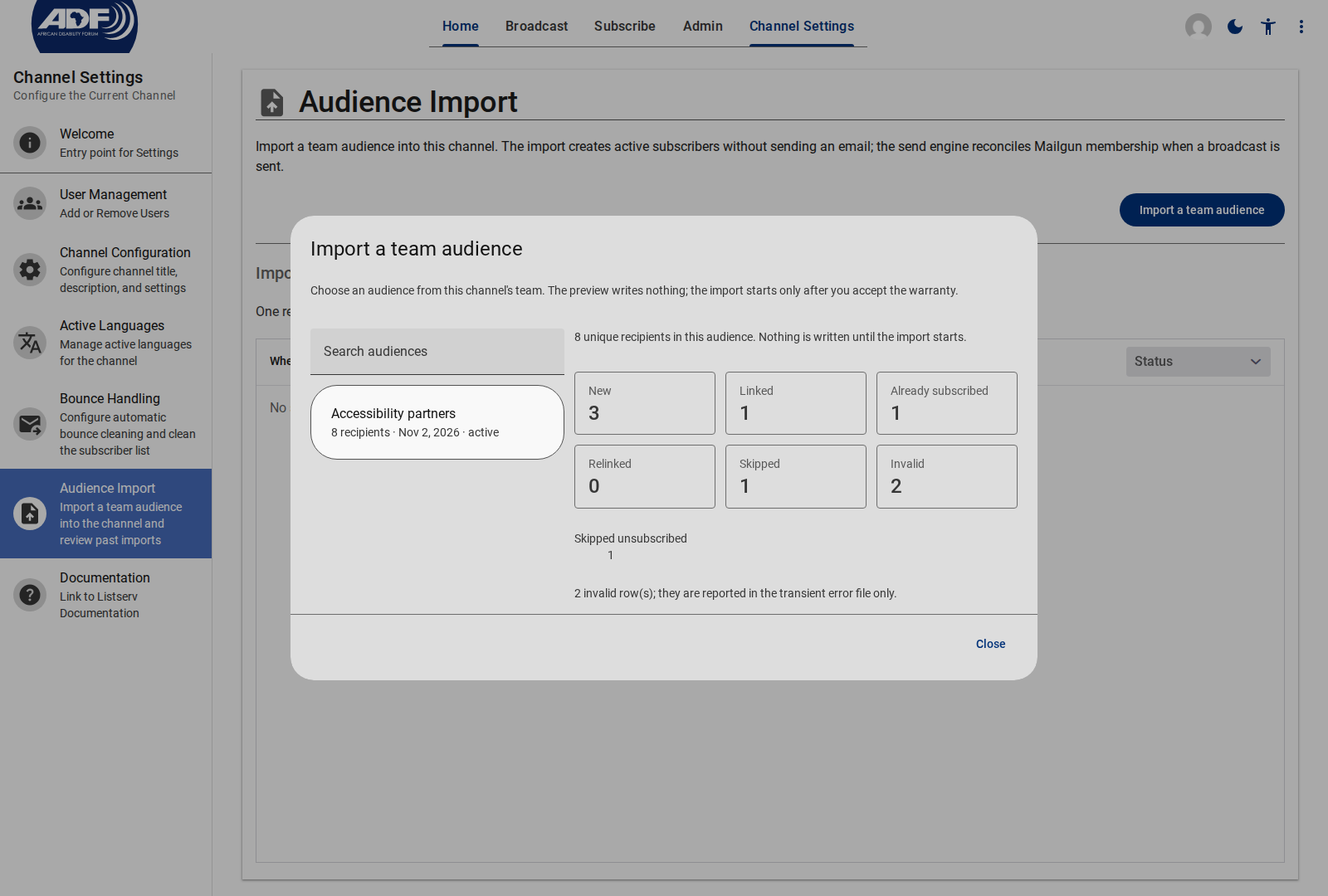
Selecting an audience generates an instant, read-only breakdown of how each unique address will be handled:
| Outcome | What Happens |
|---|---|
| New | Creates a new active subscriber record and platform account. |
| Linked | Connects the new subscriber record to an existing platform account for that email address. |
| Already subscribed | Leaves active subscribers' delivery preferences untouched, while filling in any blank display name or empty language list (shown under Updated existing records). |
| Relinked | Repairs an active subscriber record whose account link was missing. |
| Skipped | Never resurrects contacts who are pending, unsubscribed, bounced, or organization-wide suppressed — with a sub-count for each reason. |
| Invalid | Flags rows with a missing or malformed email address so you can download and fix them after the run. |
3. Explicit Consent Warranty with Built-In Audit Trail
Because importing adds active subscribers without individual double opt-in emails, the importer must confirm that the team holds a lawful basis and permission to send broadcasts from the channel, that the list is not purchased or scraped, and that every recipient can unsubscribe at any time.
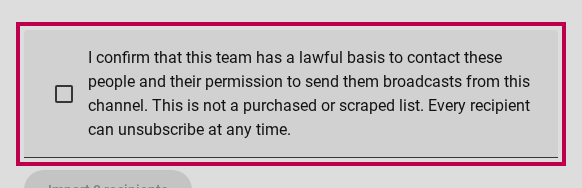
The accepted warranty version (v1), timestamp, and actor are saved permanently with the import record.
4. Resumable Imports up to 10,000 Recipients & Transient Error Reports
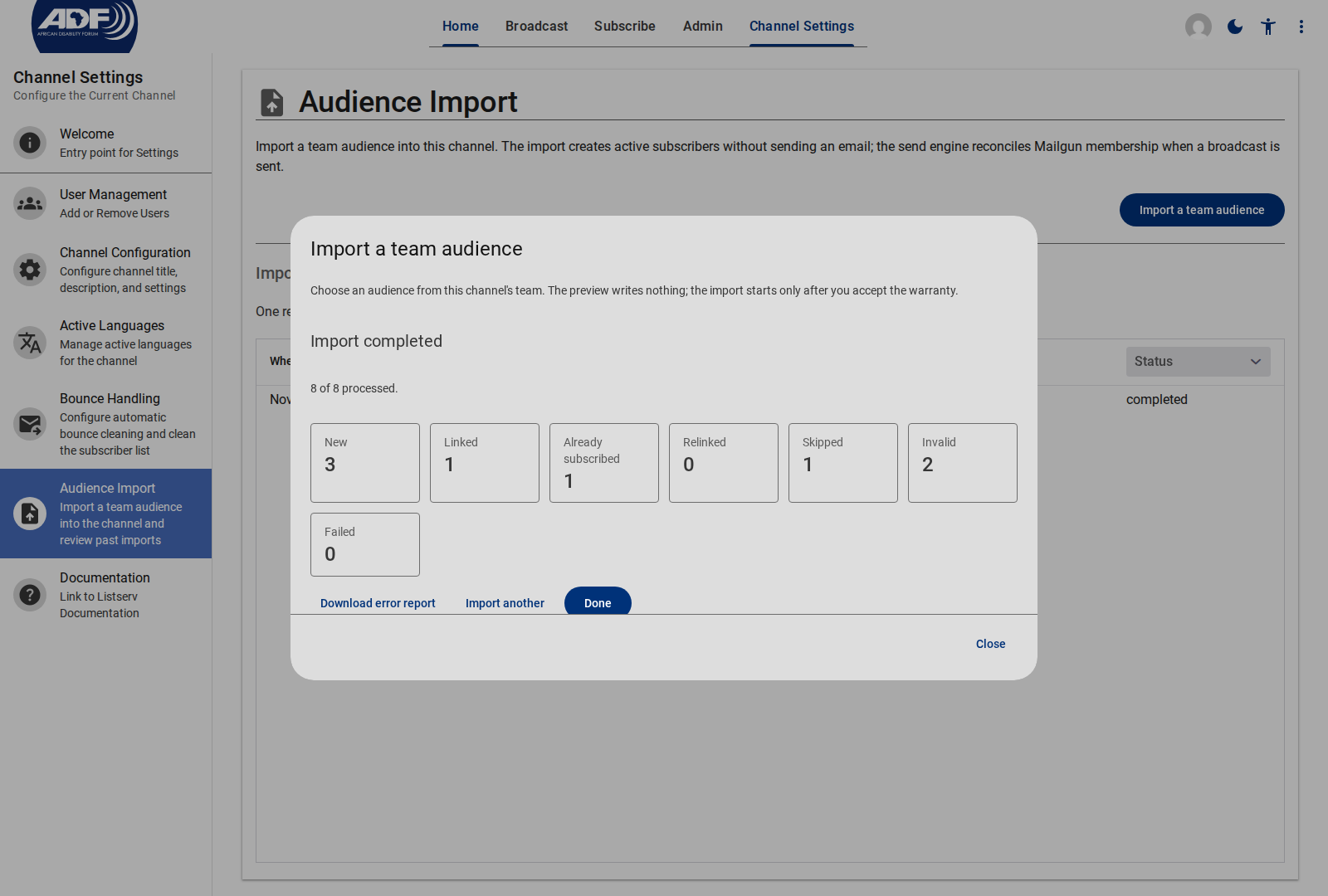
Each import supports up to 10,000 unique recipients with live progress tracking in the dialog:
- Close and resume anytime: Progress is persisted as each batch completes. If you close the dialog, leave the tab, or hit a temporary network error, reopening Import a team audience shows how far the run got and offers a one-click Resume from the last processed recipient.
- On-demand error CSV: When an audience contains invalid rows or per-row failures, click Download error report on the result screen to save
listserv-import-errors.csv(row,email,reason), fix those entries in Team Settings → Audiences, and re-import.
5. Read-Only Import History
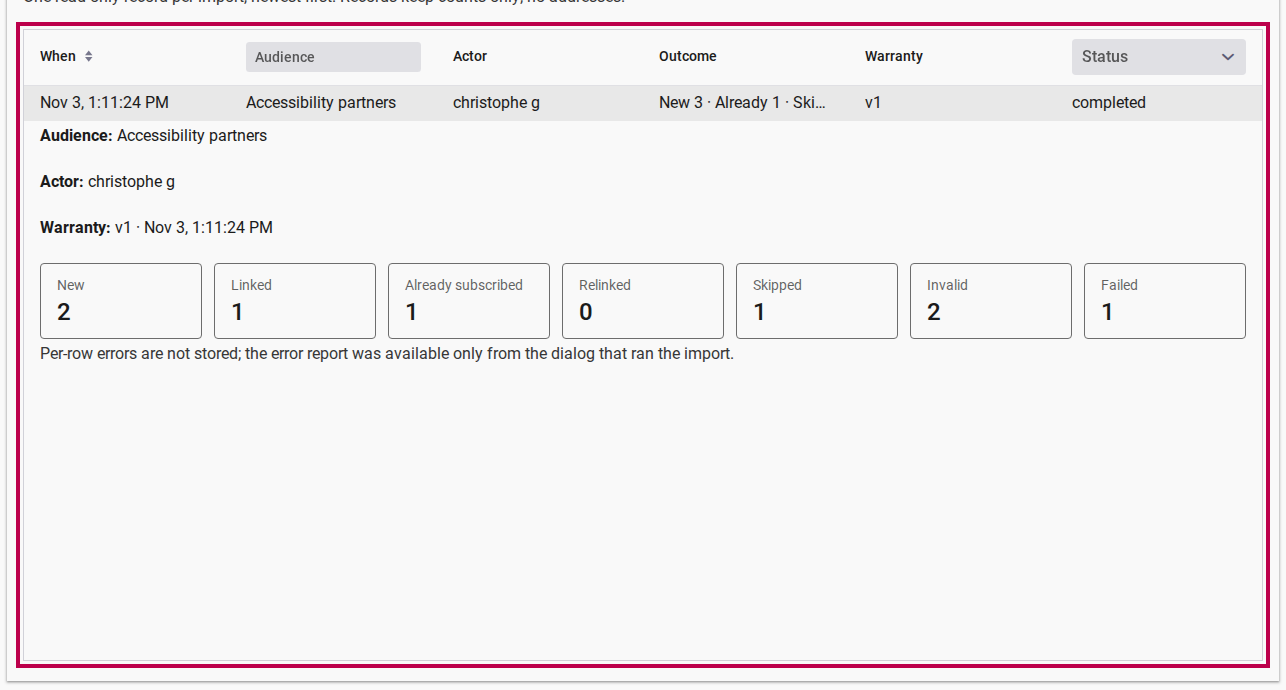
Every import run is logged on Channel Settings → Audience Import, ordered newest first:
- Filter and sort: Filter runs by Audience name or Status (
Running,Completed,Failed), and scan the compactNew · Already · Skippedoutcome summary at a glance. - Expandable row details: Click any row to inspect the actor, audience name snapshot, warranty version and acceptance timestamp, all seven outcome counters, and any failure details.
Good to Know
- Privacy by design — no addresses in the audit log: Import records store only aggregate counts, the actor, the audience name, and the warranty metadata. Neither recipient email addresses nor per-row errors are ever written to the import history, and the downloadable error report is available only inside the dialog session that ran the import.
- Idempotent re-runs: Re-importing the same audience never creates duplicate subscribers or accounts, and duplicate addresses within an audience collapse to a single subscriber per channel.
- Silent import, automatic delivery sync: Importing sends no welcome or confirmation email. Imported subscribers begin receiving broadcasts on the channel's next send, when mailing-list membership is synced automatically by language.
- Archived audiences stay read-only: You can seed a channel from an archived team audience without reactivating or modifying the audience itself.
Related Documentation
- Importing a Team Audience — Step-by-step guide to running and auditing an audience import
- Team Audiences Reference — Managing reusable recipient lists in Team Settings
- How to Send Invitations to a Team Audience — Uploading CSV contact lists into a Team Audience
- Creating & Sending Email Broadcasts — Composing and sending multilingual broadcasts
- Configuring Channel Settings — Configuring channel metadata, languages, bounce handling, and roles