
Creating & Sending Email Broadcasts
Channel administrators and editors can compose accessible, multilingual email broadcasts using pre-defined accessible templates, rich text editing, and file attachment scanning.
Step 1: Open the Broadcast Manager
- Sign into the Listserv application with channel
owneroreditorpermissions. - Click Admin in the top navigation.
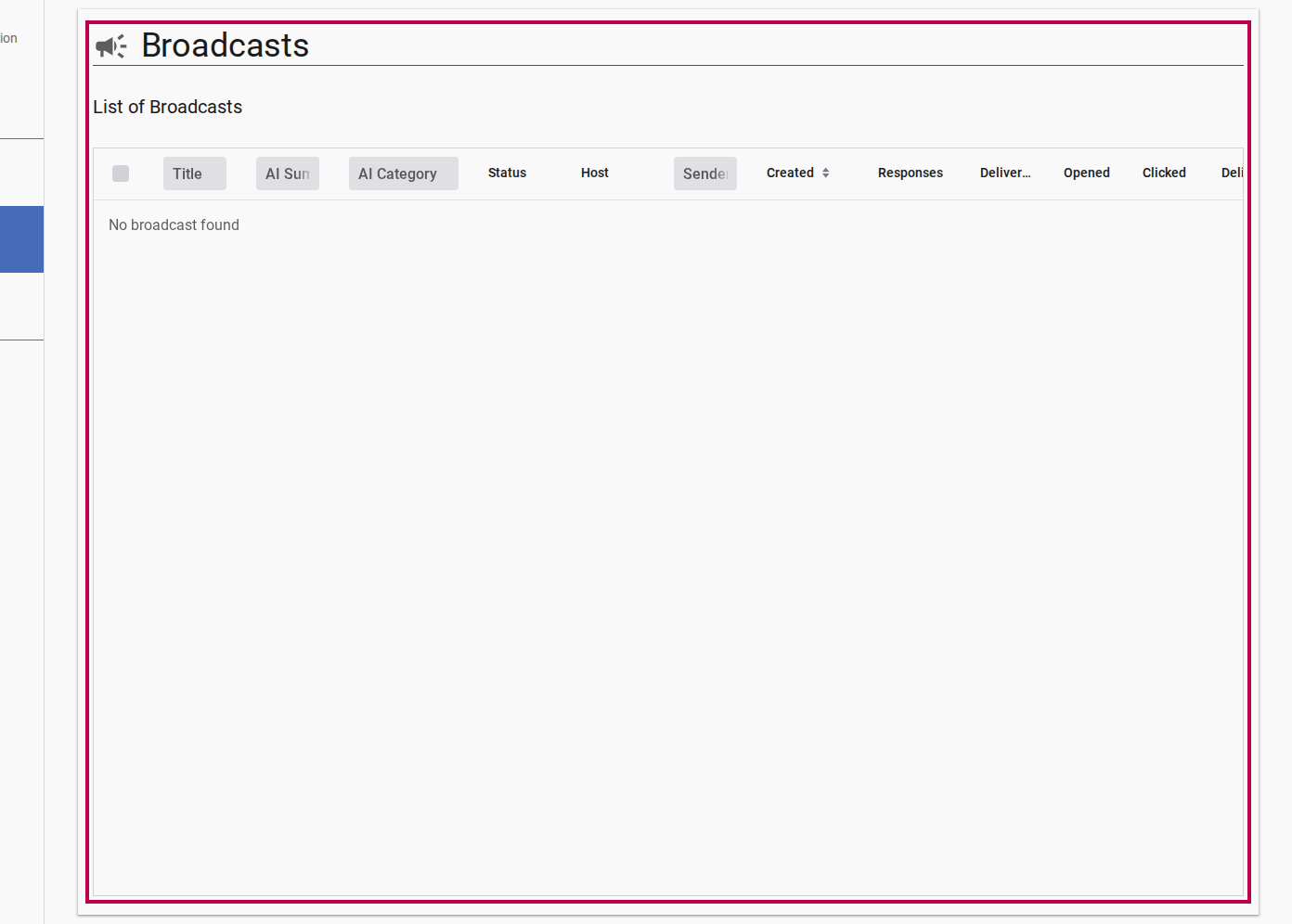
- Select Broadcasts from the left drawer menu to view the broadcast table.
Step 2: Create a New Draft
- Click the New Broadcast floating action button or header button.
- The broadcast detail editor opens in
draftstate.
Step 3: Select Template and Compose Content
- Choose a layout template from the Template drop-down:
- Newsletter: Layout suited for long-form updates, multiple sections, and reports.
- Data Alert: High-priority alert format with callout banners for findings and statistics.
- Enter the Title / Subject line.
- Compose the broadcast message body using Markdown formatting. Standard syntax is supported: headings (
# Title), bold (**text**), links ([label](url)), lists, and blockquotes. The preview panel renders content in real-time, showing how it will appear in subscriber email clients. - Select the Primary Language (e.g. English).
WCAG 2.1 AA Accessibility Defaults
All email templates generate semantic HTML with contrast ratios meeting WCAG 2.1 AA requirements and fallback text styles for legacy email clients.
Step 4: Manage File Attachments
- In the Attachments section, click Attach File.
- Select files from your system (e.g. PDF reports, image charts).
- For image attachments, provide descriptive Alt-Text for screen reader users.
Security Scanning
All uploaded attachments undergo automatic virus and malware scanning. Files marked infected are automatically rejected and cannot be dispatched to subscribers.
Step 5: Send or Submit for Moderation
- Once composition is complete, click Send Broadcast (or Submit if channel rules require moderation).
- The broadcast lifecycle state updates:
draft→submitted→approved→sending→sent
- During
sending, the background engine dispatches localized versions to channel subscribers via Mailgun mailing lists.