
Moderating Community Submissions
The Moderation Queue allows channel administrators and moderators to review posts submitted by subscribers via email or web before they are broadcast to the full mailing list.
Step 1: Open the Moderation Queue
- In the top navigation, click Admin.
- Click Moderation in the drawer menu.
- The queue displays all broadcasts currently in the
moderated(submitted) lifecycle state.
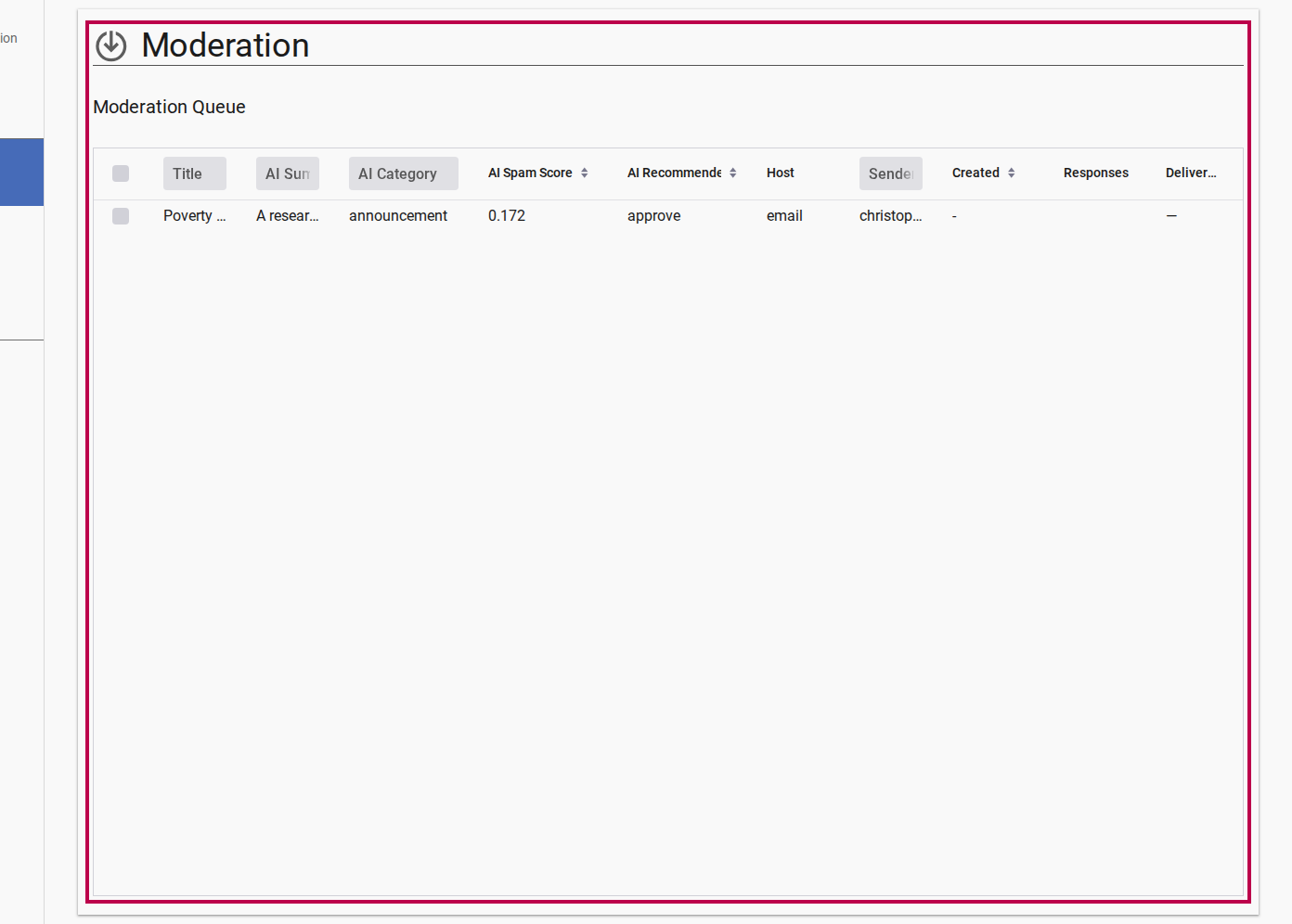
Step 2: Review Content and AI Recommendations
Click on a pending submission to open its detail view. The platform automatically displays AI-driven analysis generated by the moderation agent (gpt-4o-mini):

| AI Field | Description |
|---|---|
| Category Badge | Classification tag (news, event, announcement, question, promotional) |
| Summary | Concise 1-2 sentence overview of the submission |
| Spam Score | Indicator rating risk from 0.0 (clean) to 1.0 (high spam probability) |
| Recommended Action | Suggested decision: approve, flag, or reject |
Automated AI Moderation
Submissions with extremely low spam scores may be automatically pre-classified as approve. Submissions flagged by AI require manual administrator review.
Step 3: Take Action on a Submission
Use the action buttons rendered by the actor controls:
Option A: Approve
Click Approve. The broadcast state transitions to approved, triggering automated translation into active channel languages and subsequent dispatch to subscribers.
Option B: Edit & Approve
If the submission requires grammar corrections, styling, or attachment formatting, edit the text directly in the detail view before clicking Approve.
Option C: Reject
Click Reject. A dialog prompts you for a Rejection Reason. Enter the explanation (which is emailed back to the original author) and confirm rejection.