
Composing Multilingual Broadcasts
This guide covers how to create broadcasts that reach subscribers in their preferred language — English, French, Portuguese, or Arabic.
Step 1: Enable Active Languages on the Channel
Before composing, ensure the target languages are activated for the channel:
- Navigate to Channel Settings > Active Languages.
- Toggle on each language your channel should support (e.g. English, French, Portuguese, Arabic).
- Only languages enabled here will appear as translation targets.
Step 2: Create a Broadcast with a Primary Language
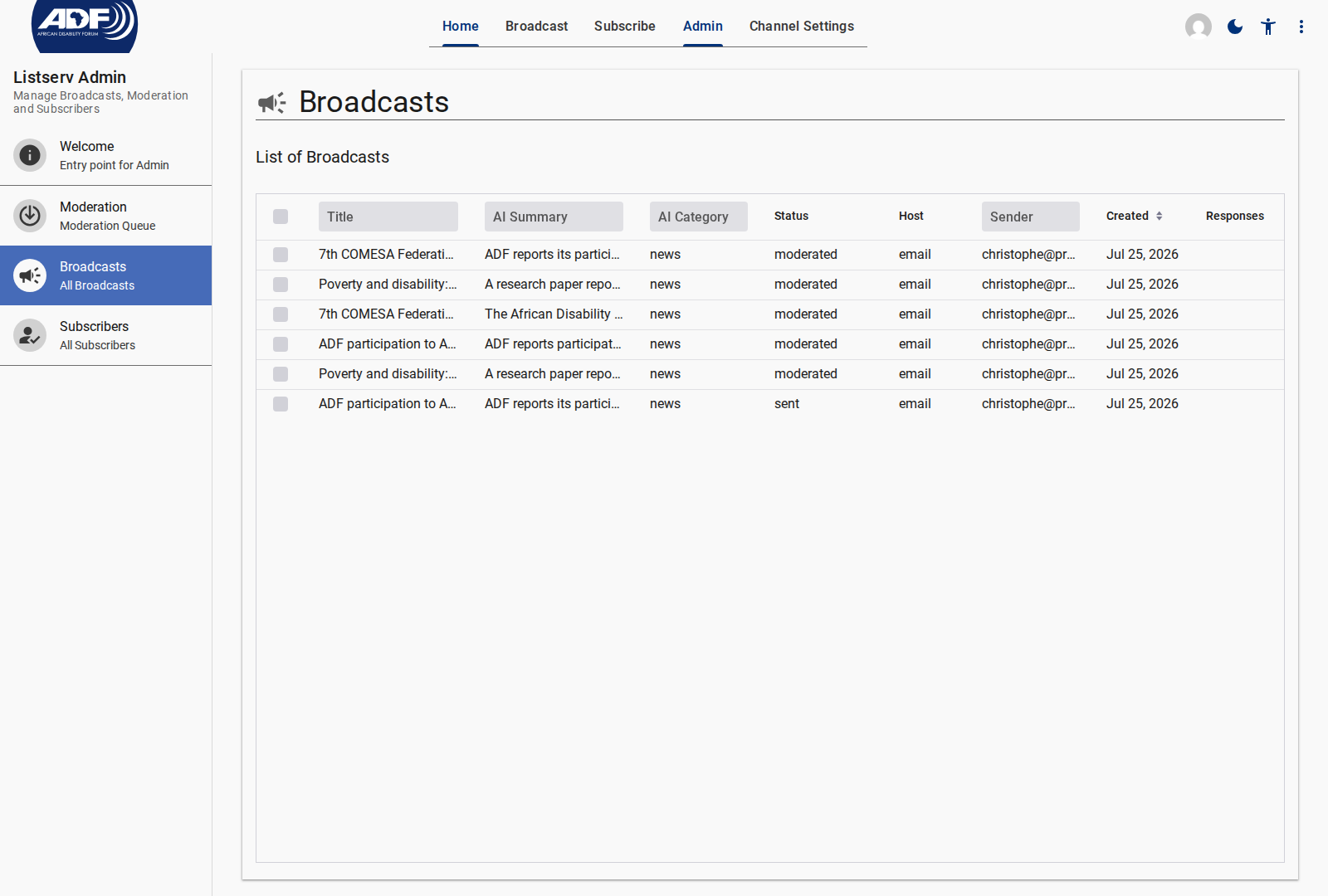
- In Admin > Broadcasts, click New Broadcast.
- Select the Primary Language from the dropdown — this is the language you are composing in.
- Enter the Title / Subject and compose the Body in the rich text editor.
Step 3: Provide Translations for Active Languages
After composing the primary language content, add versions for each active language:
- In the broadcast editor, locate the Translations section.
- For each active language, enter the translated Subject and Body.
- If you leave a language version empty, the system will attempt automatic translation when the broadcast is approved.
Fallback Behavior
If a translation is missing or automatic translation fails, the broadcast is delivered in the primary language to subscribers of that language segment.
Step 4: Submit or Send
Once all language versions are complete:
- Click Send Broadcast (if you have direct dispatch permission).
- Or click Submit if the broadcast must pass through moderation first.
During dispatch, the send engine matches each subscriber's preferred language to the correct locale version of the broadcast content.