
Channel Settings
Channel owners and editors configure the channel from Channel Settings: its identity, languages, bounce handling, access roles and subscriber imports.
Where channels come from
A Listserv channel belongs to a team and is provisioned in the Customer Portal. The Customer Portal team owns the team's channels list; trial and plan quota, team membership and the team's language set are managed there. Channel Settings then governs how this channel behaves within that team.
If a channel is missing, or an owner needs to be changed at the organization level, start in the Customer Portal rather than in Listserv.
Channel configuration

| Field | What it controls |
|---|---|
| Channel title | The public name shown on the archive, the subscription form and email footers. |
| Description | A public overview of the channel's purpose. |
| Admin contact | Name, email and optional phone used in automated mail headers and footers. |
| Rate limit | Maximum community submissions per sender per hour (default 5). |
| Privacy notice | Legal text shown on public pages and in mail footers. |
Active languages
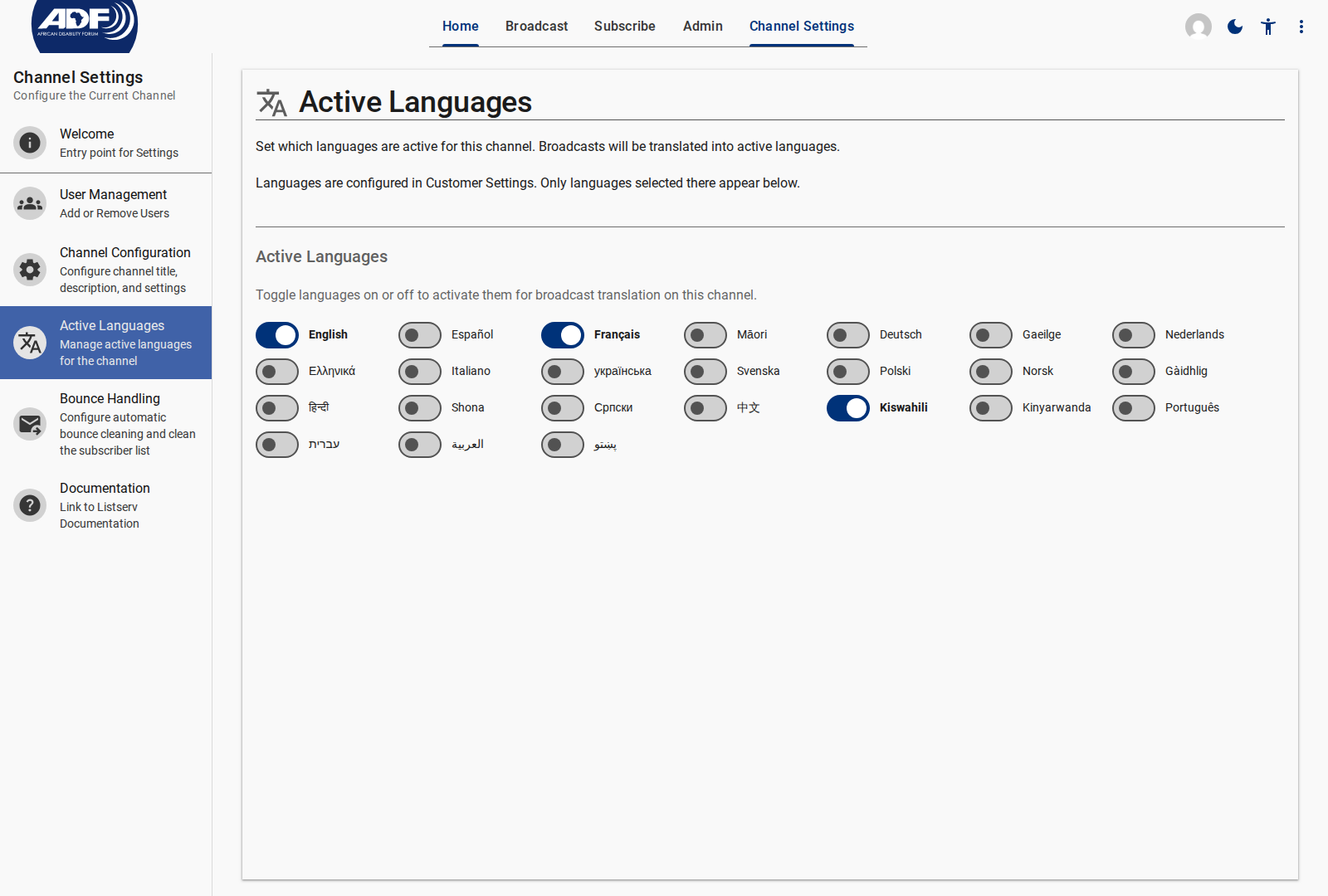
The switches list the languages the organization has enabled in the Customer Portal. A language must be enabled there before it can be activated here.
When a language is active:
- it appears on the subscription form;
- approved broadcasts are translated into it;
- subscribers who prefer it receive the translated version.
Deactivating a language stops new translations into it. Existing subscribers who chose it fall back to the broadcast's primary language.
Bounce handling

| Control | What it does |
|---|---|
| Automatic cleaning | Deactivates a subscriber when hard bounces reach the threshold. |
| Bounce threshold | Number of hard bounces before deactivation (default 3). |
| Clean list now | Reconciles the subscriber list against the provider's current bounce records. |
See Bounce Handling and List Cleaning for what happens to a deactivated subscriber.
User access

Roles
| Role | What they can do |
|---|---|
| Owner | Full channel administration, settings and access delegation. |
| Editor | Compose broadcasts, moderate posts, manage subscribers, send. |
| Moderator | Review and moderate community submissions. |
| Guest | Read-only access to archives and analytics. |
Membership controls
- Modify ownership transfers the owner role to another team member.
- Add members invites a person and assigns a role.
- Member list shows current members and roles; roles can be changed or revoked in place.
- Pending invites lists invitations not yet accepted.
Channel roles are not account roles. A person who administers the organization in the Customer Portal does not automatically get channel access, and a channel editor does not get organization administration.
Audience import
Audience Import seeds channel subscribers from a reusable team audience managed in the Customer Portal.
- Choose an active or archived team audience, up to 10,000 unique recipients.
- Review a dry-run breakdown of new, linked, already subscribed, relinked, skipped and invalid records before writing anything.
- Confirm the lawful-basis warranty.
- Watch progress for long runs, and download an error report for invalid rows.
- Read the import history, which records each run and its outcome.
An import never modifies the source audience. Imported subscribers become active immediately and bypass individual double opt-in, which is why the warranty is mandatory. See Importing a Team Audience.
Related Content
- Public Pages: Where the configured identity and privacy notice appear.
- Admin Pages: The working areas for staff.
- Configuring Channel Settings: Step-by-step configuration.
- Managing Subscribers: Working with the subscriber list.