Configuring Channel Settings
Channel settings allow channel owners and editors to configure metadata, active translation languages, automated bounce handling, submission rate limits, and user access permissions.
1. Channel Configuration
- In the top navigation bar, click Channel Settings.
- Select Channel Configuration from the left drawer menu.
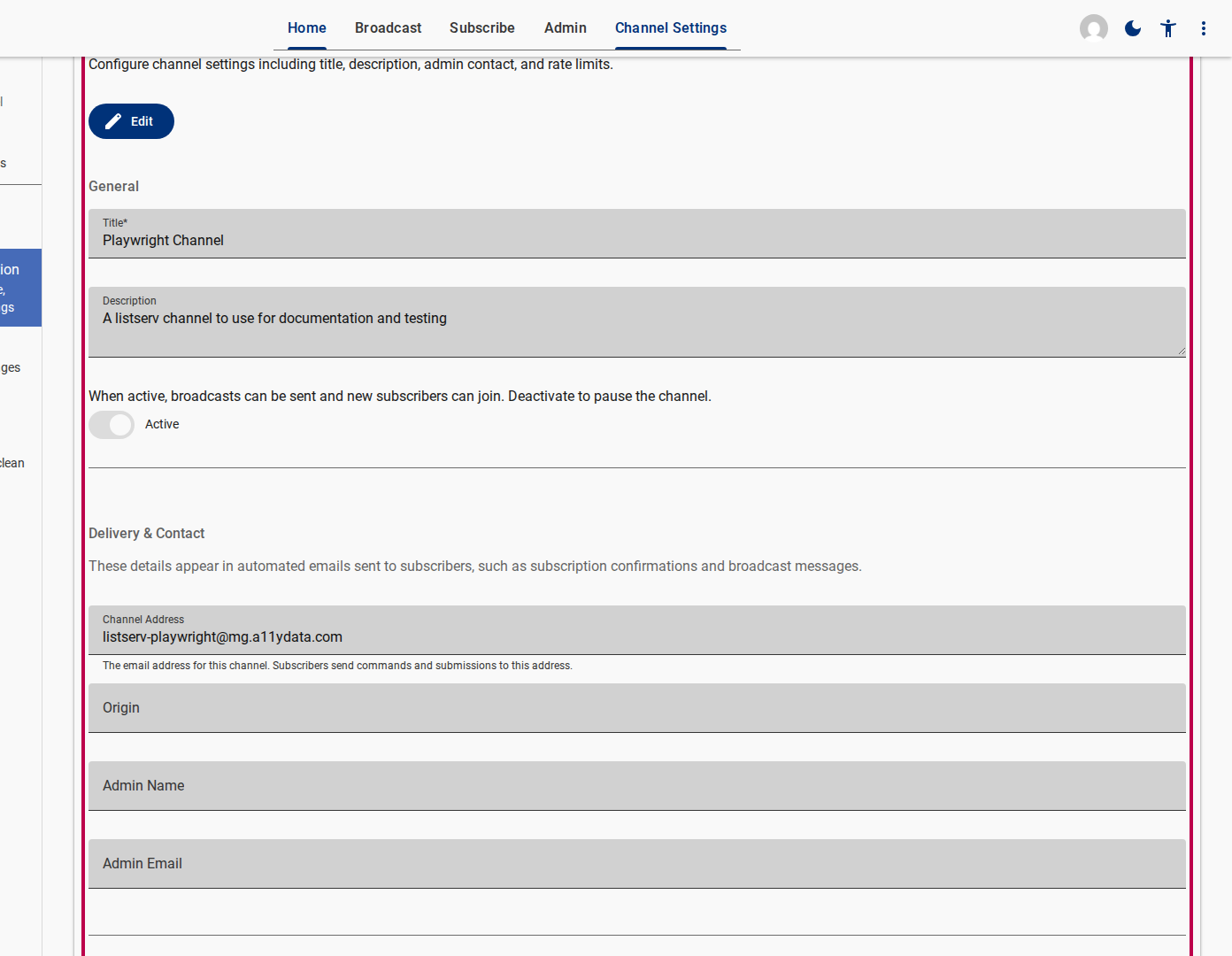
- Edit channel fields:
- Channel Title: Display name shown on forms and email footers
- Description: Public overview of the channel purpose
- Admin Contact Info: Support email and name included in outgoing automated mail headers/footers
- Rate Limits: Maximum community submissions allowed per subscriber per hour (default: 5/hour)
2. Active Translation Languages
The listserv automatically translates approved broadcasts into active languages before delivery.
Click Active Languages in the Channel Settings drawer.
Toggle the switch for each language you wish to activate for this channel (e.g.
English,French,Portuguese,Arabic).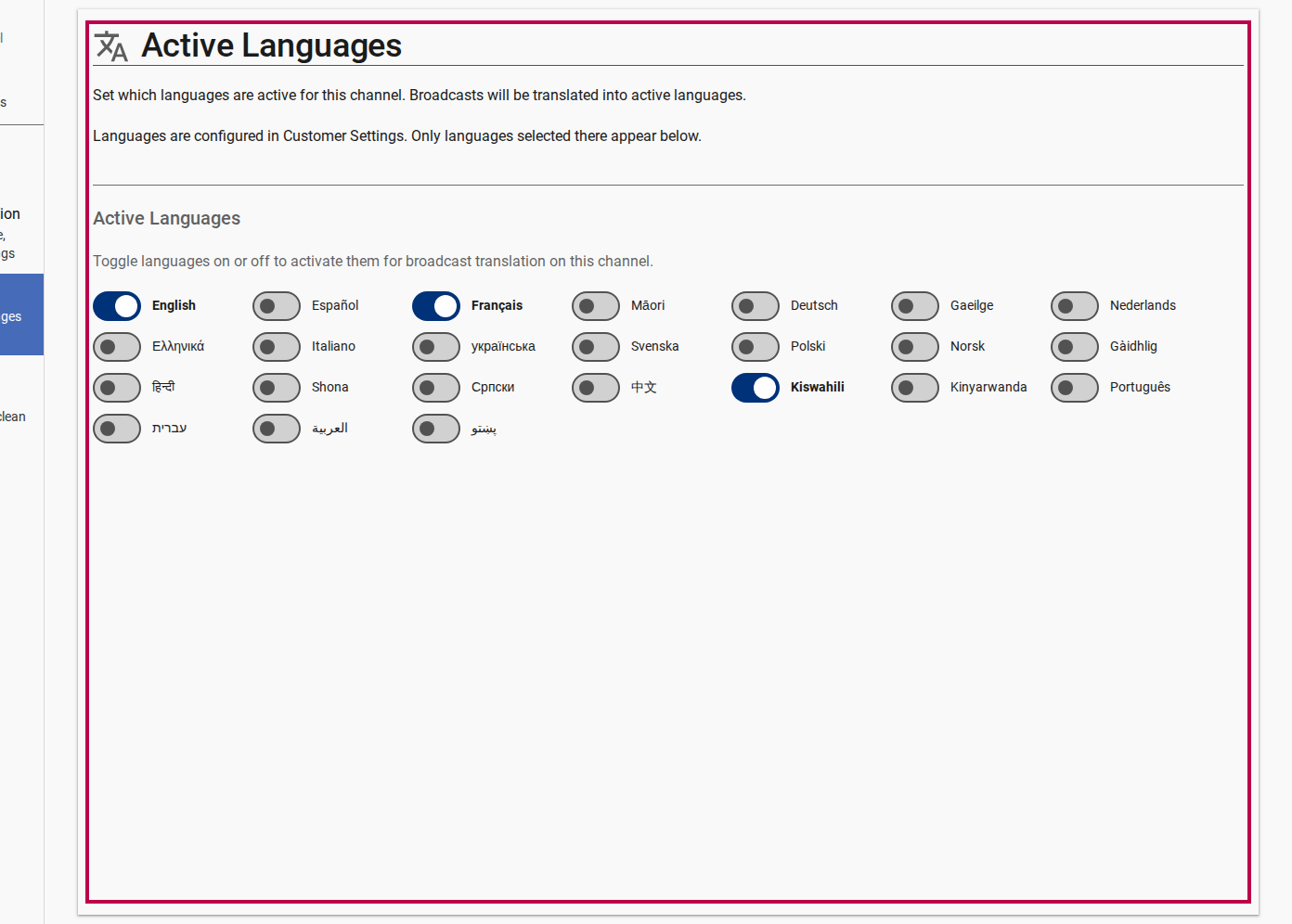
Managing Active Languages for automated broadcast translation 
Enabling or disabling specific translation languages Click Save.
3. Bounce Handling & List Cleaning
Click Bounce Handling in the Channel Settings drawer.
Enable Automatic Bounce Cleaning.
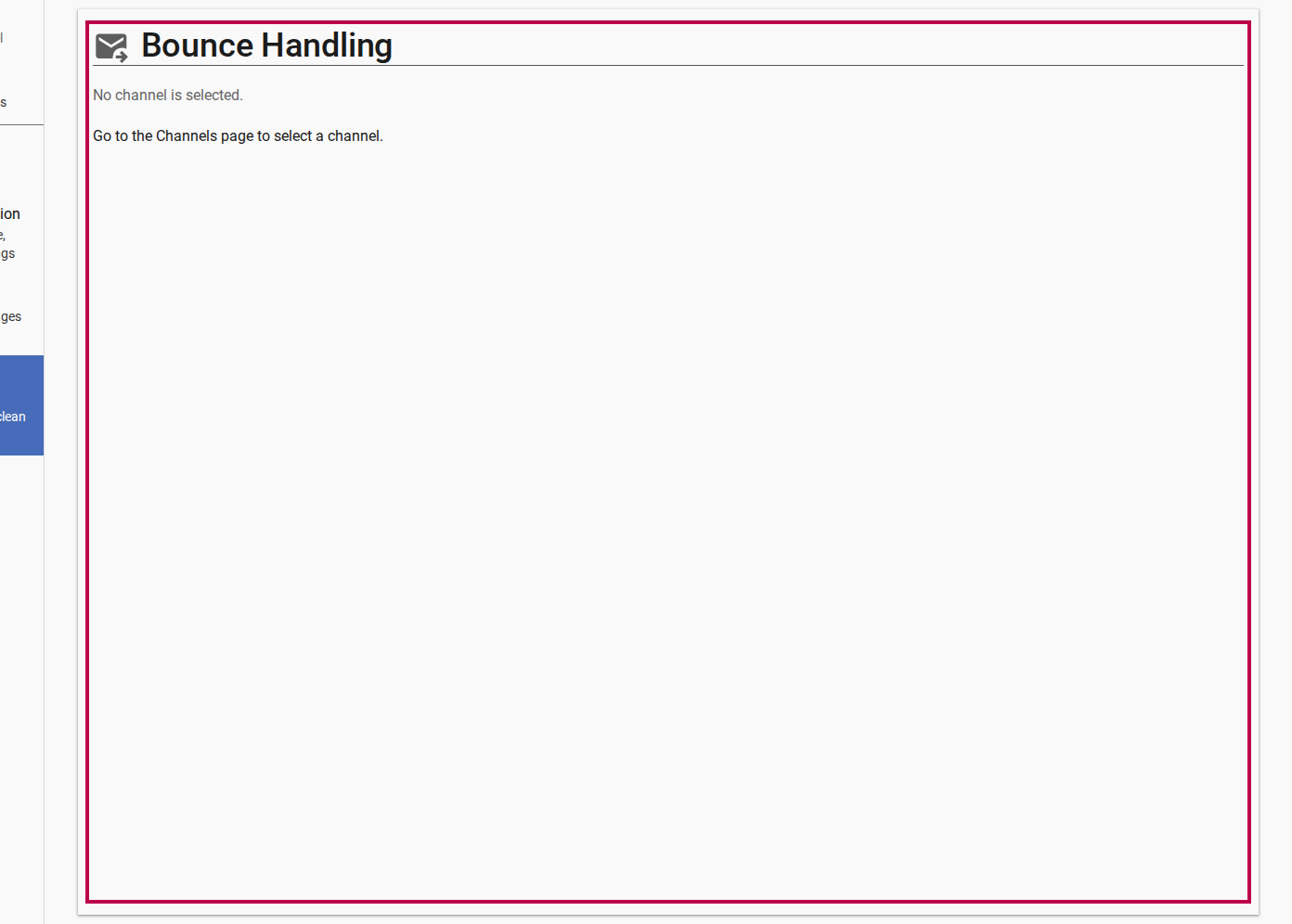
Bounce handling settings overview and automatic cleaning controls 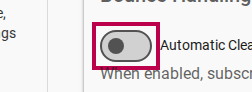
Configuring bounce thresholds and automatic list maintenance Set the Bounce Threshold (e.g.
3permanent bounce failures).Click Clean List to immediately run a manual list cleanup and deactivate bouncing subscriber accounts.
4. User Access Management
- Click User Management in the Channel Settings drawer.
- View current team members and assigned roles:
- Owner: Full control over channel settings, roles, and broadcasts
- Editor: Can create drafts, edit, moderate submissions, and send broadcasts
- Guest / Viewer: Read-only access to analytics and archives
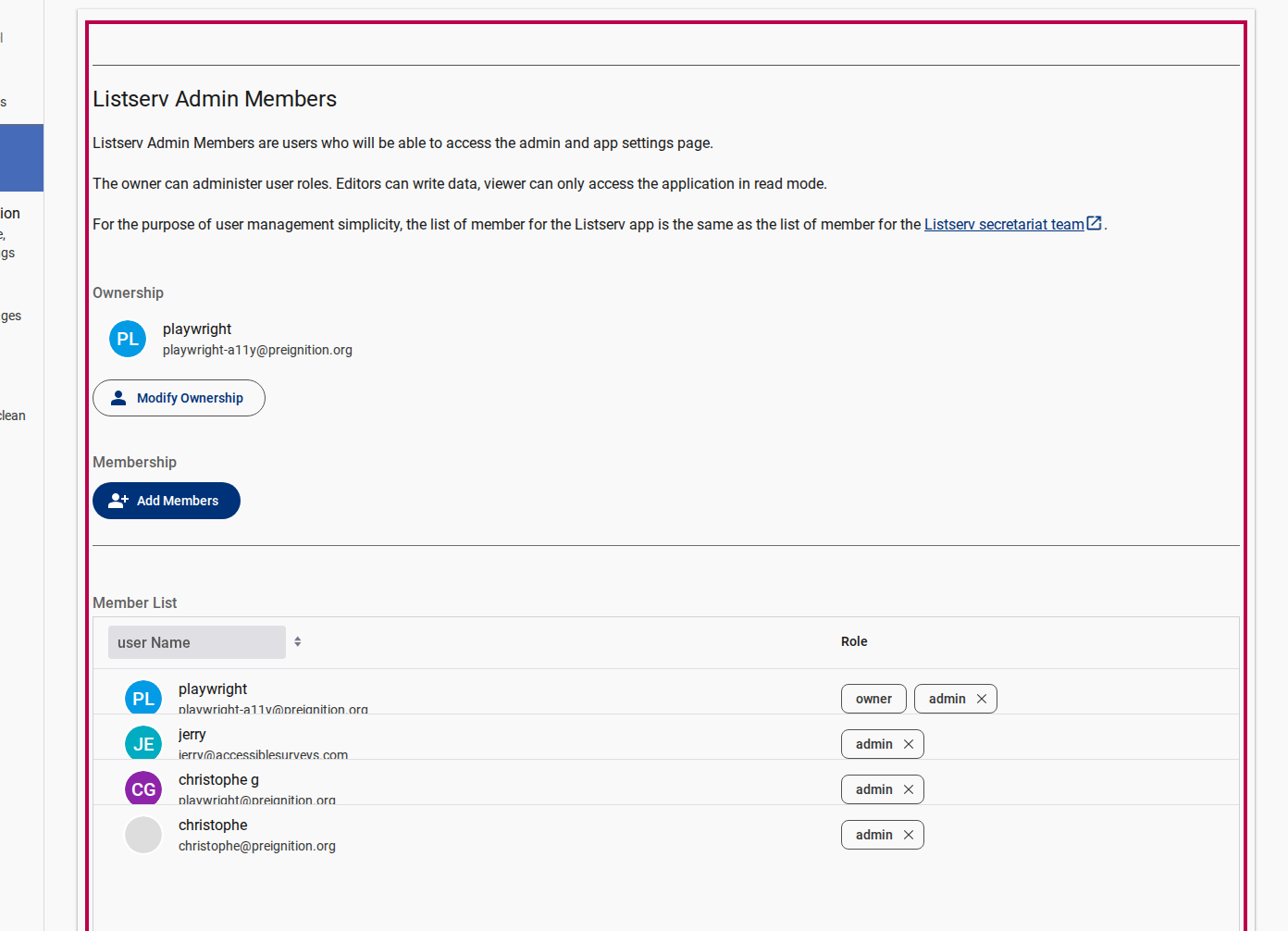
- Click Add Members to grant listserv access to new team users.